What is Google Sheets? A practical guide to organising (and automating) a small business
G. CHRIST
Published on October 18, 2026
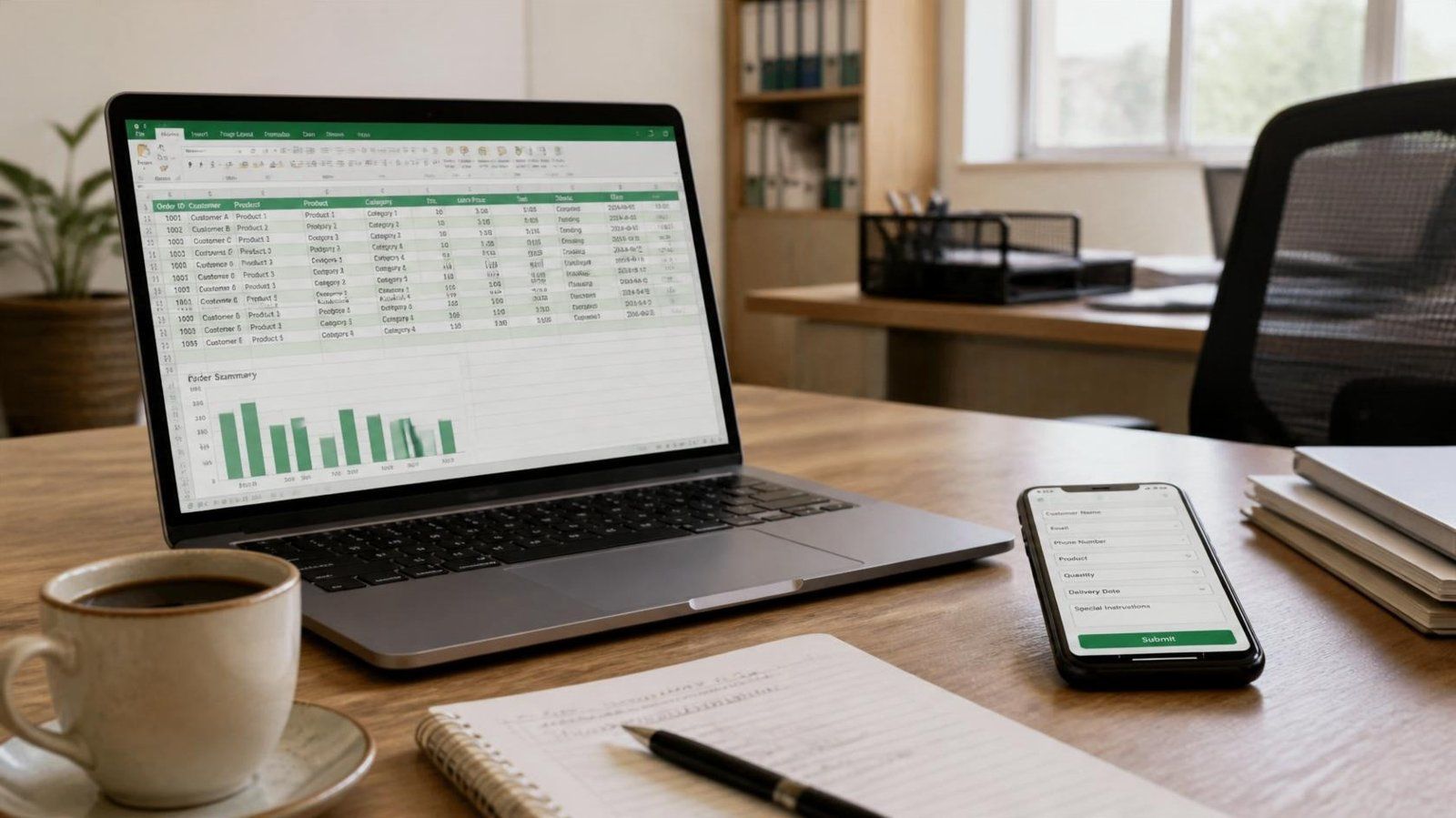
In many small businesses, orders live in three places at once: a notebook at the counter, WhatsApp conversations and the manager's memory. That works while the business stays small. The day two people answer customers, an agent works in the field or the boss travels, the system breaks. And sales slip away without anyone noticing.
The first step out of that mess costs nothing and needs no developer: a shared spreadsheet. At Guelichweb, this is often where our automation projects start. So here is what Google Sheets is, what it does well, how to use it seriously in a business, an NGO or a public institution, and when it's time to move on to something else.
What is Google Sheets? The simple definition
Google Sheets is Google's online spreadsheet. It's the equivalent of Excel, but it runs in your browser or in a mobile app, and the file is stored in Google Drive rather than on your computer. Google describes it as an online spreadsheet app that lets you create and format spreadsheets and work on them with other people (Google Help, How to use Google Sheets).

Official Google Sheets logo, source: Google (gstatic.com, Google product brand assets).
In practice, a Google Sheets file is a grid of rows and columns where you type text, numbers, dates and formulas. Nothing new so far. The difference lies elsewhere: the file lives on the Internet. Everyone works on the same version, at the same time, from a computer, a tablet or a phone. No more "orders_final_v3_really.xlsx" bouncing around by email.
To get started, all you need is a Google account (the same one you use for Gmail). Open sheets.google.com and click "New". Google also offers a direct shortcut: sheets.google.com/create opens a blank sheet.
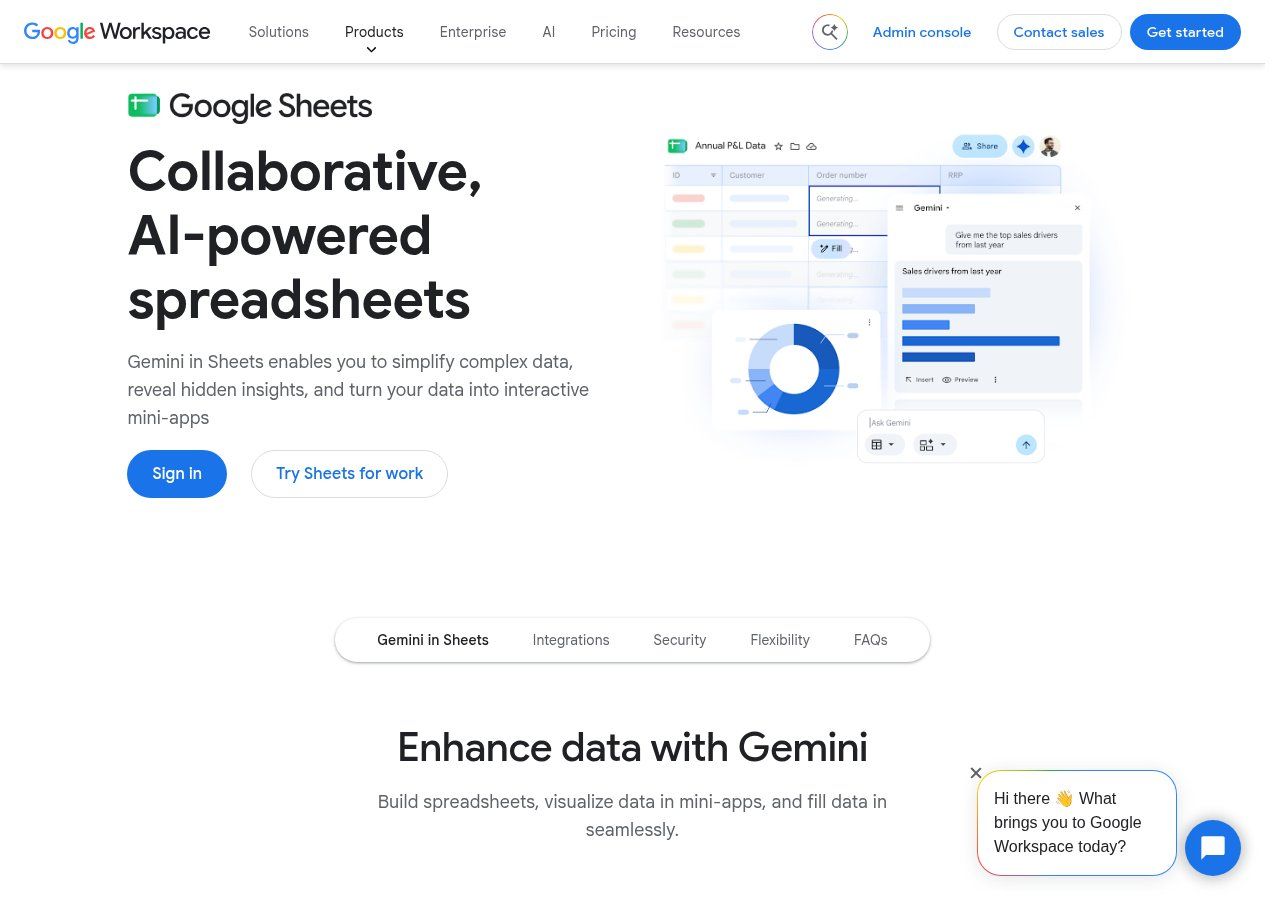
Source: Google Sheets product page, Google Workspace (workspace.google.com), screenshot taken on 18/10/2026.
What Google Sheets does better than an Excel file sent over WhatsApp
People often ask us whether they should drop Excel. No. Excel is still more powerful for heavy calculations and advanced financial analysis. But for information that several people need to read and update every day, Google Sheets wins almost every time. Here's why.
- One version, in real time. When the salesperson marks an order "Paid", the delivery rider sees it straight away on their phone.
- A change history. You can see who changed what and go back to an earlier version (Google Help, find what's changed in a file). No more arguing over who deleted the row.
- Precise access rights. Each person can be a viewer, a commenter or an editor (Google Help, share files). The accountant reads, the intern types, the manager checks.
- A phone is enough. The Android and iPhone app lets people enter and sort data in the field.
- Offline mode. On a computer you can turn on offline work, and changes sync when the network comes back (Google Help, work offline). Handy when the connection drops in the middle of the day.
- It reads your Excel files. Google says you can edit Excel files online without converting them (Google Sheets product page).
For us, the real advantage is somewhere else again: Google Sheets connects easily to other tools. That's what makes it such a good foundation for automation, which we'll come back to below.
Is Google Sheets free or paid?
Both, depending on the account. With a personal Google account, Google Sheets is free. Storage is shared: every Google account includes up to 15 GB split between Gmail, Google Drive and Google Photos (Google One Help). An order spreadsheet weighs very little; it won't be what fills up your space.
The paid version comes through Google Workspace, Google's business offer. Its main additions are an email address on your own domain name, an admin console to manage your team's accounts, more storage and advanced features. Prices vary by plan and country, so check the official pricing page rather than a figure copied from a blog.
Our view: to get started, the free version is enough. But as soon as the business has employees, create important files on an account that belongs to the company, never on an employee's personal Gmail. The day they leave, you don't want to lose three years of customer records.
5 practical uses for an SME, an NGO or an institution
Google Sheets can do everything, which means that, used badly, it does nothing. These are the uses where we see it genuinely change day-to-day work.
1. Tracking orders that come in on WhatsApp
One row per order: date, customer, phone number, product, amount, payment method, status. The salesperson enters it, the rider updates it, the manager filters "Pending" every evening. It's often the first file we set up before connecting a WhatsApp chatbot.
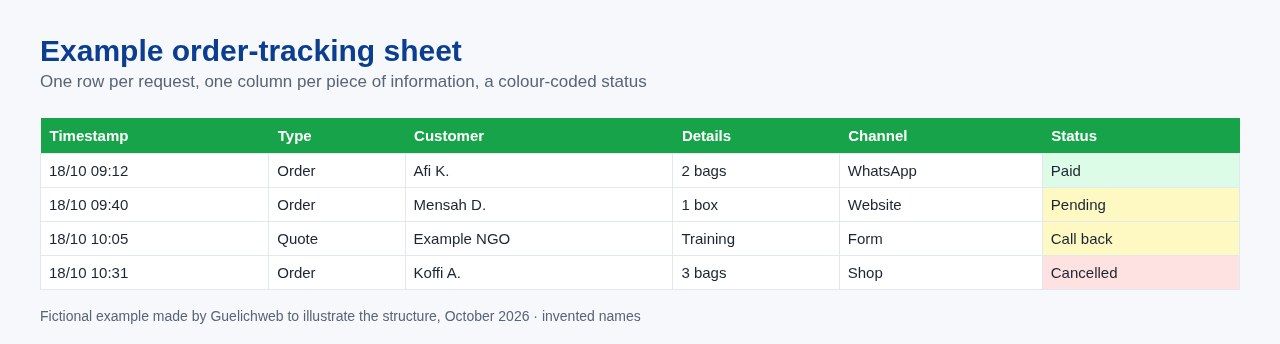
Fictional example made by Guelichweb to illustrate the structure, October 2026 (invented names).
2. Managing a small stock
A "Products" tab with the starting quantity, a "Movements" tab where each item in or out is a row, and a formula that calculates what's left. Add conditional formatting that turns products below the threshold red. It's not stock management software, but it's a thousand times better than counting in your head.
3. Tracking payments, including Mobile Money
When part of your payments arrives via Mobile Money, matching them to orders quickly becomes a chore. One column for the transaction reference, one for the channel, one for the related order: at the end of the week, a simple filter shows orders delivered with no payment attached. We're not talking about official bookkeeping here, which remains your accountant's job, but about a readable cash log.
4. Keeping a prospect list (a starter CRM)
Name, company, phone, lead source, last contact, next action, follow-up date. With a filter on the follow-up date, your salesperson knows every morning who to call back. Many businesses don't need a paid CRM in their first year. They need discipline, and a well-structured sheet enforces it.
5. Collecting field data (NGOs, projects, training)
For an NGO or an institution, this is the killer use: training registrations, visit reports, beneficiary surveys, project indicator tracking. Agents fill in a form on their phone, responses land in a sheet, and the project manager has the figures without waiting for paper reports at the end of the month.
The rules for a sheet that doesn't turn into chaos
Most business spreadsheets we see are unusable after six months. Not because of the tool, but because of the structure. Our rules, non-negotiable:
- One row = one event (an order, a payment, a contact). Never two orders on one row, never one order across three rows.
- One column = one piece of information. "Name and phone" in the same cell means you can't sort it later.
- A frozen header row, in the first row, with short, stable names. Don't rename them without warning: your automations rely on them.
- Drop-down lists for statuses and categories (Data menu, then data validation). "paid", "Paid" and "payed" must not live side by side.
- No blank rows in the middle of your data. It sounds trivial. It isn't, and you'll see why in the automation section.
- Raw data on one side, dashboards on the other. One raw tab where people type, a separate tab with totals, charts and pivot tables.
- Dates in a real date format, not "last Monday" or "18 Oct".
Apply these seven rules and your sheet will be readable by a person, by a formula and by an automation tool. That's exactly what you want.
How to make a Google Form linked to Google Sheets
This is the combination we recommend most often: a form to enter data cleanly, a sheet to store it. The form prevents typing mistakes, and the sheet files everything automatically. The steps, based on Google's official help (How to use Google Forms):
- Go to forms.google.com and click "Blank form". Give it a clear name.
- Add your questions and pick the right type for each: short answer for a name, drop-down for a product, date for a date. Make the essential fields required.
- Open the "Responses" tab, click "More", then "Select destination for responses".
- Choose "Create a new spreadsheet" or an existing one, then confirm.
- Publish the form and share its link.
From then on, each response becomes a row in the sheet, and Google Sheets automatically puts it in a structured table (Google Help, choose where to save form responses). One detail worth knowing: form collaborators get access to the new response sheet, but later permission changes don't sync between the two. So check sharing on both sides.
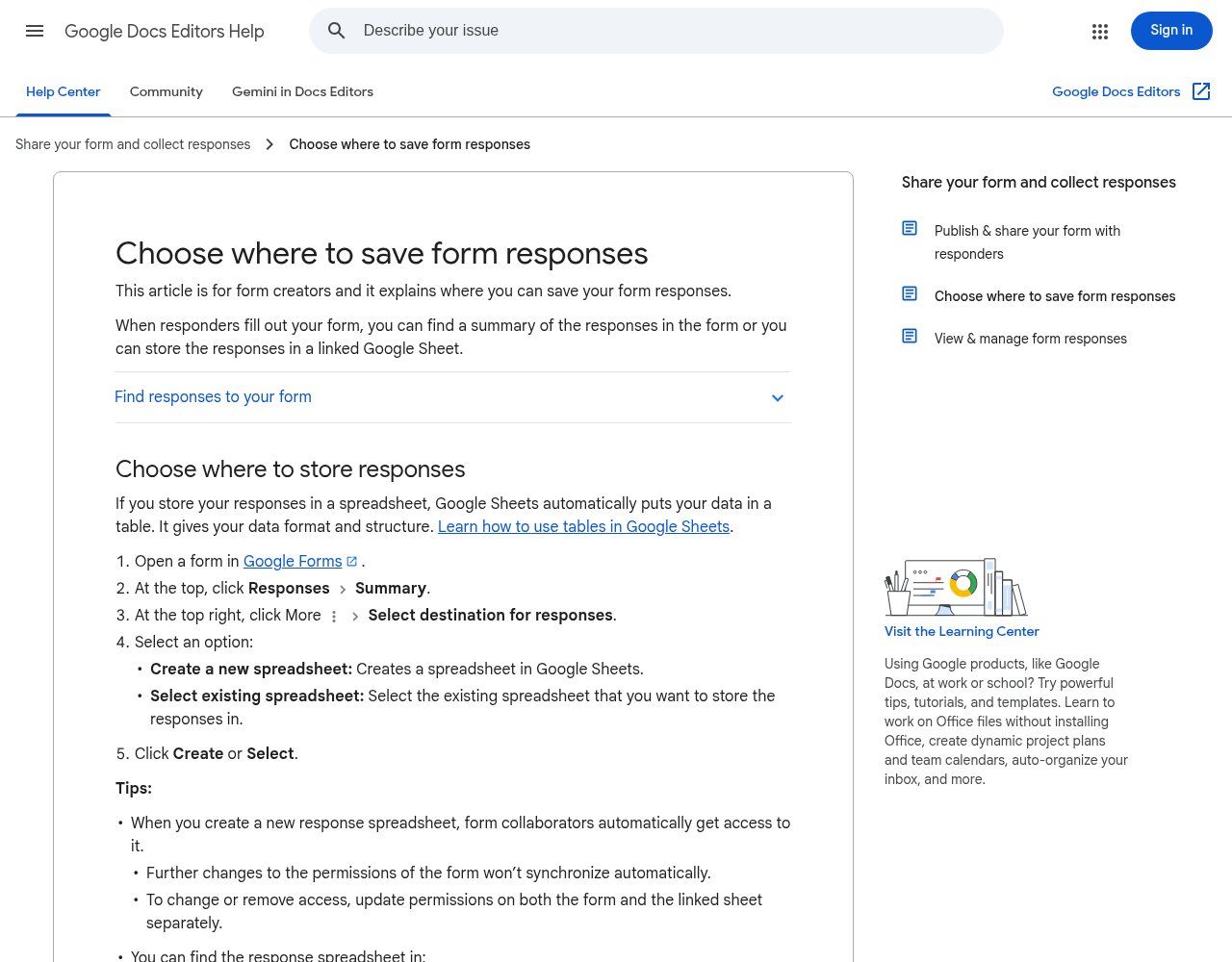
Source: Google Docs Editors Help, support.google.com, screenshot taken on 18/10/2026.
Field tip: send the form link to a WhatsApp group, or print it as a QR code on the counter. The query "comment faire un google form sur whatsapp" (how to make a Google Form on WhatsApp) actually shows up in Google's search suggestions, in Benin as well as in France: it's the natural channel. And the form works very well on a phone.
Automating Google Sheets with Make or n8n
This is where Google Sheets gets really interesting for a business. A clean sheet can act as a trigger ("when a new row arrives, do this") and as a destination ("add a row when that happens"). The two automation tools we use most, Make and n8n, can do both.
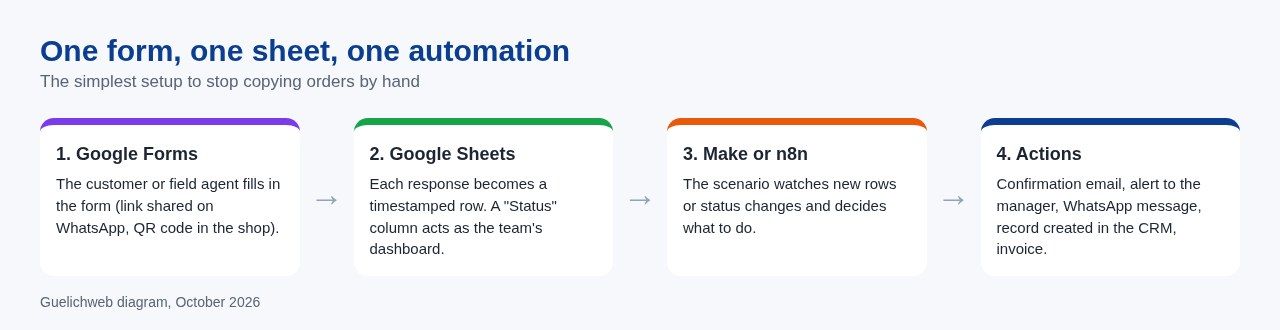
Source: Guelichweb diagram, October 2026.
What the two tools offer
In n8n, the Google Sheets trigger node reacts to three events: row added, row updated, or both (n8n documentation). In Make, the "Watch New Rows" module fires when a row is added, and "Add a Row" adds a row at the bottom of the table (Make documentation).
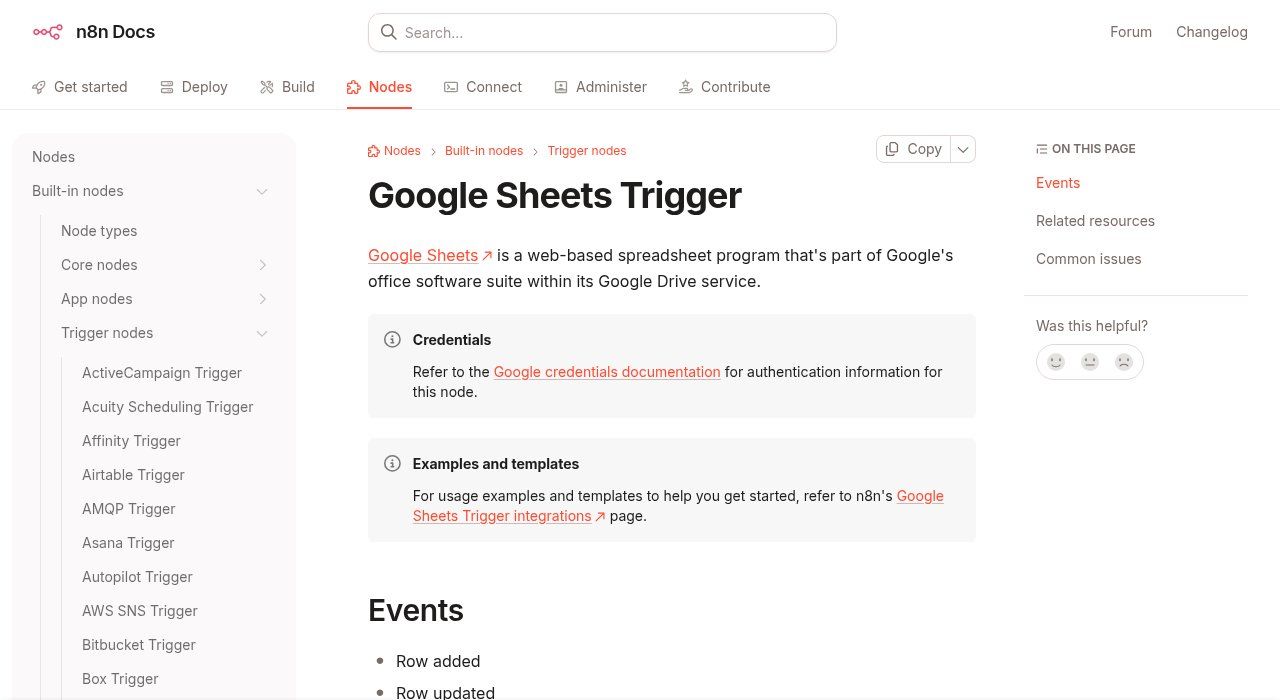
Source: n8n documentation (docs.n8n.io), screenshot taken on 18/10/2026.
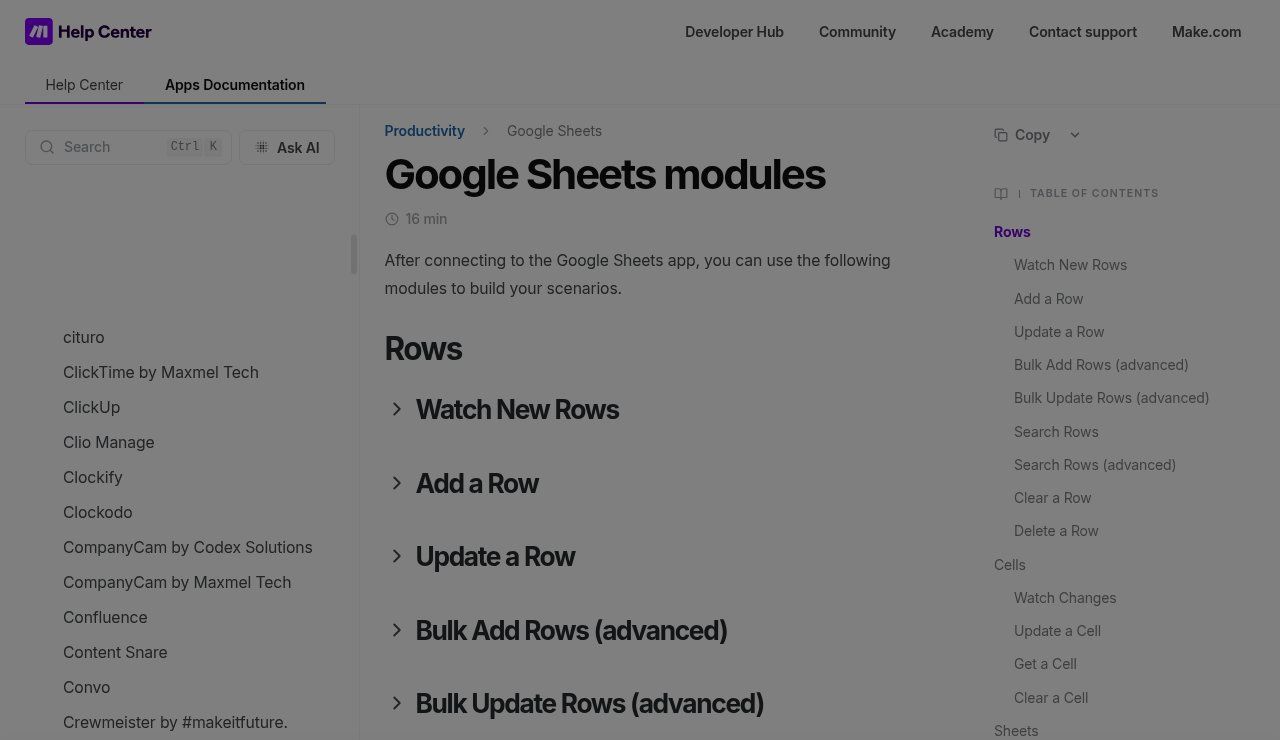
Source: Make documentation (apps.make.com), screenshot taken on 18/10/2026.
One important detail that Make's documentation spells out: if a sheet contains a blank row, Make doesn't process the rows after it. That's why our rule number 5 bans blank rows. Another point: these Google Sheets triggers work by checking at intervals, not to the second. For a truly instant alert, we usually go through a webhook instead.
Simple scenarios that save hours
- A new order lands in the sheet: the manager gets an email or a message, and the customer receives a confirmation.
- The status changes to "Delivered": a thank-you message goes out, with a link to leave a Google review.
- A prospect fills in the contact form on the website: a row is created in the prospect sheet, with the follow-up date already calculated.
- Every Monday morning: a summary of the week's sales is emailed to the manager.
- For an NGO: each visit report entered in the field updates an indicator dashboard that the donor can view.
Make or n8n? Both do the job. Make is quicker to learn; n8n gives you more control and can be hosted on your own server. We cover that choice in detail in n8n or Make: which automation tool to choose.
There's also a third route, built into Google: Apps Script, a JavaScript-based language that lets you add functions and automations directly to your Google files (Google Apps Script). It's powerful, but it's code: someone has to maintain it. For most small businesses, a Make or n8n scenario is easier to understand and to change over time.
The limits: when Google Sheets is no longer enough
We like Google Sheets, but we won't pretend it's software it isn't. Technically, there's plenty of headroom: since September 2026, Google has announced up to 20 million cells per spreadsheet (Google Workspace Updates). The real limits are elsewhere.
- Rights that are too broad. An editor can delete a whole column by mistake. The history lets you repair it, provided someone notices.
- Personal data. A customer or beneficiary file contains personal data. In Benin, its protection is governed by the Digital Code (Law No. 2017-20). A link shared with "anyone with the link" is not protection.
- Relationships between data. When you need to link customers, orders, products, invoices and follow-ups, formulas become fragile. That's the job of a database or a CRM.
- The customer journey. A sheet replaces neither a website that presents your offers nor a customer portal. If that's what you need, see our article on an intranet for an SME or NGO.
Our rule of thumb: when more than five people edit the same file every day, or when you spend more time fixing the sheet than using it, it's time to move to a CRM connected to your website and to WhatsApp. We explain that trio in Website, WhatsApp and CRM for an SME in Cotonou. The good news: if your sheet follows the rules above, the migration is painless.
Our view in one sentence
Google Sheets isn't just another office tool: well structured, it's your business's first database, and the cheapest way into automation.
Start small: one process (orders, or registrations), one form, one sheet, one automation. Measure the time saved over a month. Only then expand.
Related reading: What is Canva, What is an AI agent and What is a CRM.
Frequently asked questions about Google Sheets
Is Google Sheets the same as Excel?
It's the same kind of tool, a spreadsheet, with very similar formulas. Google Sheets is built for working together online; Excel remains richer for heavy analysis. Google Sheets opens and edits Excel files.
Can I use Google Sheets on a phone?
Yes, with the Google Sheets app for Android and iPhone. You can enter, sort, filter and comment. For building a complex sheet, a computer is still more comfortable.
Does Google Sheets work without the Internet?
Yes, as long as you've turned on offline access in advance. Changes sync when the connection comes back.
Is my data safe in Google Sheets?
Google says files are encrypted in transit and at rest. The main risk tends to come from sharing: check regularly who has access, and avoid links open to everyone for sensitive files.
Do I need to code to automate Google Sheets?
No. Make and n8n are set up with visual building blocks. Code (Apps Script) is only useful for very specific needs.
How much does an automation with Google Sheets cost?
It depends on the number of steps, the tools connected and the volume. We give some benchmarks in how much AI automation costs in Benin.
Want your spreadsheet to do the work for you?
At Guelichweb, we structure your files, connect Google Forms, Google Sheets, WhatsApp and your other tools with Make or n8n, then train your team so it stays independent. The price depends on your process: we quote after a diagnosis, as explained on our offers page. Discover our services, or contact us to talk it through.