What is NotebookLM (now Gemini Notebook)? Is it free, what are the limits, and how to use it at work
G. CHRIST
Published on November 19, 2026

You have an 80-page report to read by tomorrow, three donor PDFs that contradict each other, the recording of an hour-long meeting and a Drive folder where nobody can find anything any more. You open ChatGPT, paste in fragments, and get a smooth answer… without knowing where it came from. That is precisely the problem NotebookLM set out to solve.
Since 16 July 2026, the tool has been called Gemini Notebook. The name changed; the principle did not. You give it your documents and it answers from those documents, with clickable citations pointing to the passages it used. Many people still search for it under its old name, and a large share of online tutorials predate the change, as well as the overhaul of usage limits in September 2026.
At Guelichweb we use it and often recommend it, but not for everything. This guide explains what NotebookLM / Gemini Notebook is, what is free and what no longer is, what it does well, where it disappoints and, above all, how a small business, an NGO or a public institution in French-speaking Africa can use it without exposing its data.
Official Gemini Notebook (formerly NotebookLM) logo. Source: notebooklm.google.
What is NotebookLM? The short answer
NotebookLM is a Google research assistant that works on the sources you provide: PDFs, Word documents, Google Docs, slide decks, web pages, YouTube videos, audio files. You create a "notebook" per project, add your files, then ask questions. The answers cite the exact passages in your documents.
Google unveiled it at Google I/O 2023 as "Project Tailwind". According to Google, more than 30 million people and over 600,000 organisations were using it at the time of the rename in July 2026 (official announcement).
The difference from a general chatbot fits in one sentence: ChatGPT or the Gemini app answer first with what they learned from the internet; NotebookLM answers first with what you put in the notebook. For work on internal documents, that changes everything. For the full business comparison with ChatGPT, see our article ChatGPT for business: pricing and privacy.
NotebookLM or Gemini Notebook: is it the same tool?
Yes. Google renamed NotebookLM to Gemini Notebook on 16 July 2026. It is the same standalone product, at the same address (notebooklm.google). Old links and shared notebooks keep working through automatic redirects. On mobile, you may just need to update the app.
What really changes is integration: your notebooks are available and synced in the Gemini app, and Google has announced they are coming to AI Mode in Google Search. Google has also started giving each notebook a "secure cloud computer" that can write and run code to analyse data. At launch this was limited to Google AI Ultra subscribers and some Workspace customers, with a later rollout announced for Pro subscribers on the web.
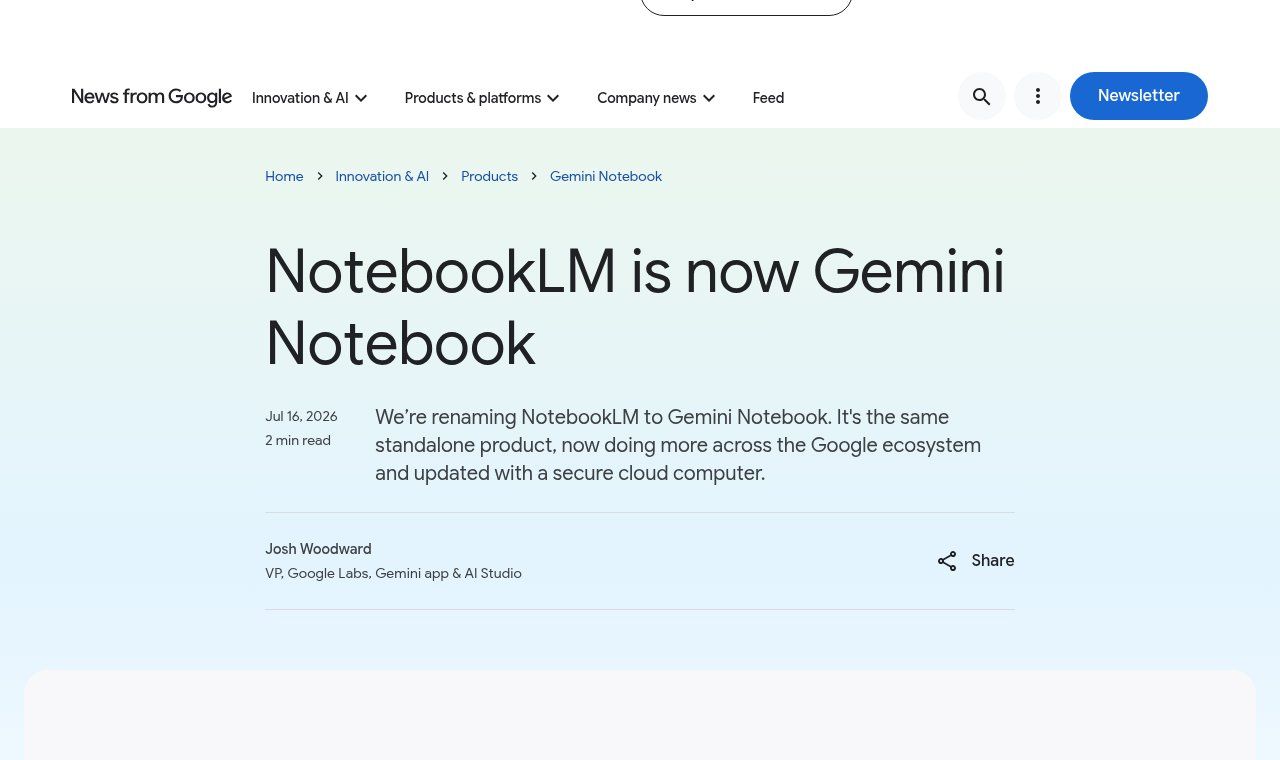
Source: Google's official blog, "NotebookLM is now Gemini Notebook", 16 July 2026.
In the rest of this article we use "NotebookLM" and "Gemini Notebook" interchangeably: they are the same thing.
What you can put in it: supported sources
The list has grown a lot since 2023. According to Google's official help, a notebook accepts, among others:
- PDF, Word (docx), PowerPoint (pptx), plain text, Markdown, CSV and ePub files;
- Google Docs, Google Slides (up to 100 slides) and Google Sheets (currently limited to 100,000 tokens);
- web page URLs (only the text is retrieved; paywalled pages do not work);
- public YouTube videos with captions (only the transcript is imported);
- audio files (MP3, WAV, M4A, OGG, OPUS…), transcribed on import, with French and English among the supported languages;
- images (JPEG, PNG, WebP, HEIC…), pasted text and your own notes.
Each source can hold up to 500,000 words or weigh up to 200 MB. A useful detail for teams: a file imported from Google Drive syncs automatically every two to three minutes, so the notebook follows updates to the original document. Footnotes and comments in Google files, however, are not imported.
For an NGO, audio is underrated. A focus group or interview recording in French or English becomes a searchable source once imported. Be careful, though: national languages such as Fon, Yoruba or Wolof are not on the list of supported audio languages. For those, human transcription or translation is still needed; we cover this in our guide to audio-to-text transcription.
What Gemini Notebook produces from your documents
The screen has three areas: your sources on the left, the chat in the middle and Studio on the right. The chat is for questions; Studio builds documents from your sources. According to Google's help, Studio can create:
- Audio Overviews: a two-voice conversation about your documents, the famous "podcast" that made the tool known;
- Video Overviews and slide decks;
- mind maps and infographics;
- reports: FAQ, study guide, briefing document, or a format you describe yourself, exportable to Google Docs;
- data tables, exportable to Google Sheets with citations in a second tab;
- flashcards and quizzes.
Since 16 November 2026, you can also type "make me a site" in the chat to turn your sources into an interactive site: a dashboard, a timeline, a project tracker. Google announced it on the web for users aged 18 and over, with a gradual rollout (Google announcement). We file it under "test before mentioning it to a client": promising for an internal dashboard, but not a website in the sense of a shop window for your business.
Two research features complete the set: Fast Research, which looks for sources on the web or in your Drive, and Deep Research, which browses many websites and writes a multi-page report in a few minutes. Handy to kick off a topic, as long as you review each imported source.
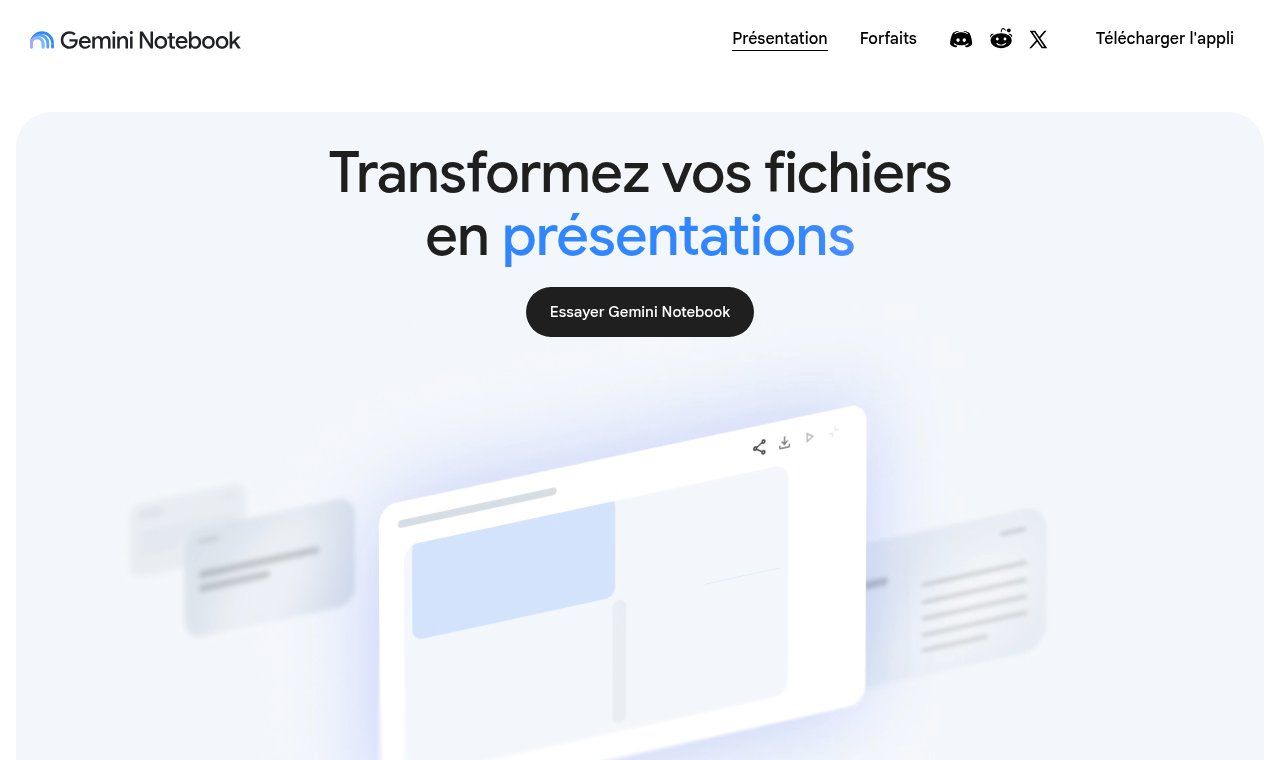
Source: public Gemini Notebook home page (notebooklm.google), French version, captured on 19 November 2026.
Is NotebookLM free? What changed in 2026
Yes, there is a no-cost version: all you need is a Google account. But "free" does not mean "unlimited", and this is where most online articles are out of date.
Fixed limits: notebooks and sources
Google's official Gemini Notebook plans table gives two firm numbers per plan:
- no AI plan: 100 notebooks per user, 50 sources per notebook;
- Google AI Plus: 200 notebooks, 100 sources per notebook;
- Google AI Pro: 500 notebooks, 300 sources per notebook;
- Google AI Ultra: 500 notebooks, 500 or 600 sources per notebook depending on the plan.
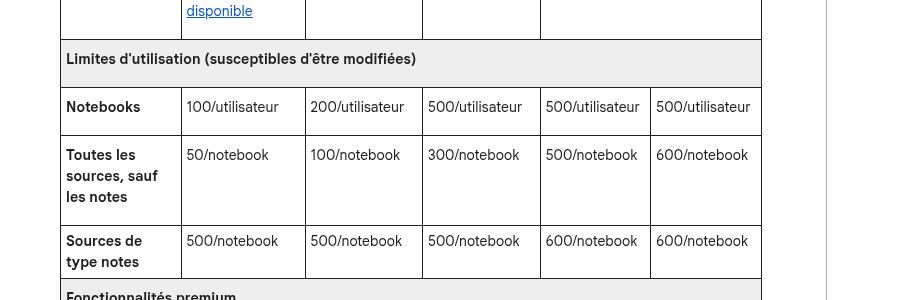
Source: Google Help, "Learn about Gemini Notebook's plans" (French version). Columns, left to right: no AI plan, Plus, Pro, Ultra (20 TB), Ultra (30 TB).
Sharing a notebook does not change the source limit of the people you share it with.
Usage limits: a compute budget, not a number of questions
Until August 2026, people talked about "50 chat queries and 3 Audio Overviews per day" on the free plan. Those numbers no longer apply. Since 2 September 2026, Google uses compute-based limits: each action costs more or less depending on prompt complexity, chat length, the number of sources and the feature used. The allowance refreshes every five hours, up to a weekly limit (Google help).
Google gives no absolute figure for the free version, only multiples: Plus gets twice the standard limits, Pro four times, Ultra 5 or 20 times the Pro limits. To check where you stand: Settings, then Usage. When you run out, the "Generate later" option (on the web) queues a video or a slide deck and notifies you when it is ready.
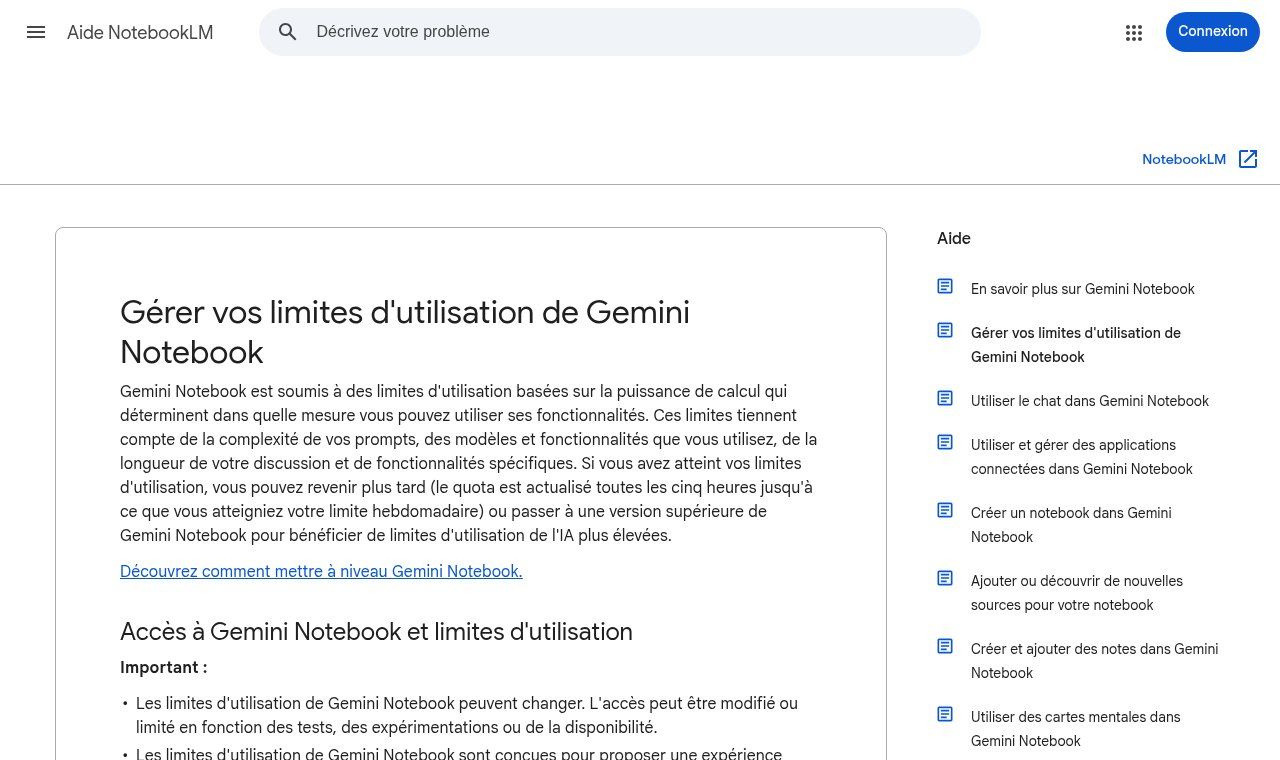
Source: Google Help, "Manage your Gemini Notebook usage limits" (French version), captured on 19 November 2026.
Our take: for someone who prepares a meeting or analyses a few reports a week, the free version is plenty. You will hit the wall quickly if you generate many Video Overviews or slide decks on heavy notebooks. Start free, measure, then decide.
What about paid plan prices?
Google AI Plus, Pro and Ultra are bought through Google One, and prices vary by country. We prefer not to copy prices here that keep changing: check the price shown in your own Google account, in CFA francs, euros or dollars. Also check that the plan is offered in your country, since paid tiers are only available where Google AI Plus, Pro or Ultra are sold. Organisations on Google Workspace may get extended access depending on their edition; our guide Google Workspace: what it is and what it costs helps you find your way.
Is your data safe?
NGO directors and institutions always ask us this, and rightly so. Here is what Google says on its plans page:
- Personal Google account (Gmail): your data is not used to train Gemini Notebook, unless you submit feedback (thumbs up or down, comment). In that case Google may review the full context of the interaction, including uploads and responses.
- Google Workspace or Workspace for Education account: uploads, queries and responses are not reviewed by humans, even when you give feedback, and are not used to train models.
- Enterprise offer through Google Cloud: files stay in your Google Cloud project, with data regionalisation honoured and advanced access controls.
Our position is clear: a confidential business document has no place in a personal Gmail account, even if Google does not train its models on it by default. An employee may click "feedback" without thinking; a personal account can be hacked; it leaves with the person when they leave the organisation. For professional use, work from a Workspace account managed by your organisation.
On the regulatory side, personal data about beneficiaries, patients, pupils or customers remains subject to your country's law: in Benin, the Digital Code and the APDP data protection authority; in Côte d'Ivoire, Senegal or France, the equivalent authorities. Anonymise whatever you can before importing. And do not import documents you do not hold the rights to; Google itself says so in its help.
One last, often forgotten point: sharing. A notebook can be shared with specific people (up to 50 users from a personal Gmail account) or made public. Once public, its shared Studio content can be viewed by anyone with the link. Check twice before you click.
How to use NotebookLM: getting started in 6 steps
- Go to notebooklm.google (or open the app) and sign in with the right account, ideally your organisation's.
- Click Create notebook. One notebook = one project: a tender, an annual report, onboarding a new staff member. Each notebook is independent; the tool does not read two notebooks at once.
- Import your sources: files from your computer, Google Drive, web or YouTube links. Only add what is useful: ten good sources beat fifty average ones.
- Read the automatic summary, then ask precise questions. Instead of "summarise this document", ask "what are the three eligibility conditions in the terms of reference, with page numbers?".
- Click the citations to check every important claim in the original document.
- Use Studio to produce what you need: a briefing note exported to Google Docs, a data table exported to Google Sheets, an Audio Overview to listen to on the road.
The quality of your questions drives the quality of the answers. Our method for writing good instructions is set out in how to write an effective AI prompt; it works very well here.
7 practical uses for a small business, an NGO or an institution
1. Answering a tender or a call for proposals
Import the terms of reference, the proposal template, your previous reports and your organisation profile. Ask for the list of evaluation criteria, the required documents and the weak points in your application. You save hours of reading, and the citations stop you from missing a condition buried on page 47.
2. Building an onboarding handbook for new staff
Procedures, internal rules, job descriptions, internal FAQs: placed in a notebook shared in read-only mode, they become an assistant that answers a newcomer's questions with the exact reference. Google itself mentions onboarding material among business use cases.
3. Preparing a meeting or a board session
Import the agenda, the previous minutes and the reports to be reviewed, then ask for a briefing document and the list of pending decisions. For what comes next, from meeting to action items, our guide to AI meeting minutes takes over.
4. Analysing interviews or qualitative surveys
For an NGO this is often the most striking gain. Interview transcripts become searchable: "which barriers to credit come up most often among women traders?". Keep a human for interpretation: the tool spots patterns; it does not understand the local context for you.
5. Keeping track of regulations
Laws, circulars, official guides: one notebook per theme (tax, personal data, public procurement) lets you find a provision quickly. Never treat the answer as legal advice: Google itself asks users not to rely on the tool for professional medical, legal or financial advice.
6. Training and raising awareness among staff
From an internal guide, Studio creates quizzes, flashcards and an Audio Overview. We find this very effective for cybersecurity awareness; our article on phishing at work can even serve as a source.
7. Preparing content for your website or communication
Activity reports, case studies, product sheets: NotebookLM helps you extract key messages, an FAQ or an article outline, with the source of every figure. The final text, however, should still be written for your readers, not copied from a generated report.
Limits you need to know before relying on it
- It can be wrong. Citations reduce the risk; they do not remove it. An answer can rest on the right passage and still draw the wrong conclusion. Check anything that goes to a donor, a client or a public authority.
- It only sees what you give it. If your source is out of date, so is the answer. That is a strength for reliability and a weakness for anything new.
- Poorly scanned PDFs and complex tables sometimes come through badly. A well-structured document gives better results.
- Audio Overviews are appealing but long. To decide quickly, a written briefing is often more useful than a fifteen-minute "podcast".
- Generated images and videos carry watermarks: an invisible SynthID watermark and, as a rule, a visible one that only some paid subscribers can turn off.
- It is not an automation tool. It does not trigger actions, does not answer your customers on WhatsApp and does not plug itself into your CRM.
NotebookLM, ChatGPT or a custom chatbot: which to choose?
Our rule is simple:
- NotebookLM / Gemini Notebook when the answer must come from your documents, with verifiable sources: reading reports, tenders, an internal knowledge base, training.
- ChatGPT or the Gemini app when you need to draft, rephrase, think out loud or look for general ideas.
- A custom [AI chatbot](/en/blog/what-is-an-ai-chatbot-vs-rule-based-examples) or [AI agent](/en/blog/what-is-an-ai-agent-examples-small-business) when your customers or beneficiaries need answers, for instance on WhatsApp or your website, at any hour, with a controlled tone and automatic actions (booking an appointment, logging a request, handing over to a human).
Many organisations start with NotebookLM internally, notice they keep asking the same questions about the same documents, then want those answers available to their customers. That is often the right time to move to a real project. Our article on AI in business and AI usage policies helps you frame that step before investing.
How much does it cost to roll it out in your organisation?
The tool itself may cost nothing. What takes time is everything around it: choosing the right accounts, organising documents in Google Drive, deciding who sees what, writing a simple rule on which data may or may not be imported, and training staff. That is where mistakes get expensive, especially on confidentiality.
At Guelichweb we support this kind of project, from setting up Google Workspace to chatbots and automations connected to your documents. We do not publish fixed packages: every organisation starts from a different place. We provide a quote after an assessment, as explained on our offers page. You can also browse our services.
Frequently asked questions about NotebookLM
Does NotebookLM still exist?
Yes, under the name Gemini Notebook since 16 July 2026. The notebooklm.google address and your existing notebooks still work.
Does NotebookLM work in French?
Yes. The interface, questions and answers work in French, French audio files are transcribed, and you can generate Studio content in French.
Is NotebookLM free?
Yes, with a Google account: 100 notebooks, 50 sources per notebook and usage limits that refresh every five hours up to a weekly limit. Google AI Plus, Pro and Ultra raise those caps.
How many sources can a notebook hold?
50 on the free plan, 100 with Plus, 300 with Pro, 500 or 600 with Ultra. Each source can be up to 500,000 words or 200 MB.
Can I use NotebookLM on my phone?
Yes, there is a mobile app, but some features arrive on the web first (for example "Generate later" or interactive sites). For serious document work, a computer is still more comfortable.
Are my documents used to train Google's AI?
According to Google, no, unless you submit feedback from a personal account. With a Workspace account, nothing is reviewed by humans or used for training. For sensitive data, use a managed professional account.
How is it different from ChatGPT?
NotebookLM answers from your documents and cites its sources. ChatGPT mostly answers from its general knowledge. The two complement each other.
Final word
NotebookLM, now Gemini Notebook, is one of the few AI tools we recommend to a small team without hesitation: it saves reading time, shows its sources and its free version is generous. It does not replace your judgement, does not protect your data for you and automates nothing. Used with a professional account, on well-chosen documents and with systematic checking, it is an excellent starting point for putting AI to work in your organisation.
Want to go further: organise your documents, secure your accounts, or make your answers available to customers through a chatbot? Contact Guelichweb: we start by understanding what you already use, then tell you frankly what is worth doing.