AI meeting minutes: a method, template and prompt to turn meetings into action items (Teams, Meet, Zoom or in-person)
G. CHRIST
Published on November 16, 2026
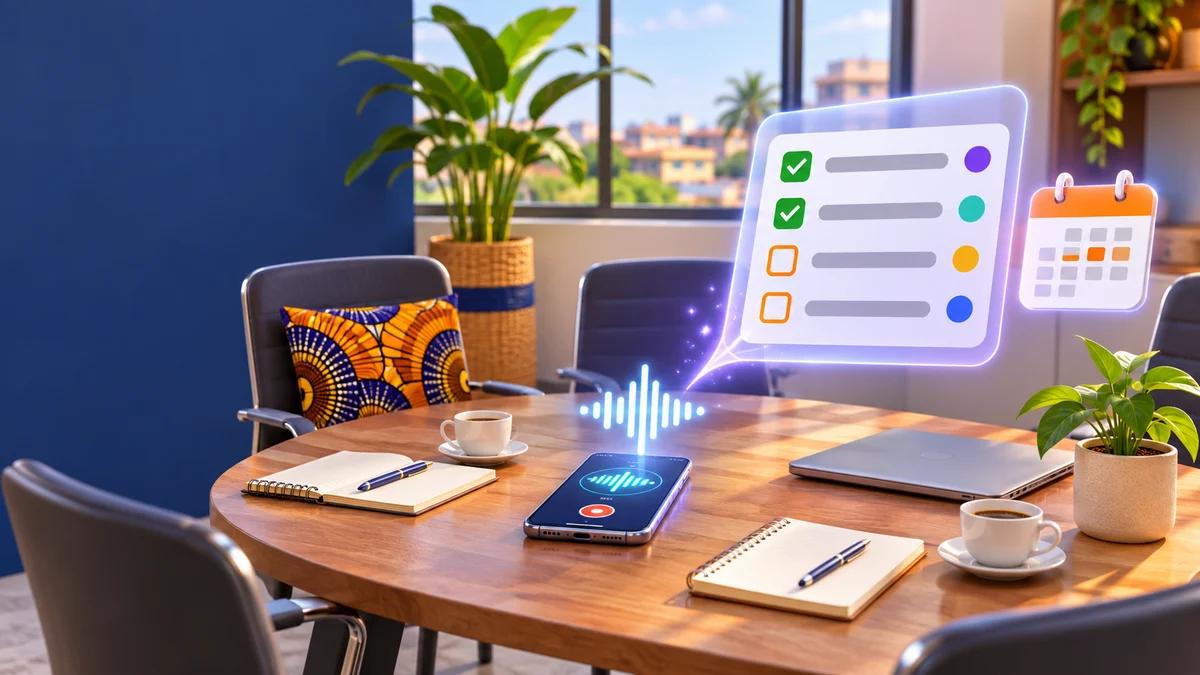
A two-hour meeting ends. Everyone has spoken, several things have been “decided”, and each person walks out with a different version of what was said. Three weeks later, at the next meeting, half the actions have not moved. Nobody acted in bad faith. There was simply no clear record of who had to do what, and by when.
Artificial intelligence promises to fix this: it listens, it summarises, it emails a tidy document. That is partly true. We use these tools and we set them up for small businesses, NGOs and public institutions. Our conclusion is simple: AI is very good at the summary, much weaker at the decisions, and does nothing at all for the follow-up. AI meeting minutes are only worth something if they turn into a task list that someone actually tracks.
This guide is not another “15 best tools” list. It gives you a complete method: prepare the meeting so the AI has something to work with, pick the tool according to where the meeting happens (Teams, Google Meet, Zoom or, very often in West Africa, a room with no video call at all), use a template and a prompt that pull out decisions and tasks, review in ten minutes, then turn the whole thing into tracked actions.
In short
- Useful minutes come down to three blocks: decisions, action items (who, what, by when) and open points. Everything else is secondary.
- Google Meet, Microsoft Teams and Zoom can produce an automatic summary, but each comes with plan, language and role conditions (often the organiser only).
- For an in-person meeting, the method that works everywhere is: record with participants’ consent, transcribe, then ask an AI assistant for minutes based on a precise template.
- Formal minutes of a general assembly or board meeting remain a formal document, reviewed and signed by people. AI can prepare the draft, not approve it.
- Without human review and task follow-up, AI minutes are just one more document nobody reads.
Minutes, formal minutes, decision log, transcript: not the same thing
Before talking about tools, decide what you actually want. Many disappointments come from mixing up these four documents.
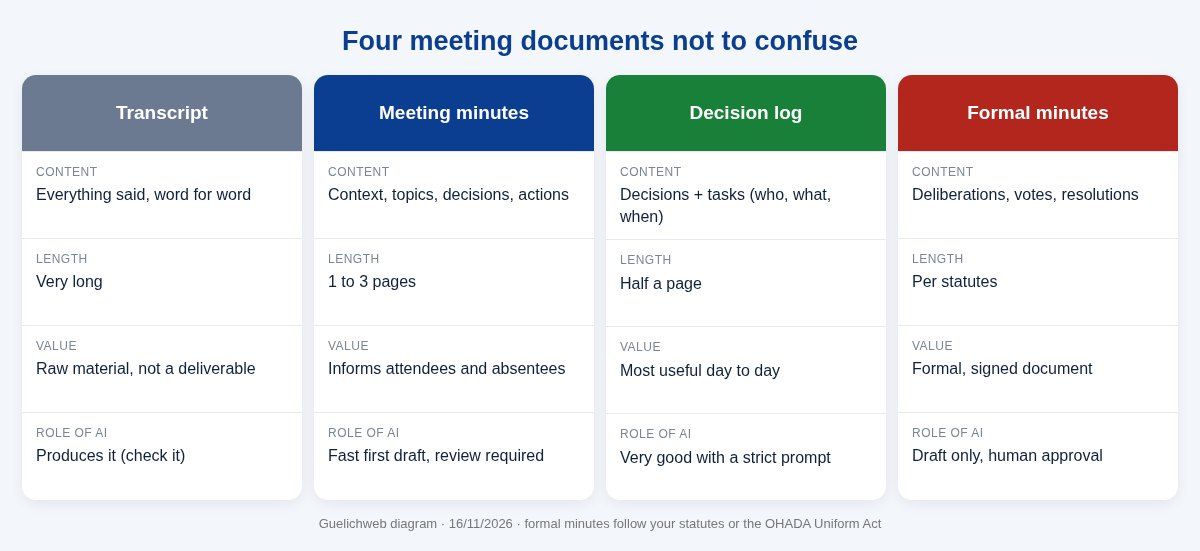
Guelichweb diagram, produced on 16/11/2026.
- A transcript is the full text of everything that was said. It is long, raw, and nobody reads it end to end. It is raw material, not a deliverable. We wrote a full guide to audio-to-text transcription, including WhatsApp voice notes.
- Meeting minutes tell the story of the meeting in a structured way: context, topics, positions, decisions, actions. They inform both the people who attended and those who did not.
- A decision log keeps only the essentials: what was decided and who owns it. Half a page. For a weekly team meeting, it is often all you need.
- Formal minutes (in French, “procès-verbal”) are an official document that commits the organisation. In commercial companies across the OHADA area, shareholders’ resolutions are recorded in minutes kept in a special register that is numbered and initialled by the competent authority (article 135 of the OHADA Uniform Act on commercial companies, French text). Associations and NGOs often have similar rules in their statutes.
Our view: for 80% of small-business or NGO meetings, ask the AI for a decision log with an action-item table, not three pages of narrative. It is quicker to review, easier to track and far less risky when the AI gets something wrong.
What AI does well, and what it gets wrong
We would rather be blunt, because vendor pages tend to skip this part.
What it does well
- Turning a long, messy discussion into a few readable paragraphs.
- Grouping the conversation by topic, even when the same subject came up three times.
- Spotting phrases such as “I’ll handle it”, “let’s meet again on Thursday” or “we need to send the quote”.
- Producing a first draft in seconds, where someone used to spend an hour in the evening.
What it regularly gets wrong
- Names, acronyms and numbers. The name of a Cotonou neighbourhood, a partner or a project is often mangled. A misheard amount can change the meaning of a decision.
- The difference between an idea and a decision. “Maybe we could review our prices” sometimes becomes “Decision: review prices”.
- Implicit decisions. A silence, a nod, a “right, let’s do that” at the end: AI does not always catch them.
- Meetings that mix languages. Google Meet’s note-taking, for example, supports only one language at a time and does not work when speakers use different languages, according to Google Meet Help. A meeting that switches between French and Fon or Wolof will come out badly.
- Context. AI does not know that “the Parakou file” is a sensitive customer complaint, or that a given person has no authority to approve spending.
The practical consequence: AI produces a draft. Someone who was in the room reviews it, corrects it and approves it. Without that step, we advise against sending anything.
Prepare the meeting so the AI has something to work with
This is the part everybody skips, and the one that changes the result the most. No AI tool can extract clear decisions from a meeting where nobody stated any.
- Send an agenda of three to five items beforehand. Paste it into your prompt later: the AI will organise the discussion in the right order.
- Name a minutes owner, even if the AI does the writing. That person reviews and sends.
- Announce the recording or automatic note-taking at the start, and allow people to object. We come back to this in the privacy section.
- Say decisions out loud. Get used to sentences like “Decision: we launch the campaign on 1 December” or “Action for Aïcha: send the quote on Friday”. It feels artificial at first. It doubles the quality of the minutes.
- Keep five minutes at the end to read the action list together: who, what, by when. A task without an owner does not exist.
Choose the tool based on where the meeting happens
The right question is not “what is the best tool?” but “where does the meeting take place, and which accounts do we already have?”. Here is what we checked on the official pages on 16/11/2026. These features change quickly: check again before paying for a subscription.
Google Meet meetings: “Take notes for me”
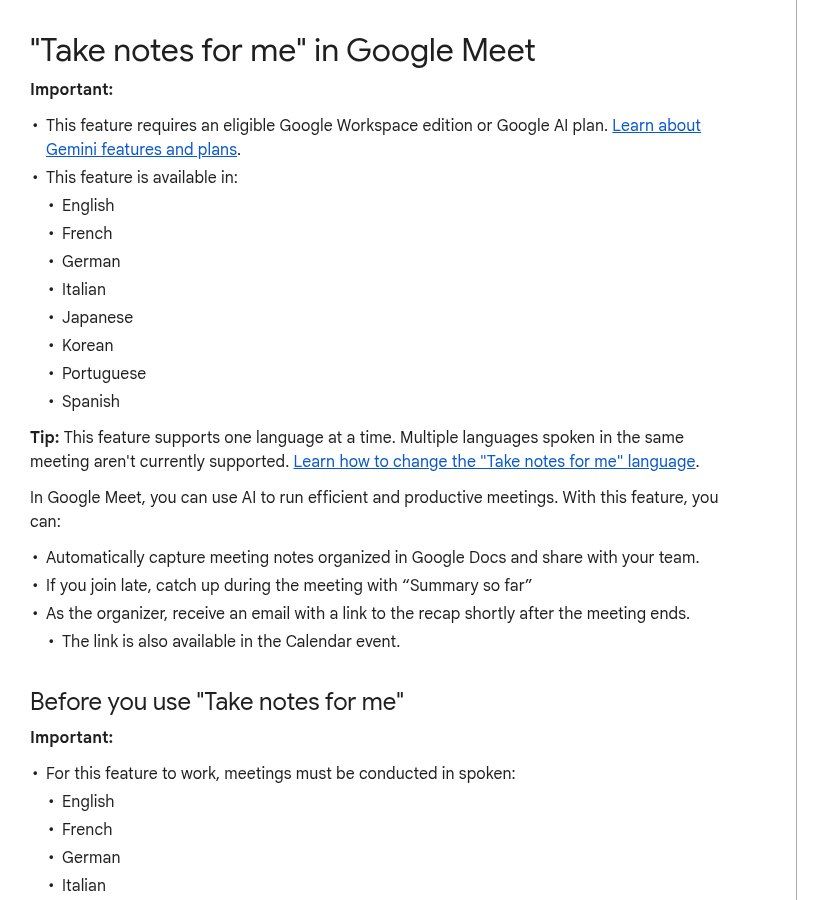
Source: screenshot of the “Take notes for me in Google Meet” help page, support.google.com, viewed on 16/11/2026.
- It requires an eligible Google Workspace edition or Google AI plan. A free Gmail account is not enough.
- Eight languages are supported, including French and English, one per meeting. Google recommends it for meetings of 15 minutes to 8 hours.
- Notes are saved as a Google Doc in the organiser’s Drive, with a quick-notes tab and a full-notes tab (summary, decisions, action items, details). The organiser receives an email with the link.
- The organiser decides who the notes are shared with: all invitees, only people in the organisation, or organisers only. The settings are also available in Google Calendar.
If your organisation already runs on Google Workspace, this is the simplest option. We compared the plans in our Google Workspace guide.
Microsoft Teams meetings: intelligent recap
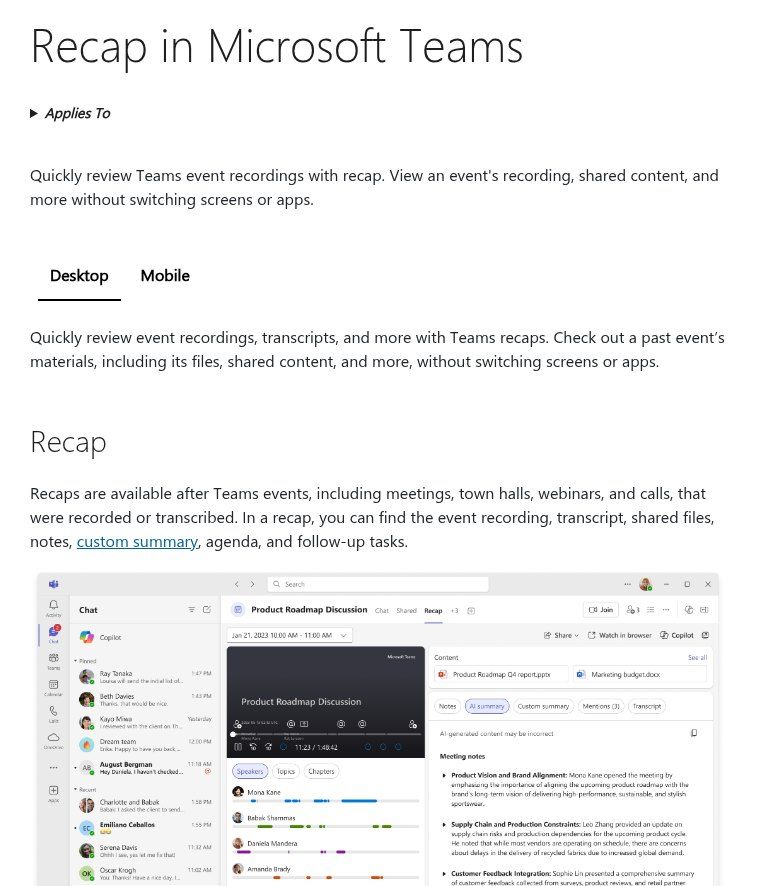
Source: screenshot of the “Recap in Microsoft Teams” support page, support.microsoft.com, viewed on 16/11/2026.
- The basic recap (recording, transcript, shared files) is available after a recorded or transcribed meeting.
- Intelligent recap (AI-generated notes and tasks) requires a Teams Premium or Microsoft 365 Copilot licence on top of Teams, and the admin must allow transcription, according to Microsoft’s documentation.
- French and English are among the supported languages. Microsoft itself warns that generated content may be inaccurate or incomplete.
For a small business on Microsoft 365 without Copilot, the realistic path is often: turn on Teams transcription, download the transcript, then process it with the prompt below.
Zoom meetings: meeting summary
- According to Zoom’s pricing page, the free Basic account includes meeting summaries for 3 hosted meetings per month, with meetings capped at 40 minutes.
- Paid Zoom Workplace plans (Pro and above) include meeting summary, according to Zoom Support.
- Only the host and co-hosts can start the summary. Participants must be signed in to their Zoom account to receive it automatically.
In-person meetings with no video call: the most common case
In Benin and across much of French-speaking Africa, most important meetings still happen around a table: management committees, site meetings, NGO project coordination, association boards. For these, the method that works everywhere has three steps:
- Record with a phone placed in the middle of the table, in airplane mode to avoid interruptions, away from fans and air conditioning. A small external microphone (lapel or tabletop) noticeably improves the result.
- Transcribe the audio with a tool that matches your confidentiality needs (online tool, Word, Whisper running locally): our transcription guide covers the options.
- Structure the transcript with an AI assistant (ChatGPT, Gemini, Copilot, Claude…) and the template below.
Some assistants also offer to record meetings directly on a computer. These features depend on the plan, the operating system and even the app version, and they move around often. Do not build your process on a feature the vendor may relocate next month: “record, transcribe, structure” works whatever the tool.
A word on the free online generators that fill the first page of Google: they are fine for a routine meeting. For a meeting about salaries, beneficiaries, disputes or strategy, we do not recommend them until you have read where the data goes and how long it is kept.
A meeting minutes template that actually works
Here is the structure we use. It fits on one or two pages, reads in three minutes and converts easily into a tracking sheet.
- Header: meeting name, date, place or tool, chair, minute-taker.
- Present, apologies, absent.
- Agenda (the planned items).
- Decisions, numbered D1, D2, D3… One sentence per decision, in the present tense: “Launch is set for 1 December.”
- Action items: number, task starting with a verb, owner (one person only), due date (a date, not “soon”), status.
- Open points: what was discussed without a conclusion, and what is missing to decide.
- Information shared: figures, news, documents mentioned, in a few lines.
- Next meeting: date and first items.
- Approval: “Reviewed by … on …”. For formal minutes, the wording and signatures your statutes require.
Two rules we apply without exception. A task without a single owner goes into “Open points”. A decision nobody is sure about is marked “To be confirmed” instead of being made up.
The prompt that turns a transcript into minutes
Paste this prompt into your AI assistant, add the agenda and the list of participants, then paste the transcript. It is deliberately strict: it tells the AI not to guess.
You are the meeting secretary. From the transcript below, write a decision log in English without inventing anything. Structure: 1) Header (meeting, date, the participants I give you); 2) Decisions numbered D1, D2…: only what was explicitly decided; 3) Action-item table with the columns No., Task (starts with a verb), Owner, Due date, Related decision; if the owner or due date was not clearly stated, write “To be specified”; 4) Open points; 5) Key information (figures, dates, documents mentioned); 6) List of uncertain passages: names, amounts or dates you are not sure you understood, with the relevant excerpt. Never turn a suggestion into a decision. Stay factual, use short sentences. Agenda: [paste]. Participants: [paste]. Transcript: [paste].
The sixth section is the one that saves the most time: instead of rereading the whole text, you first check the passages the AI itself flags as doubtful.
Two useful variants. For general assembly minutes, add: “For each resolution, give the text put to the vote and the announced result, without calculating it yourself.” For a meeting with a donor or partner, add: “Separate our organisation’s commitments from the partner’s.”
Before pasting an internal meeting into a consumer AI assistant, check the tool’s privacy policy and the type of account you are using. We compare business plans in our article on ChatGPT for business.
Review in ten minutes: the checklist
- Was each decision really taken, or only mentioned?
- Does each task have one owner and a date?
- Are names, acronyms, amounts and dates correct? Start with the list of uncertain passages.
- Does any sensitive information (a person named in a conflict, health, discipline, salary) appear when it should not circulate?
- Can people who were absent understand the document without having attended?
- Is the tone neutral? AI tends to smooth over disagreements; if there was significant opposition, it must appear.
Send the minutes within 24 hours. After that, participants already have their own version in mind, and corrections turn into debates.
Tasks, not just a document
This is where most organisations stop, and it is where everything is decided. Minutes emailed and filed away move no task forward.
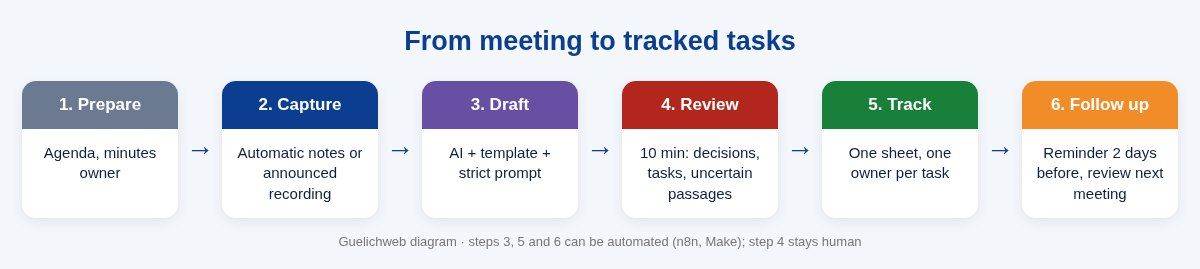
Guelichweb diagram, produced on 16/11/2026.
- One tracking sheet for all meetings of the same team: Google Sheets, Excel online, Planner, Trello or your project tool. Columns: meeting date, task, owner, due date, status, link to the minutes.
- Every approved task is copied into that sheet the same day. If your prompt already produces a table, it is a copy and paste.
- Each owner receives their own task, by email or message, not only the full minutes.
- A reminder two days before the due date.
- The next meeting starts with a task review: done, in progress, blocked. Five minutes, no more.
This workflow is also the basis of a good KPI dashboard: the share of tasks completed on time says a lot about how a team is organised.
Automating the workflow (when it is worth it)
Once the method has run by hand for a few weeks, part of it can be automated. Here is a workflow you can build with n8n or Make:
- The Google Meet notes document, the Teams transcript or the audio file of an in-person meeting lands in a specific folder.
- The automation sends the text to an AI model with your prompt and gets back decisions and tasks in a structured format.
- The draft goes to the minutes owner for approval. Nothing is sent without that click.
- Once approved, tasks are added to the tracking sheet and each owner receives a message with their task and due date.
- Two days before each due date, an automatic reminder goes out.
To send automated WhatsApp messages at scale, you need the WhatsApp Business API; this is the kind of workflow we build with our WhatsApp chatbot and n8n offer. If you are unsure which tool to use, our n8n or Make comparison will help.
Our view: do not automate before running the method by hand. If meetings have no agenda and decisions are never stated, automation will simply produce vague minutes faster.
Four situations, four set-ups
Small business: the Monday sales meeting
Thirty minutes, five people, always the same items: weekly figures, hot prospects, delivery problems. A decision log is enough. If the team is on Google Workspace or on Teams with the right licence, automatic note-taking does 90% of the job; otherwise, a phone, a transcript and the prompt. Most important: tasks go into the same sheet every week.
NGO: project coordination meeting
Several partners, sometimes joining by video from abroad, and commitments that must be justified to a donor. The minutes must clearly separate each party’s commitments and keep track of decisions that change the budget or the timeline. These minutes later feed narrative reports: file them with the project, not in the inbox of a coordinator who may leave next year.
Public institution or local authority: the formal meeting
A council, a committee, a steering group. Here, formal minutes often have official value. AI can produce the draft from the recording, but the meeting secretary stays in charge, and the final version follows the usual review and signature process. If signatures happen remotely, our article on electronic signatures explains what has legal value.
Association: the general assembly
Votes, board elections, approval of accounts. Use the “formal minutes” variant of the prompt, have two people check the vote results, and follow the format your statutes require. AI does not count the votes for you.
Privacy, consent and retention
- Inform people before recording and explain what the recording will be used for. Google Meet shows an icon when note-taking is on, but saying it out loud remains good practice, especially in a room.
- Do not run meetings containing sensitive data through a consumer tool: health, disciplinary cases, information about vulnerable beneficiaries, payroll. In Benin, personal data protection is overseen by the APDP.
- Use the organisation’s accounts, not employees’ personal accounts. Google Meet notes are saved in the organiser’s Drive: if that is a personal account, they leave with that person.
- Set a retention period for audio recordings. Once the minutes are approved, the audio of an ordinary meeting rarely needs to be kept.
- Write these rules down in a short policy. You will find a starting point in our article on AI in business.
The 7 mistakes we see most often
- Sending AI-generated minutes without reviewing them.
- Asking for three pages of narrative when a decision log would have done.
- Leaving tasks without an owner, or with a due date like “ASAP”.
- Recording without telling participants.
- Pasting a confidential meeting into a free tool whose data policy nobody has read.
- Paying for an AI licence for the whole team when only meeting organisers need it (on Meet and on Zoom, the organiser is the one who starts the feature).
- Never reviewing tasks at the next meeting, which makes everything else pointless.
How much does it cost?
The basic method is free: a phone, a free transcription tool for short meetings, the free version of an AI assistant for non-sensitive content, a Google Sheets tracker. The built-in features of Meet and Teams depend on paid subscriptions, and Zoom’s free version is limited to a few summaries a month. Check current prices on the vendors’ websites.
If you would like us to set up the complete workflow (template, prompt adapted to your meetings, tracking sheet, automation with approval and reminders), we start with a review of your meetings and tools, then send you a quote. Our packages are described on the offers page; for a ballpark, see also how much AI automation costs in Benin.
Frequently asked questions
Can I create AI meeting minutes for free?
Yes, for short, non-confidential meetings: record, transcribe with a free tool, then ask an AI assistant for minutes using the prompt in this article. Zoom’s free account also includes a few summaries a month for meetings you host.
Which AI should I use for Teams meeting minutes?
If your organisation has Teams Premium or Microsoft 365 Copilot, Teams intelligent recap is the simplest. Otherwise, turn on transcription, download it and process it with an AI assistant and a precise template.
How do I write meeting minutes from an audio recording?
Transcribe the audio first, then give the transcript to an AI assistant along with your agenda, the participant list and the minutes template. Review names, amounts and dates first.
Can AI write the formal minutes of a general assembly?
It can prepare a draft. Formal minutes remain an official document: they must be reviewed, corrected and signed according to your statutes or, for a company, the OHADA Uniform Act.
Does AI understand meetings that mix French and a local language?
Poorly, for now. Built-in tools generally work with one language per meeting. If part of the meeting is held in Fon, Yoruba, Wolof or Dioula, plan for a person to complete the minutes.
Should I tell participants that AI is taking notes?
Yes. Announce it at the start of the meeting, explain what the notes will be used for, and allow note-taking to be paused for sensitive items.
How long does it take to review AI-generated minutes?
With the prompt in this article, allow about ten minutes for a one-hour meeting: start with the passages flagged as uncertain, then check the decisions and tasks.
Final word
AI has made meeting minutes almost free to produce. It has not made meetings more useful. What makes the difference is decisions stated clearly, tasks with a name and a date, a human review and a check at the next meeting. With that, any tool will do. Without it, none will.
Want a simple workflow that turns your meetings into tracked tasks, with or without automation? Contact Guelichweb: we look at how you work today and tell you honestly what is worth automating.