Website backup: how to back up (and restore) a WordPress site with the 3-2-1 rule
G. CHRIST
Published on November 9, 2026

Ask yourself a simple question: if your website vanished tonight, how long would it take you to put it back online, exactly as it was? If the answer is "I don't know" or "I'd have to ask the host", you don't really have a backup. You have a hope.
At Guelichweb, we build and take over websites for SMEs, NGOs and public institutions in Benin and French-speaking Africa. Backups are the topic everyone assumes is handled and almost nobody has tested. This guide is deliberately practical: what to back up, how often, where to store the copies, how to back up a WordPress site step by step (with cPanel or with a plugin), and above all how to restore it on the day something breaks. We also cover what the usual guides leave out: unstable connections, access scattered across several people, hosting bills paid with a former employee's card… the real life of a website in West Africa.
If your site has just been hacked, start with our guide website hacked: what to do instead. Here, we prepare the ground so that day becomes a bad morning rather than a disaster.
Website backup: what exactly are we talking about?
Backing up a website means making a complete, dated copy of it, stored somewhere other than the server, that lets you put it back online as it was at that moment. Three words matter in that sentence: complete, dated, elsewhere.
Complete, because a dynamic website is made of two parts. The official WordPress documentation is blunt about it: on one side there are the files (WordPress core, the theme, plugins, uploaded images and documents, the wp-config.php file), on the other the database, which holds your pages, posts, settings, user accounts and orders. You need both to restore a WordPress site. A copy of the files alone gives you an empty site; a database alone gives you text with no layout and no images.
Dated, because sometimes you will need to go back three weeks, not just to yesterday. Elsewhere, because a backup stored on the same server as the site disappears with it when the server fails, when the account is suspended, or when an attacker wipes everything.
Don't confuse a backup with "saving a web page" in your browser either. Saving a page as a PDF or for offline reading only keeps what a visitor sees. None of what actually runs the site.
Why your host's backup is not enough
This is the objection we hear most: "my host already makes backups". Often that's true. But read the terms. How many days of history? Is restoring free or billed? Do you need to open a ticket and wait? Do the backups cover the database and email? And above all: if your hosting account is locked over an unpaid invoice, or compromised, do you still have access to those copies?
The WordPress documentation sums it up well: most hosts back up the whole server, but getting a copy of your site from them takes time, while a fast recovery is critical. Our position is clear-cut: your host's backup is a bonus, never your main plan. Keep it, and add your own copy, stored with you, under your control.
The 3-2-1 rule, applied to a website
The 3-2-1 rule is the foundation of any backup strategy, and France's national cyber-assistance platform Cybermalveillance.gouv.fr recommends it to businesses too: three copies of your data, on two different media, with one off-site. For a website, that means in practice:
- Copy 1: the live website itself. That's the "living" data.
- Copy 2: an automatic backup sent to cloud storage that has nothing to do with your host: Google Drive, Dropbox, S3-compatible storage… using an account owned by your organisation, not by a contractor.
- Copy 3: an offline copy, for example an external drive kept at the office or with the person in charge, refreshed once a month. It survives both a hacked cloud account and a sync error.
Some now talk about "3-2-1-1-0" (one disconnected copy, zero errors on verification). The idea is the same: at least one copy out of an attacker's reach, and backups that are actually checked. For an SME or NGO, applying the basic 3-2-1 properly already puts you ahead of 90% of the sites we audit.
How often should you back up your website?
The right frequency depends on a single question: how much work are you willing to lose? If the site crashes at 5 pm and the last backup was taken the night before at 2 am, everything done in between is gone. The WordPress documentation suggests a weekly backup for a small site that rarely changes and a daily one for a very active site. Here are the benchmarks we use:
- Brochure site updated a few times a month: a full weekly backup, plus a manual backup before every significant change.
- Site with a blog, forms or sign-ups: database every day, files every week.
- Online shop, donation platform, member area: database several times a day (every 4 to 12 hours depending on volume), files every day.
- Before every update of WordPress, the theme or a plugin: always, no exceptions.
And how long should you keep copies? Longer than you'd think. A quiet compromise can go unnoticed for weeks; if you only keep the last seven backups, all of them will be infected. We recommend at least 30 days of history, plus a monthly copy kept for several months. The WordPress documentation itself recommends keeping at least three to five recent backups in different locations.
Method 1: back up your site with cPanel (no plugin)
Many hosts, in the region and internationally, provide cPanel. Its "Backup" tool or "Backup Wizard" lets you download a copy without installing anything on the site. One caveat: the cPanel documentation states that this feature only appears if your host has enabled it, and that a full backup cannot be restored automatically from cPanel (you have to go through your host, who has WHM).
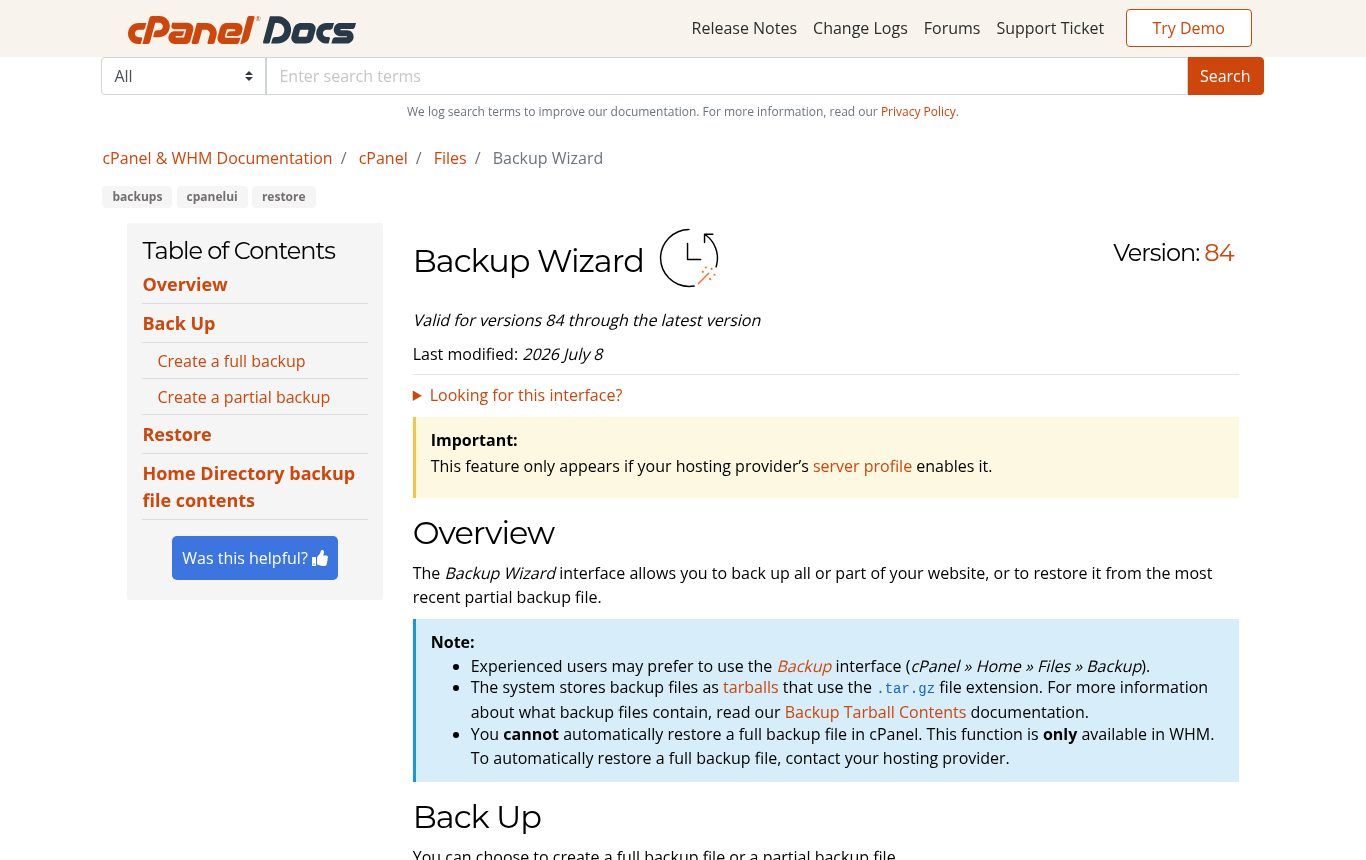
Source: docs.cpanel.net, "Backup Wizard" page, captured on 9 November 2026.
For an SME, we recommend partial backups, which are easier to restore yourself:
- Log in to cPanel, go to Files, then Backup (or Backup Wizard).
- Download the Home Directory backup: a .tar.gz file containing public_html, i.e. your site's files.
- On the same page, download the backup of each MySQL database (a .sql.gz file).
- If your business email addresses are with the same host, also download forwarders and filters, and remember to back up the mailboxes themselves separately.
- Rename the files with the date and the site name, then store them in your cloud folder and on your external drive.
A tip from the field: if your connection is slow or drops often, start the download early in the morning or from a fibre connection, and check the final file size. An archive truncated by a dropped connection will not restore. If your site weighs several gigabytes because of images, the next method, which sends copies straight from the server to the cloud, will be more reliable than downloading everything to your computer.
Method 2: back up a WordPress site with UpdraftPlus

Official logo: UpdraftPlus (TeamUpdraft), WordPress.org plugin directory.
UpdraftPlus is the most installed backup plugin for WordPress: more than 4 million active installations according to WordPress.org as of 9 November 2026. The free version is enough for most SME sites: scheduled backups (every 2, 4, 8 or 12 hours, daily, weekly, fortnightly or monthly), sending to Google Drive, Dropbox, Amazon S3-compatible storage, FTP or email, and component-by-component restore.
Source: wordpress.org/plugins/updraftplus, captured on 9 November 2026.
Setting it up, step by step:
- In the WordPress dashboard, go to Plugins > Add New, search for UpdraftPlus, install and activate it. Check that the installed version is recent (see the security box below).
- Open UpdraftPlus > Settings. Choose the files schedule (for example weekly, keeping 4 copies) and the database schedule (daily, keeping 30 copies).
- Pick the remote storage, for example Google Drive, and connect it with a Google account owned by your organisation. Not the intern's personal Gmail.
- Leave the items to back up ticked: plugins, themes, uploads and "others". Only exclude cache folders.
- Save, then click Backup Now to run a first copy. Check in Google Drive that the files have arrived and that their size makes sense.
- Enter an email address to receive reports, and actually read them for at least the first week.
What the free version doesn't do: automatic backups before each update, incremental backups, sending to several destinations at once, or database encryption. Those options are in the Premium version. For a brochure site, the free version plus a "manual backup before every update" habit is enough. For a shop, Premium (or a server-side solution) is worth considering.
There are other serious plugins (BackWPup, Duplicator, and built-in tools from some hosts such as WP Toolkit on Plesk). We don't believe in "the best plugin": the best one is the one that reliably sends copies off the server and that you have successfully restored at least once.
Security box: what the October 2026 UpdraftCentral incident teaches us
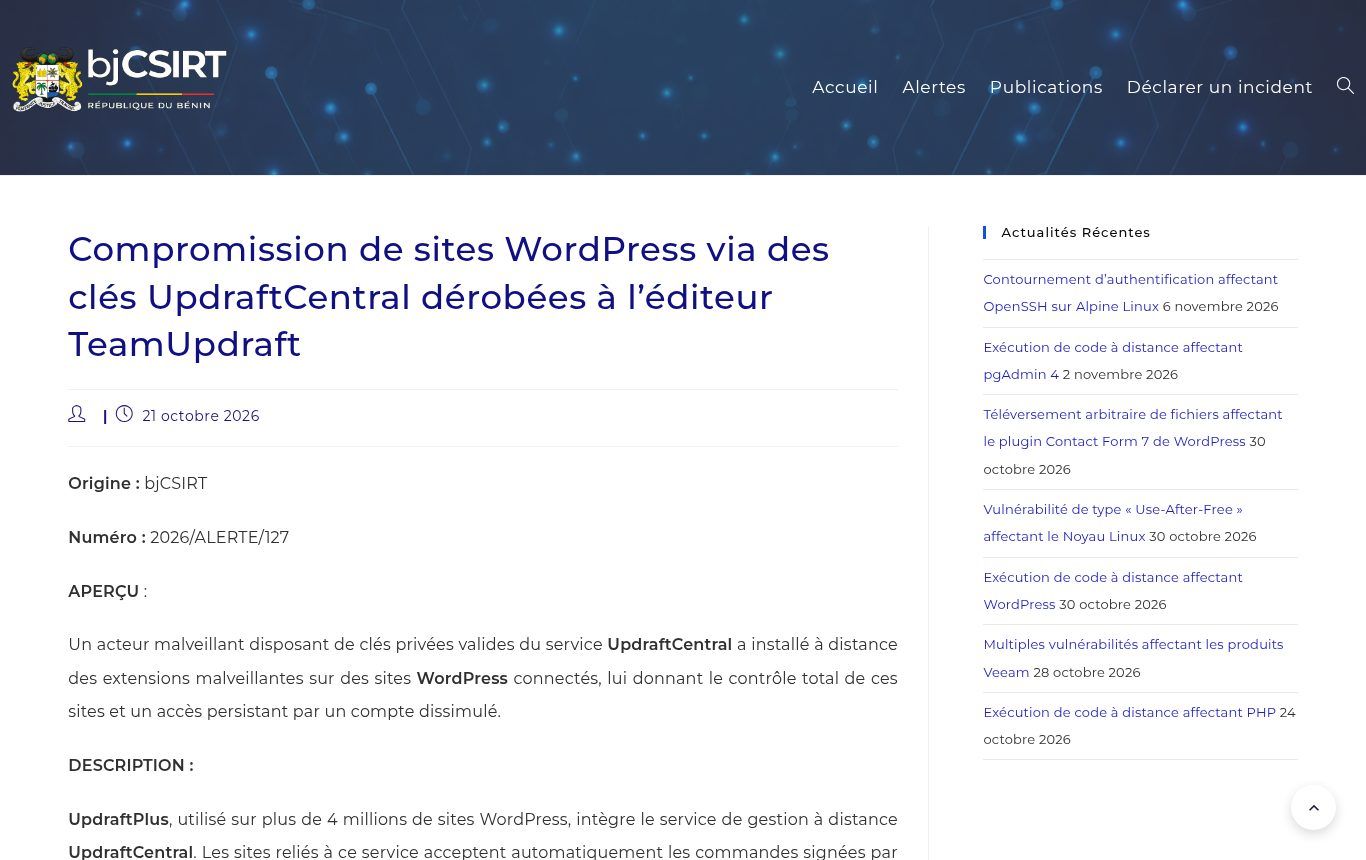
Source: csirt.bj, alert 2026/ALERTE/127 of 21 October 2026, captured on 9 November 2026.
On 21 October 2026, bjCSIRT, Benin's computer incident response team, published an alert about WordPress sites compromised through UpdraftCentral, the remote-management service linked to UpdraftPlus. According to the alert and the vendor's statement, the teamupdraft.com platform suffered unauthorised access on 17 and 18 October 2026; connection keys were used to remotely install malicious plugins that created hidden administrator accounts. The vendor released versions 1.26.13 (free) and 2.26.13 (Premium) on 19 October 2026 to revoke the old connections. Backups stored directly with remote storage services were not affected, according to the same sources.
We draw three lessons from it, whatever plugin you use:
- Keep your backup plugin updated like any other. If you use UpdraftPlus, make sure you are on at least 1.26.13 (free) or 2.26.13 (Premium), and follow the alert's instructions if an UpdraftCentral key was active.
- Only enable remote management if you really need it. A dashboard that controls ten sites from one place is convenient… and it's also a single door into ten sites.
- Keep old copies. When in doubt, the alert recommends restoring a backup taken before 17 October 2026. Those who only kept seven days of history no longer had that option.
Where to store your backups: our recommendations
Storage is where most failures happen. A few simple rules:
- A cloud account in the organisation's name, with two-factor authentication, that at least two people can access. The day the only person with the password leaves, your backups leave with them.
- Minimum permissions: the site needs to be able to upload files, not necessarily to delete everything. If an attacker takes over the site, they shouldn't be able to wipe your copies on the way.
- A monthly offline copy on an external drive, unplugged after use. It's the only one that survives everything that's connected.
- Encryption if the site holds personal data: donation forms, registrations, job applications. A backup contains your whole database, including that data. In Benin, the data protection authority APDP sets out data security obligations; we also cover this in our article on the legal notice and privacy policy.
On the hosting side, backups are among the criteria we detail in our guide web hosting: free or paid, and where to host in West Africa: frequency, retention, free restore or not. For an audience mostly in Benin or West Africa, a local or regional host billed in CFA francs, with daily backups, is often still the best choice. If you are looking for an international option instead (cPanel, card or Bitcoin payment, several hosting countries), Shinjiru, an offshore host since 2000, offers shared hosting from about $3.95/month, VPS plans and a Strongbolt range with DDoS protection; no Mobile Money or CFA-franc billing, though. See Shinjiru's plans (affiliate link: we may earn a commission if you sign up, at no extra cost to you). Whatever the host, the rule doesn't change: keep a copy outside their infrastructure.
Restoring a WordPress backup: the part nobody tests
A backup that has never been restored is a hypothesis. Restoring is the moment of truth, and it's rarely the ideal moment to discover how it works. Here are the three most common scenarios.
Scenario 1: an update broke the site
The site shows a blank page or a critical error after an update. If the dashboard is still reachable, open UpdraftPlus, pick the backup from before the update and restore only the affected components (often plugins, sometimes the theme). If the dashboard is unreachable, rename the faulty plugin's folder via FTP or the file manager to deactivate it, log back in, then restore.
Scenario 2: deleted content or a corrupted database
Someone deleted a batch of pages, or a plugin damaged the database. Restore only the database, from the most recent copy before the incident. Be careful: everything created since then (orders, sign-ups, messages) will be overwritten. Export that recent data first if it matters.
Scenario 3: hacked site or lost server
This is the trickiest case. You need to restore a backup from before the intrusion, not the latest one, then immediately update everything and change every password. The WordPress documentation recommends this order: restore the files first, then import the database, and adjust wp-config.php if the database credentials have changed. For the full clean-up, see our website hacked guide.
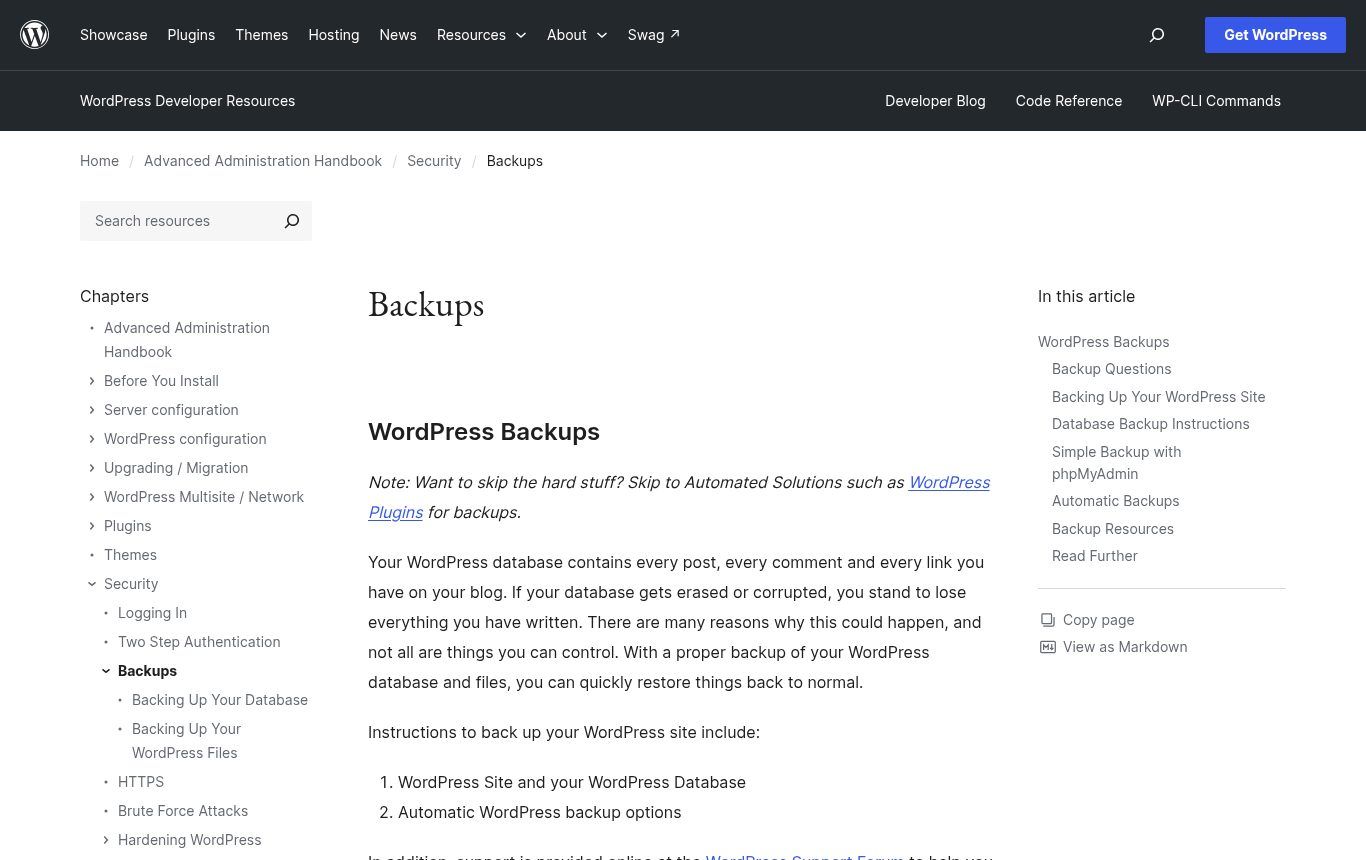
Source: developer.wordpress.org, Advanced Administration Handbook, "Backups" page, captured on 9 November 2026.
The twice-yearly restore test
Twice a year, restore your latest backup onto a test copy: a subdomain such as test.yoursite.bj, or a local install. Check the home page, the dashboard, a form, the images. Write down the total time. If you don't know how to do it, that's exactly what you should ask your web provider to show you.
Automate backup monitoring with n8n or Make
An automatic backup can fail silently: an expired Google Drive token, a full disk, a timeout on an under-resourced host. The site keeps running, nobody notices, and on the day of the problem the latest copy is two months old. That's the scenario we want our clients to avoid.
The fix is a small workflow, which we build with n8n or Make (we compare the two in n8n or Make: which automation tool to choose):
- A scheduled trigger runs every morning.
- The workflow lists the backup folder in Google Drive using the Google Drive node and reads the date and size of the most recent file.
- If the latest copy is more than 26 hours old (for a daily backup), or if its size suddenly drops compared with the previous one, it sends an alert by email, Slack or WhatsApp to two people.
- Once a month, it sends a summary: number of successful backups, size, date of the last tested restore.
It's not spectacular. That's exactly the point: a boring, daily check that turns "I think it's backing up" into "I know it's backing up". For more small automations like this, our article on task automation gives other examples.
NGOs, funded projects and institutions
For an NGO or an institution, the website is more than a shop window: it holds reports, calls for tenders, project news that donors read, sometimes application forms. Three specific points:
- The end of a project. When a funded project closes, the site is often abandoned, the hosting expires, and everything disappears. Plan a full archived backup before closure, and a plan for the domain name (see our article on the .bj domain name).
- Staff turnover. Write a simple sheet stating where the backups are, who has access and how to restore. Hand it over at every handover.
- Partner requirements. Some donors ask about the security and continuity of digital tools. A written backup policy, even one page long, is a credible answer. Our article on the NGO website covers the rest.
The mistakes we see most often
- Backing up only to the server. It's the default behaviour of many plugins if no remote storage is configured.
- Backing up the files and forgetting the database (or the other way round).
- A personal cloud account that belongs to a contractor or a former employee.
- Too short a history, which doesn't let you go back before a quiet compromise.
- Never testing a restore. On the day, the archive turns out to be corrupt or incomplete.
- Ignoring the plugin's failure emails, which end up in a folder nobody reads.
- Forgetting the extras: business email, the domain's DNS zone, access credentials. Record them in a separate document.
Checklist: your backup plan on one page
If you keep only one thing from this article, keep this list. Print it, tick it off.
- Files AND database backed up automatically.
- Frequency matched to activity (at least weekly, daily for an active site's database).
- Automatic copy outside the host, on a cloud account in the organisation's name.
- Monthly offline copy on an external drive.
- At least 30 days of history, plus a monthly copy kept longer.
- Manual backup before every major update.
- Backup plugin up to date, remote management disabled if not needed.
- Automatic alert if a backup is missing.
- Restore test twice a year, with the time recorded.
- A "where the backups are and how to restore" sheet shared with two people.
Do it yourself or hand it over?
A WordPress brochure site can be backed up perfectly well on your own with this guide and an hour of setup. Support becomes useful for: an online shop with daily orders, a large site, several sites to look after, sensitive data, or simply nobody in-house to read the alerts. It's usually part of a website maintenance contract, together with updates and monitoring.
At Guelichweb, we don't publish prices at random: we start with a diagnosis (the site's technology, the host, existing backups, who owns the access), then propose a solution and a quote, as explained on our Offers page. If your site runs on technology too old to be backed up and updated properly, we'll tell you that too; sometimes a redesign costs less than patching things up.
FAQ: website backup
How can I back up a WordPress site for free?
With a free plugin such as UpdraftPlus set up to send to Google Drive or Dropbox, or with cPanel's backup tool if your host enables it. Neither method costs anything beyond storage, which is often free for a small site.
How do I back up my WordPress site locally?
Download the files and database backups (from cPanel or from UpdraftPlus, which lets you download each archive), then store them on an external drive. To actually run the site locally, you also need a local server environment and a restore; that's mainly useful for testing.
What's the difference between a backup and a migration?
A backup keeps a copy so you can roll back in the same place. A migration moves the site to another host or another address. Both often use the same tools, but a migration also requires replacing the old address in the database and switching the domain name.
Does a Wix or Shopify site need backups?
The platform handles the infrastructure, but you remain responsible for your content. Regularly export what you can (products, customers, posts) and check the platform's history options. You won't be able to take the whole site elsewhere; that's one of the limits of these tools.
How long should I keep backups?
At least 30 days for an active site, plus a monthly copy over several months. What matters is being able to go back before an incident you might not spot straight away.
Will backups slow my site down?
A full backup uses resources for a few minutes. Schedule it at night or during quiet hours. If it often fails for lack of time, that's usually a sign your hosting is too limited.
Should I back up my business email too?
Yes, if it's hosted with the site. WordPress backups don't include mailboxes. Check what your host does and plan a separate export, especially for important mailboxes. And train your team on the scams that target those inboxes: see our article on phishing.
Move from "I think" to "I know"
A good backup is never noticed, until the day it saves your site. Take an hour this week: check what is backed up, where, since when, and try a restore on a copy. If you'd rather do it with us, contact Guelichweb: we review your situation, set up off-server backups with an automatic alert, and show you how to restore, so your website no longer depends on luck.