WhatsApp on your computer: how to install it (Web, Windows, Mac), use it as a team and log out safely
G. CHRIST
Published on November 17, 2026
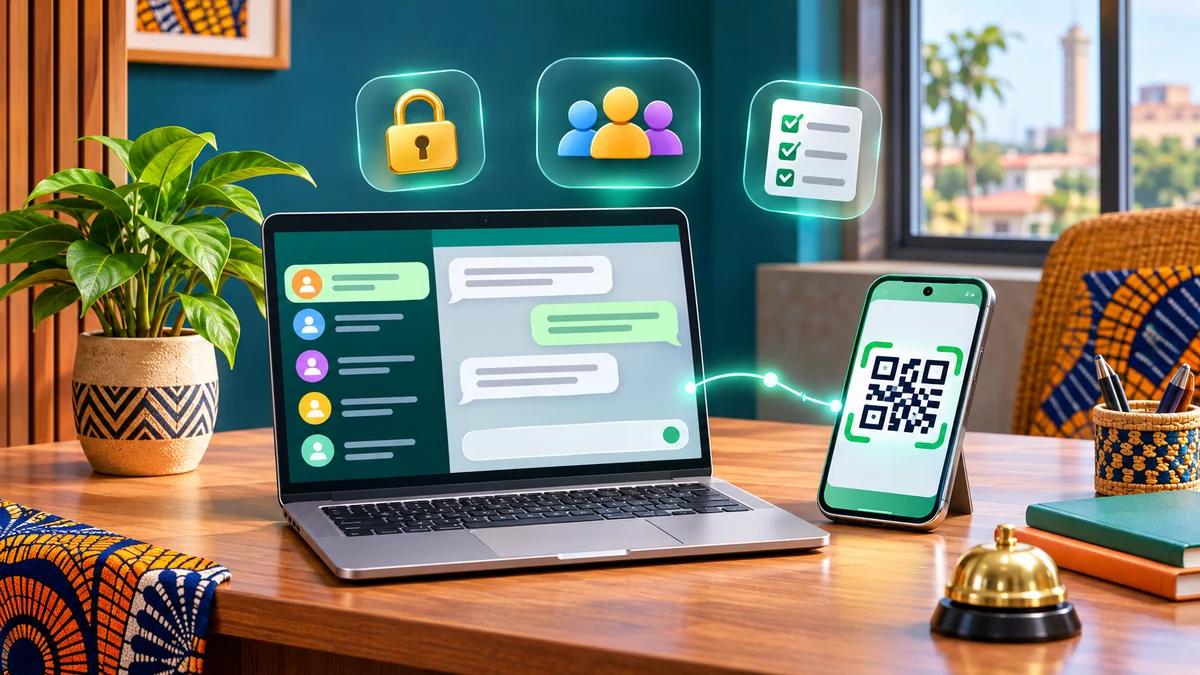
In many shops, practices and NGOs in Benin and across French-speaking Africa, WhatsApp has quietly become the real switchboard. Customers write in, send photos, ask for a price, chase an invoice. And all of it goes through a single phone sitting on the desk of whoever "handles the WhatsApp". When that person is on leave, in a meeting or simply out of battery, the messages wait.
Putting WhatsApp on a computer fixes part of the problem: you type faster, find files more easily and several people can reply. It is also where the nasty surprises start: a former intern still reading conversations from their laptop, a shared PC with no lock, a "handy" browser extension that gets the number banned. This guide explains how to put WhatsApp on your computer properly, then how to use it as a team without losing control of your number.
Everything below was checked on 17 November 2026 against WhatsApp's official help pages. Menu names change from one version to the next: if a label looks different on your phone, look for the words "Linked devices".
In short
- There are three ways to use WhatsApp on a computer: WhatsApp Web in a browser, the WhatsApp for Windows app (Microsoft Store) or WhatsApp for Mac. All of them link to your phone with a QR code or an 8-character code.
- The primary phone remains essential: it creates the account and approves every new device. You cannot create a WhatsApp account from a computer.
- You can link up to four devices in addition to the phone, and they keep working with the phone switched off. But if the primary phone does not open WhatsApp for 14 days, everything gets logged out.
- The free WhatsApp Business app therefore lets five screens answer on the same number. To go up to 10 devices and assign chats to agents, you need the paid multi-agent option tied to Meta Verified or Meta One, which is not offered everywhere yet.
- Beyond that, or if you want proper customer tracking, roles and automation, the right answer is the WhatsApp Business API connected to a shared inbox or a CRM.
The three ways to use WhatsApp on a computer

Official WhatsApp logo (source: business.whatsapp.com)
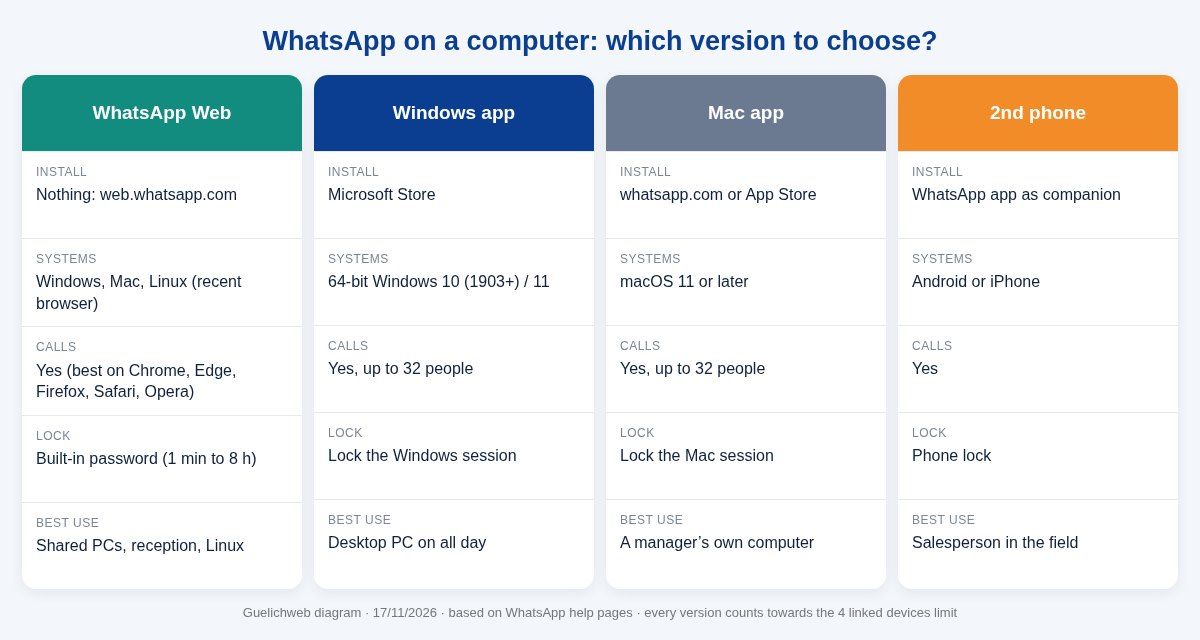
Before choosing, understand one thing: in all three cases the computer does not have its own account. It becomes a linked device on your account, the phone's account. Messages are end-to-end encrypted on every device, and each one connects to WhatsApp independently, which is why they keep working when the phone is off.
1. WhatsApp Web, in your browser
Open web.whatsapp.com, a QR code appears, you scan it with your phone. Nothing to install. It is the option that works everywhere: Windows, Mac and Linux. WhatsApp requires a recent browser: at least Chrome or Edge 100, Firefox 115, Safari 15 or Opera 86, according to its supported browsers page. If your machine still runs an old version, this is the moment to update (see our guide what is a web browser and which one to choose).
It is also the version with a password lock documented by WhatsApp. On a shared computer, that is a decisive argument.
2. The WhatsApp for Windows app
It installs only from the Microsoft Store, on 64-bit Windows 10 (version 1903 or later) or Windows 11. It starts with the computer, shows notifications even when the browser is closed and handles voice and video calls, with up to 32 people according to WhatsApp. For a reception desk that stays on all day, it is often the most comfortable choice.
3. The WhatsApp for Mac app
Same principle, from the official download page or the App Store, on macOS 11 or later. An older Mac that cannot be updated will use WhatsApp Web.
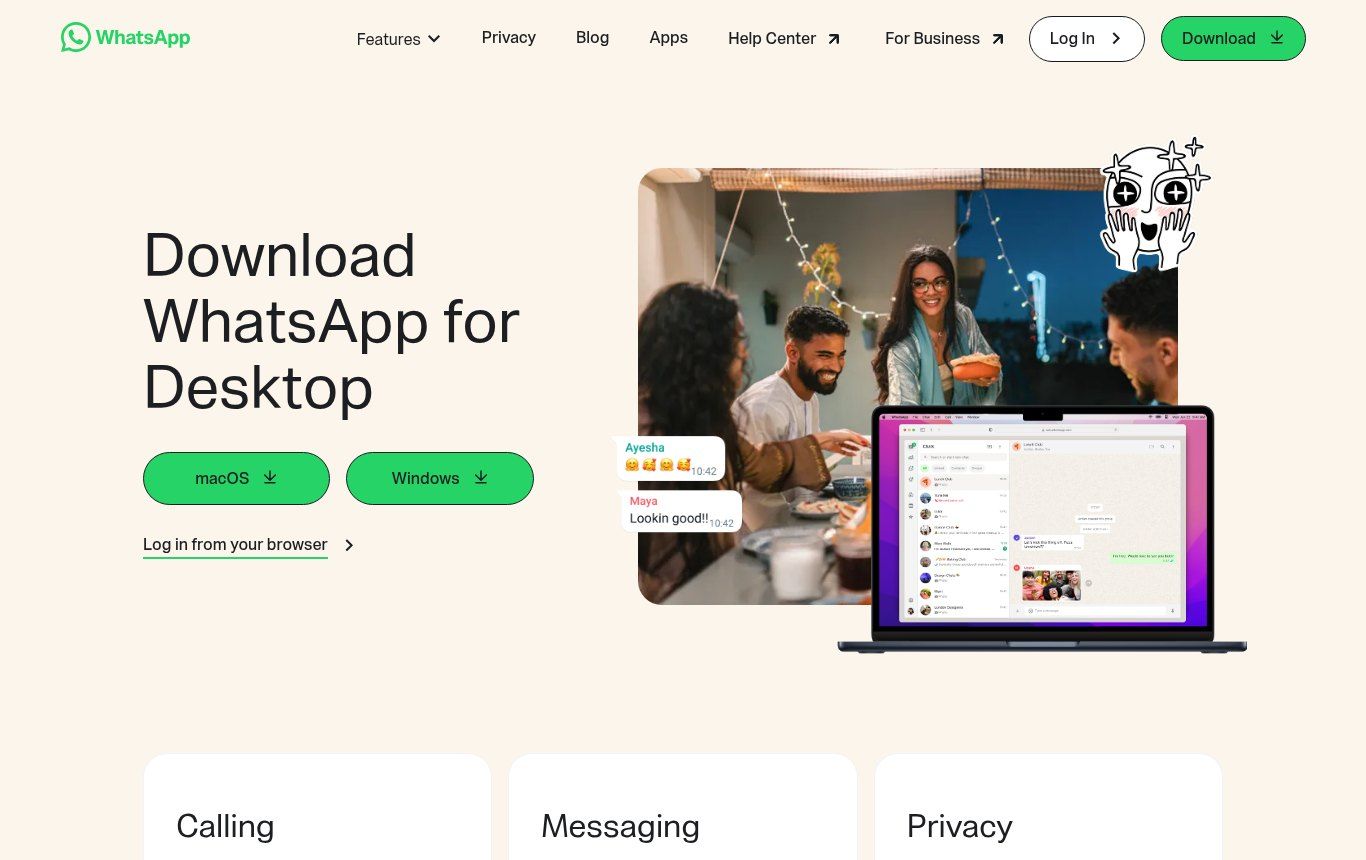
Source: whatsapp.com/download/desktop, screenshot taken 17/11/2026
One non-negotiable rule: never download WhatsApp from anywhere other than whatsapp.com, the Microsoft Store or the App Store. The "free WhatsApp for PC" files offered on download sites are at best useless copies and at worst spyware. WhatsApp itself states that an account linked to an unofficial app or website can be temporarily or permanently banned.
Guelichweb diagram, based on WhatsApp help pages checked on 17/11/2026
How to put WhatsApp on your computer, step by step
The procedure is the same for WhatsApp and WhatsApp Business. Allow two minutes.
- On the computer, open web.whatsapp.com or launch the Windows or Mac app. A QR code appears.
- On the primary phone, open WhatsApp. On Android: ⋮ menu > Linked devices > Link a device. On iPhone: Settings > Linked devices > Link a device.
- The phone asks for your fingerprint, face or unlock code. That is expected: it is what stops someone from linking your account in two seconds while your back is turned.
- Point the phone at the screen and scan the QR code. Your chats appear on the computer; the history can take a few minutes to load.
- Give the device a clear name straight away if the option is offered (for example "Reception – PC 1"), so you can recognise it later in the list.
If the phone camera won't read the QR code
Damaged camera, overly bright monitor, a code that keeps refreshing: on WhatsApp Web, click Link with phone number. You enter your number, the computer shows an 8-character code, and you type it on the phone after tapping the notification you receive. The official procedure is the same for WhatsApp Business. The browser may also offer to create a passkey for future logins.
"WhatsApp on a computer without a phone": is it possible?
It is one of the most common searches, and the honest answer is no. A computer cannot be the primary device on an account. You need a phone (or, as a special case, an Android tablet registered as the primary device) to create the account and approve links. After that, yes, the computer works with the phone switched off, as long as that phone opens WhatsApp at least once every 14 days. Sites promising "WhatsApp without a phone" are usually selling a fake number or dubious software.
The rules that catch businesses out
On a personal phone these rules go unnoticed. In an organisation where several people depend on the same number, they cause "mysterious" outages. Here are the ones to know before you equip a team.
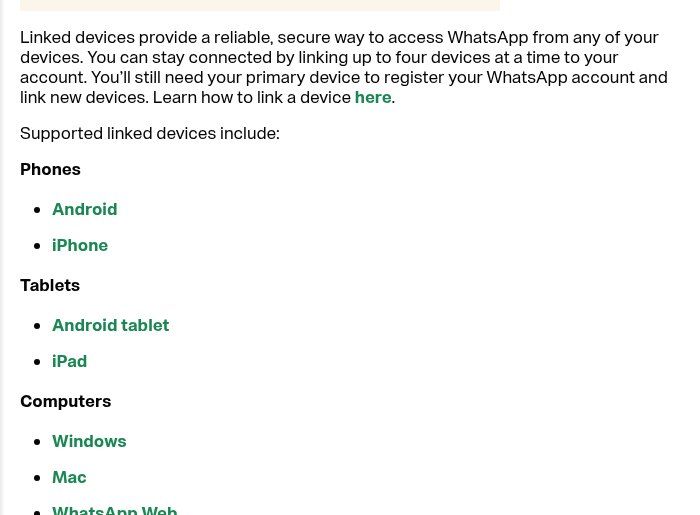
Source: faq.whatsapp.com, About linked devices, screenshot taken 17/11/2026
- Four devices, not one more. A fifth cannot be linked until you remove one. Take stock before equipping a team.
- The 14-day rule. Linked devices work without the phone, but they log out if the primary phone is not used for more than 14 days. The "office phone" left in a drawer over the holidays means a team receiving nothing when work resumes.
- The 30-day rule. A linked computer that is not used for 30 days is logged out automatically. Good for security, confusing for a machine you only switch on during campaigns.
- Some features stay on the phone. On WhatsApp Business, WhatsApp says broadcast lists, posting status updates and live location are not available on linked devices. Whoever handles status updates and broadcasts must keep hold of the phone.
- History can be incomplete. WhatsApp acknowledges a known issue: on some linked devices, part of the chat history (up to a year) does not show. The phone remains the reference.
WhatsApp Business on a computer: several people on one number
This is the real question for most small businesses: "Can three people answer customers at the same time?" Yes, at no cost, up to a certain size. WhatsApp describes it this way on its page about WhatsApp Business on linked devices: four linked devices plus one phone, so more employees can reply, especially during an ad campaign or a promotion.
What works well on the free version
A shop with one primary phone and two reception PCs, a practice with a secretary and a partner, an NGO whose communications officer replies from a laptop: these setups work very well. Combine them with the app's built-in tools, greeting and away messages, quick replies, labels and the catalog, and you already have decent customer service.
Where it breaks down
Everyone sees everything, and nobody knows who is handling what. Two colleagues answer the same customer with two different prices, or each assumes the other has replied. The customer cannot see who wrote to them, and neither can you afterwards. Labels help, but it is a workaround. Our rule when a team starts without a paid tool: one person "on duty" per time slot, one label per status (new, in progress, quote sent, paid), and a standard sign-off line ("Awa here, from reception"). It is not elegant, but it prevents most of the mix-ups.
The multi-agent option: up to 10 devices, but paid
WhatsApp offers a multi-agent feature in the Business app. It lets you link up to 10 devices, name each one after the agent, assign a chat to a person and see which agent sent which message. The customer sees none of this.
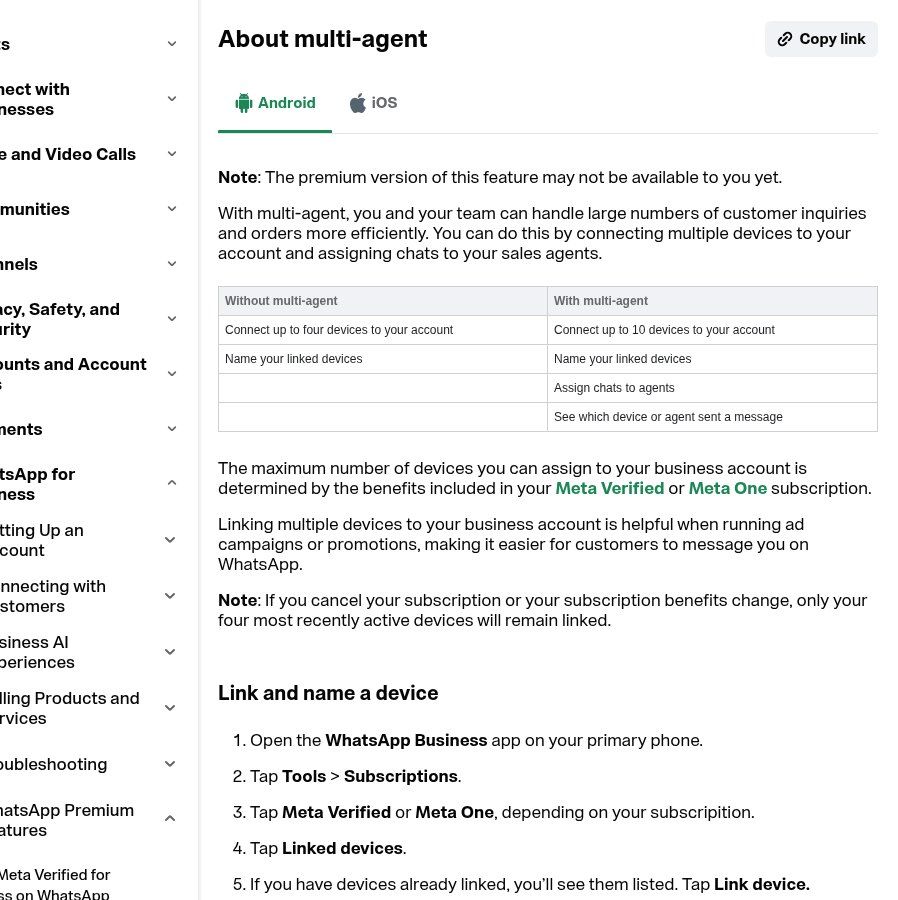
Source: faq.whatsapp.com, About multi-agent, screenshot taken 17/11/2026
Three limits to know before getting excited. First, the number of devices depends on your Meta Verified or Meta One subscription; it is not free, and the help page warns that the premium version "may not be available to you yet". Check in the app, under Tools > Subscriptions, what is actually offered to your account. Second, if you cancel, only the four most recently active devices stay linked. Third, with more than four devices, calls only ring on the primary phone.
Our view: multi-agent is a good step for a sales team of five to ten people who mostly work through messages. It is not a CRM. There is no structured customer history, no serious statistics and no connection to your invoicing.
When to move to the WhatsApp Business API
Once you go beyond ten people, or you want roles and permissions, response-time statistics, a customer history tied to your sales, or a chatbot that sorts incoming requests, the app is no longer enough. You need the WhatsApp Business API, connected to a shared inbox or a CRM. It works differently (messages charged depending on the case, approved templates, a dedicated number): we explain it in detail in WhatsApp Business API: what it is and what it costs.
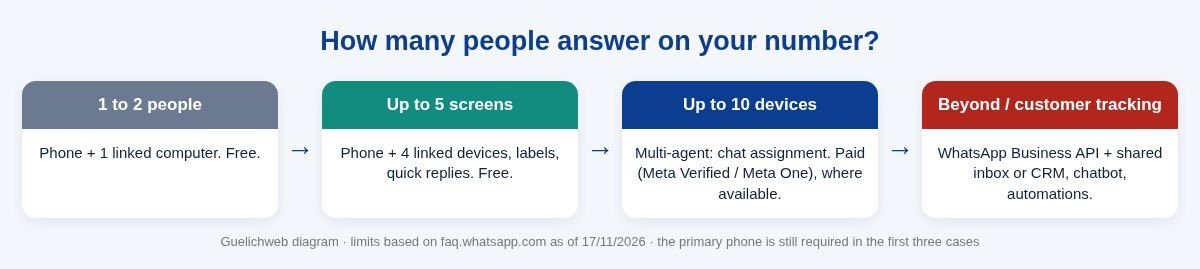
Guelichweb diagram · limits based on WhatsApp help pages as of 17/11/2026
Security: the real risk is the forgotten computer
WhatsApp's encryption protects your messages in transit. It does not protect you from a colleague who sits down at a machine left open. In an organisation, the most likely incident is not a sophisticated hack. It is a computer that was linked and then forgotten.
Six settings to apply on installation day
- Lock WhatsApp Web. In WhatsApp Web: Settings > Privacy > App lock. Password of 6 to 128 characters, automatic lock after 1 minute, 15 minutes, 1 hour or 8 hours (official help). On a reception PC, choose 15 minutes or less.
- Lock the computer session. On the Windows and Mac apps, if you cannot find an equivalent lock in your version's privacy settings, your protection is locking the machine: Windows + L, or a hot corner on Mac, every time someone stands up.
- Turn on notifications on the primary phone. WhatsApp alerts you when a new device is linked. If you don't recognise it, remove it from the notification.
- Turn on two-step verification on the phone (Settings > Account > Two-step verification), with a PIN known to two managers and an email address belonging to the organisation, not to an employee.
- Refuse unofficial extensions. "WhatsApp sender", "bulk messaging" or "free CRM for WhatsApp Web" extensions are the classic cause of banned numbers. If you need bulk sending or automation, use the tools built for it.
- Review linked devices once a month: primary phone > Linked devices. Any device nobody can identify gets logged out. Full stop.
When an employee leaves
This is the most forgotten moment. On the day they leave, open the list of linked devices on the primary phone, tap that person's device, then Log out. Do it even if the computer belongs to the organisation: the session may still be open in a personal browser. If that person held the primary phone, take it back and change the unlock code and the two-step verification PIN. And train the team to spot fake messages asking for a 6-digit code: it is the most common way to steal an account (our guide to phishing at work covers the right reflexes).
On the data side, remember that customer conversations contain personal data: names, numbers, addresses, sometimes health or payment details. In Benin, their protection falls under the APDP, the data protection authority. Limiting the number of linked machines and knowing who can access them is basic good practice.
How to log out of WhatsApp on a computer
Two situations, two methods.
- You are at the computer. In WhatsApp Web or the app, open the menu (⋮ or the settings cog) and choose Log out. On a public or borrowed computer, always do it, and close the browser window.
- The computer is elsewhere (lost, stolen, with a former employee). On the primary phone: Linked devices > tap the device > Log out. The session is cut remotely.
And on the phone itself? For a long time, the only way to "leave" WhatsApp on the primary phone was to delete the app or the account. A real log-out button that keeps your chats has been in testing in Android beta versions since spring 2026, but it is not available to everyone yet. If you simply want to silence notifications over the weekend, archiving, muting or the WhatsApp Business away message do the job without any risk.
Don't mix things up: deleting the account erases your profile, your groups and your backup history. It is never the right answer to "I want to log out".
WhatsApp Web not working: the most common causes
- The QR code won't scan: clean the camera, lower the screen brightness, enlarge the window, or use phone-number linking.
- "Phone not connected" or an unexpected logout: check whether the primary phone has opened WhatsApp in the last 14 days and whether it has a connection. An exhausted data bundle on the shop phone is enough to block everything at reconnection time.
- Can't link a new device: you probably already have four. Remove one.
- Browser too old: update it or switch to a supported browser.
- Filtered office network: some firewalls or proxies block WhatsApp. Test from a phone hotspot; if it works, the problem is your network.
- Incomplete history: a known WhatsApp issue on some linked devices. Keep the app updated and check the phone for older conversations.
Our standard setup for a small business or NGO
Here is the setup we recommend most often to an organisation of 3 to 15 people that receives most of its requests on WhatsApp. It costs nothing on top of what you already have.
- A number dedicated to the organisation, on a phone owned by the organisation, not by the manager or an employee. Everything else depends on this.
- The primary phone stays at the office, charged, on Wi-Fi, with WhatsApp opened at least once a week. One person is responsible for it.
- Two or three linked computers at most, named, with WhatsApp Web locked or a locked Windows session. The fourth slot stays free for a replacement or troubleshooting.
- A link and a QR code on your website, posters and invoices, with a prefilled message (see how to create a wa.me link), so requests reach the right number and not the manager's personal phone.
- Shared labels and quick replies, agreed together, and a customer file where important requests are recorded.
- A monthly review of the linked devices list, booked in the calendar.
When this setup reaches its limits (too many messages, too many people, a need to track sales), you move to the next step: multi-agent if your account has access to it, or the WhatsApp Business API with a WhatsApp chatbot connected to n8n and a CRM. To pick the automation tool, our comparison n8n or Make will help.
What it costs
The WhatsApp app, WhatsApp Business, WhatsApp Web and the Windows and Mac apps are free. Costs appear with a Meta Verified or Meta One subscription if you want multi-agent, and with the WhatsApp Business API (messages, shared-inbox tool, setup). Meta's prices vary by country and plan: check them in the app and on the official pages when you subscribe.
For setting up a complete workflow in your organisation (number, workstations, rules, chatbot, CRM, automations), we don't publish prices at random: every organisation has different volumes and tools. As explained on our offers page, we start with an assessment, then send a clear quote.
Frequently asked questions
How do I put WhatsApp on my laptop?
Exactly as on a desktop: open web.whatsapp.com or install the Windows app (Microsoft Store) or the Mac app, then scan the QR code from the phone under Linked devices > Link a device.
Can I use WhatsApp on a PC without a phone?
Not for creating the account or linking: you need the primary phone. After that, the computer works with the phone switched off, as long as the phone opens WhatsApp at least once every 14 days.
How many people can use the same WhatsApp Business account?
On the free version, the primary phone plus four linked devices, so five screens. With the multi-agent option tied to Meta Verified or Meta One, up to 10 devices depending on the subscription, if it is offered to your account.
Can I have two WhatsApp accounts on the same computer?
Not in the same session. The simple workaround: one account in the desktop app and the other in WhatsApp Web, or two separate browser profiles, each linked to its own phone.
Is WhatsApp Web safe for a business?
Yes, if you use it from the official site, with the password lock, without unofficial extensions, and if you log out unused machines every month. The main risk is human: a session left open.
How can I tell if someone is reading my WhatsApp messages from a computer?
Open Linked devices on your phone: every device is listed with its last activity. Log out any you don't recognise, then turn on two-step verification.
Why does WhatsApp keep logging out of my computer?
Usually for one of these reasons: the primary phone hasn't been used for more than 14 days, the computer hasn't been used for 30 days, someone logged it out from the phone, or you cleared the browser data.
Final word
Putting WhatsApp on a computer takes two minutes. Organising it for a team takes a little more discipline: a number owned by the organisation, a well-kept primary phone, few machines, locked and named, and a regular review. It is simple, and yet it is exactly where most organisations lose customers or data.
Want us to look at how your WhatsApp requests are handled today and what is worth improving, organising or automating? Contact Guelichweb: we start with an assessment, without selling you an overbuilt system.