WhatsApp Business auto reply: greeting message, away message and quick replies (examples to copy)
G. CHRIST
Published on November 15, 2026
It is 9:40 pm. A customer messages you on WhatsApp: “Good evening, how much is it?”. You are asleep, in a meeting, or your phone is charging in the other room. The next morning at 8 am, you reply. They have already bought elsewhere, from whoever answered first, even if only to say “we’ll get back to you tomorrow at 8 am”.
That is exactly the problem a WhatsApp Business automatic message solves. Not a sophisticated robot, not a subscription: three free settings in the app that most businesses switch on once, with the default text, and then forget. We regularly set them up for small businesses, NGOs and public bodies in Benin, and the finding is always the same: the feature is not what is missing; a text that actually does something useful is.
In this guide, we explain what each automation really does (and what it does not), how to set it up step by step, which texts to use for your type of organisation, and when it is better to move on to something else: Meta’s AI agent, a chatbot or proper request tracking. The settings were checked on 15 November 2026 against WhatsApp’s official Help Center; menus may vary slightly depending on your app version.
Official WhatsApp logo (Meta), shown for illustration purposes.
Greeting message, away message, quick replies: what does what?
When people talk about a WhatsApp “auto reply”, they often mix up three different tools. All of them sit in the Tools tab of the WhatsApp Business app (not in regular WhatsApp, which has none of them):
- The greeting message goes out on its own when someone messages you for the first time, or writes again after 14 days without a conversation. Its job is to welcome and direct.
- The away message goes out on its own during the periods you choose: always, during a custom period, or outside your business hours. Its job is to say when you will reply.
- Quick replies never go out on their own. They are saved texts you call up by typing “/” in a chat, edit if needed, and send yourself.
Our view: the first two win you customers, the third saves you time. A business that receives more than ten messages a day needs all three. Beyond that, two more powerful options exist: Meta Business Agent, the AI agent Meta has been rolling out since 2026, and a chatbot connected to the WhatsApp API. The table below sums up the differences.
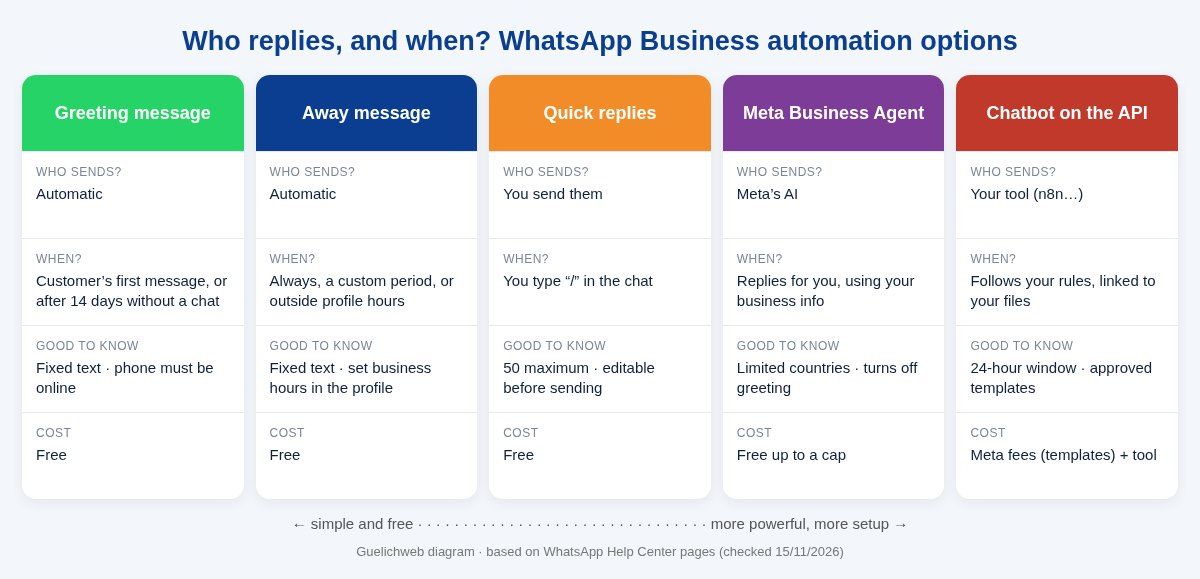
Guelichweb diagram, based on WhatsApp Help Center pages checked on 15/11/2026.
First things first: complete your business profile
This is the step everyone skips, and it is the one everything else depends on. In Tools > Business profile, fill in at least the description, address, business hours, email and website. Two very practical reasons:
- the away message option “Outside of business hours” only appears if you have set business hours in your profile;
- the app creates default quick replies from your profile (hours, address, the profile itself): the more complete it is, the more of them you get without writing anything.
Be honest about your hours. If you show 8 am–6 pm but nobody replies before 10 am, the away message will stop at 8 am and the customer will wait two hours with no explanation. Realistic response hours beat flattering opening hours.
How to set up a greeting message on WhatsApp Business
Here is the official procedure (Android; it is very similar on iPhone):
- From the Tools tab, tap Greeting message.
- Turn on Send greeting message.
- Tap the text to edit it, then tap OK.
- Tap Recipients and choose: everyone, everyone not in your address book, everyone except selected people, or only selected people.
- Tap Save.
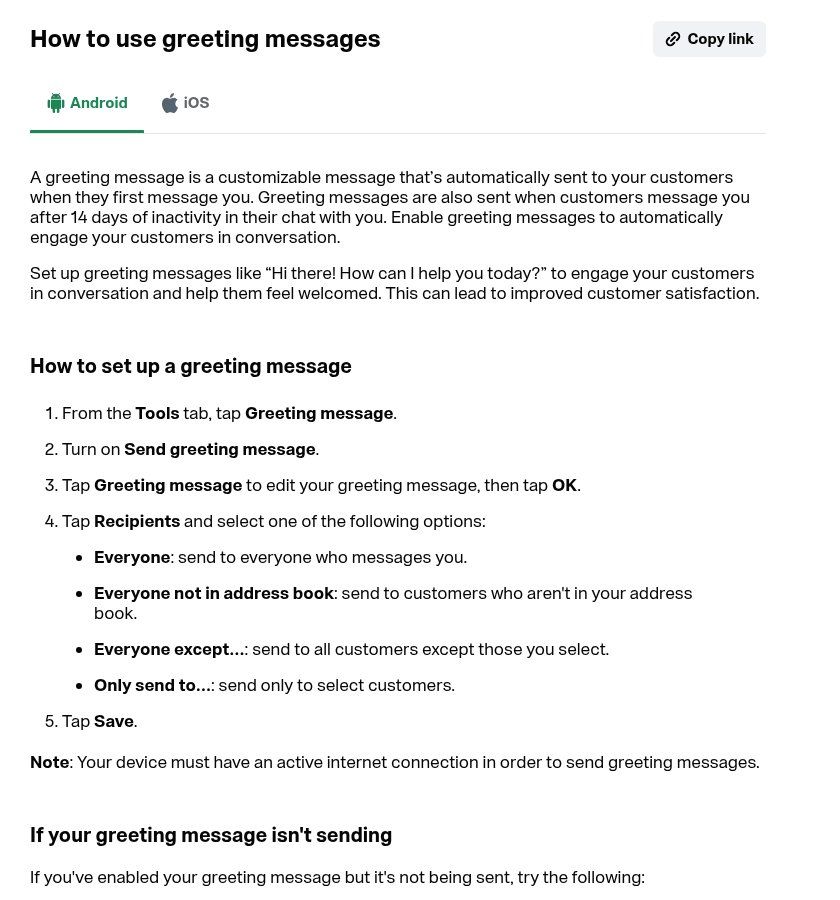
Source: WhatsApp Help Center, “How to use greeting messages”, screenshot taken 15/11/2026.
The three greeting message traps
The 14-day rule. A customer who has messaged you in the last 14 days does not get the greeting. That is by design: your regulars do not get “Welcome!” with every order. But it is also the number one reason people think “the message doesn’t work” when they test from a number that wrote to them the day before.
Recipients. If you choose “everyone not in address book”, a saved contact will never get it, including your own second test number. To test, use a phone that is not in your contacts and has not written to you in two weeks.
Connectivity. WhatsApp states that your device must be connected to the internet to send the message. We come back to this below, because it is a real issue in West Africa.
What a good greeting message should contain
A greeting message is not a business card. In four lines at most, it has to do three things: confirm the customer is in the right place, say when they will get a human answer, and ask straight away for the information you need to answer in one go. That last point changes everything: instead of “Hi, how much?” followed by three back-and-forths, you directly receive “the model, the quantity, the delivery neighbourhood”.
Examples to adapt (replace what is in square brackets):
Shop / retail — “Hello and thanks for messaging [Shop name] 👋 We reply Monday to Saturday, 8 am to 7 pm. To speed things up, send a photo or the name of the item, the quantity and your delivery area. Our catalogue: [link].”
Service provider — “Hello, this is [Company], [trade] in [city]. Thanks for your message. Tell us your need and your deadline in two sentences: an adviser will reply today before [time], or tomorrow morning if you write after [time].”
NGO / association — “Hello, you have reached [NGO name] on WhatsApp. For a partnership request, write “PARTNER”; for a question about a project, give the project name and your area; for media, write “PRESS”. We reply within 48 working hours.”
Institution / school / public service — “Hello, this is the [name] department of [institution]. This number answers questions about [procedures] Monday to Friday, 8 am to 5 pm. To follow up on a file, send your file number and full name. Official information is published on [website].”
Restaurant — “Good evening and welcome to [Name] 🍽️ To order, send your dishes, the time you want them and “eat in” or “delivery” with your area. Today’s menu: [link or photo].”
Health practice — “Hello, this is [Name] practice. For an appointment, send your name and two possible time slots. This number does not handle emergencies: in an emergency, call [local emergency number] or go to the nearest emergency department.”
A note on language: if your customers naturally greet you in a local language, nothing stops you from opening with that greeting. The automatic message is often the first contact with your brand; it should sound like you, not like a call centre.
How to set up an away message on WhatsApp Business
- From the Tools tab, tap Away message.
- Turn on Send away message.
- Edit the text, then tap OK.
- Tap Schedule and choose Always send, Custom schedule (a period you define) or Outside of business hours (only visible if your hours are set in the profile).
- Choose Recipients (same options as the greeting), then tap Save.
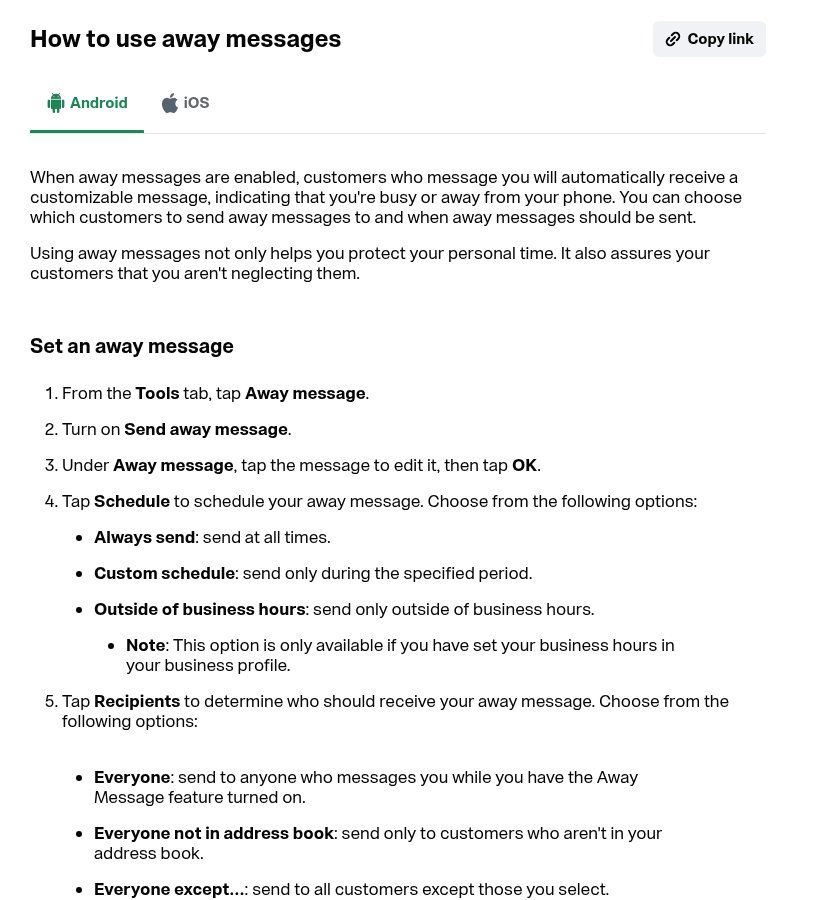
Source: WhatsApp Help Center, “How to use away messages”, screenshot taken 15/11/2026.
For everyday use, choose Outside of business hours: it kicks in every evening and on closed days without you thinking about it. Keep Custom schedule for exceptional closures (public holidays, stocktaking, a team retreat) and avoid Always send except on holiday: a customer who gets “we are away” at 11 am on a Tuesday assumes you have closed down.
One writing rule: an away message should give a return time, not an apology. “We will get back to you as soon as possible” says nothing. “We will reply tomorrow from 8 am” reassures and commits.
Evening — “Thanks for your message! We are closed for today. We will reply tomorrow from 8 am. Send us your request now (item, quantity, area): it will be handled first.”
Weekend — “Hello, our team replies Monday to Friday. Your message has been received and will be handled on Monday morning. For an urgent order, call [on-call number].”
Exceptional closure — “Hello, [Company] is closed from [date] to [date] inclusive for [stocktaking / holidays]. We reopen on [date]. Your messages have been received and will be handled in order of arrival.”
Team in the field — “Hello, we are on a job and cannot reply right now. Send the address, a photo of the problem and your availability: we will call you back before 6 pm.”
NGO on mission — “Hello, the team is on a field mission until [date], with limited network access. For an emergency related to [project], email [address]. Other messages will be handled when we return.”
Quick replies: 50 shortcuts that save hours
Quick replies are, in our view, the most underused tool in the app. You can save up to 50, each with a shortcut. On a phone they can include images or videos (not on WhatsApp Web or Desktop). In a chat, type “/”: the list appears, you pick one, fill in the gaps if needed, and send.
- In Tools, tap Quick replies, then +.
- Write the message (and add media if useful).
- Set the shortcut (a short, obvious word: price, momo, delivery).
- Tap Save.
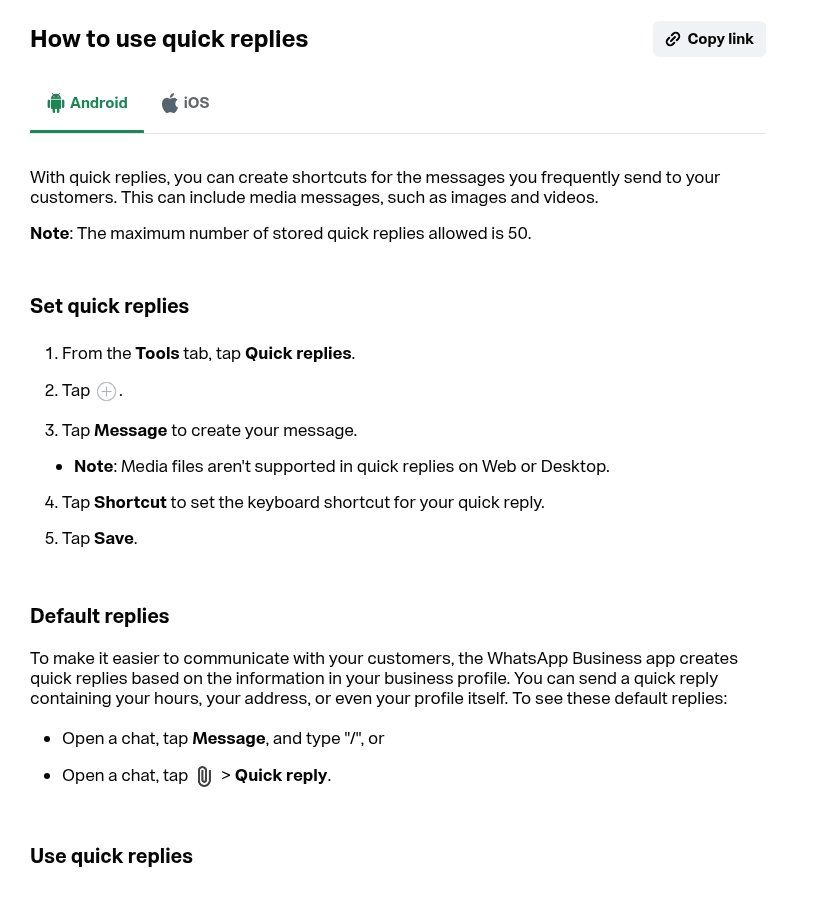
Source: WhatsApp Help Center, “How to use quick replies”, screenshot taken 15/11/2026.
Here is the starter set we put in place for most of our clients. Ten shortcuts often cover most repetitive questions:
- /price: your price list or how the price is calculated, with what is and is not included.
- /momo: accepted payment methods, the exact name on the merchant account or account holder, and a security sentence (see below).
- /delivery: areas, lead times, fees, order cut-off time.
- /address: address, a well-known landmark, the Google Maps link from your business profile.
- /quote: the list of information needed to receive a quote.
- /booking: your booking link or available slots (see our guide to online appointment booking).
- /paid: “Payment received, thank you. Your order no. [ ] is being prepared.”
- /tracking: “Your order is on its way; the rider [first name] will call you from [number].”
- /docs: for an NGO or institution, the list of documents required for a procedure.
- /thanks: a closing message with, if you like, the link to leave a Google review.
Two tips from the field. Leave visible gaps ([name], [date]) that you fill in before sending, rather than fake personalisation. And keep a copy of your quick replies outside WhatsApp (a simple shared document): WhatsApp states that a deleted quick reply cannot be recovered.
What the app cannot do (and what you are sometimes promised)
Plenty of videos and tool vendors blur the lines. Let us be clear about the limits of the free app:
- The text is fixed. The greeting does not read the question: it goes out the same way for a price request and for a complaint.
- It does not adapt to the request. No “press 1, press 2” menu that triggers a different answer. Some imitate it in the text (“write PARTNER”), but you are the one who reads and replies afterwards.
- Scheduling a message to a customer (sending a reminder tomorrow at 9 am): we found no such feature for individual chats in the app’s Help Center. The “scheduled message” often mentioned is actually the scheduled away message. For automatic reminders, you need the API and an automation tool.
- It depends on your phone. With no connection on the device, nothing goes out.
- It does not say who takes over. After the automatic message, nothing shows which colleague is answering, or whether anyone has.
The Benin and West African context: five settings that make the difference
1. The phone, the battery and the connection
Greeting and away messages are sent from the device. If the business phone is off during a power cut, out of data or forgotten in a drawer, your customers get nothing. Our simple rules: a phone dedicated to the business number, plugged into a protected power strip or a UPS, with a data plan that does not run out at the end of the month. It is not glamorous, but it is the number one cause of the “WhatsApp doesn’t work” complaints we see.
2. Several people on the same number
The app lets you use up to four linked devices in addition to the phone (WhatsApp Web, desktop, tablet). Linked devices work even when the phone is offline, but they log out if the main phone is not used for more than 14 days. It is the simplest way for a receptionist or salesperson to reply from a computer without sharing the phone. Check the list of linked devices regularly: an unknown device in that list is a warning sign.
3. Mobile Money: securing your payment message
Fake payment number scams are common: a fraudster poses as your business and sends “its” Mobile Money number. Your /momo quick reply should therefore state the exact name displayed at payment and a sentence such as: “We will never ask you to pay to any number other than this one. If in doubt, call landline or official number].” To go further, a payment link through a [Mobile Money payment gateway avoids typing errors and screenshots to check. And train your team to spot attempts: that is the subject of our article on phishing at work.
4. Voice notes
Many customers reply to your greeting with a two-minute voice note. Do not fight the habit: plan for it. One sentence in the greeting (“you can send us a voice message; please say your name and area”) is enough. If voice notes pile up, there are audio-to-text transcription solutions to process them faster.
5. Bringing customers in with the right message
A greeting message is all the more useful when the customer arrives already oriented. A WhatsApp wa.me link followed by your number in international format (without the +, spaces or extra zeros), with a pre-filled text (for example “Hello, I would like a quote for…”), can be placed on your website, your Google profile and your social media. WhatsApp documents this in its Help Center page on click to chat links. On a website, that button belongs in the first screen, as we explain in our guide to the website homepage.
Meta Business Agent: should you let Meta’s AI answer for you?
Since June 2026, Meta has been rolling out an AI agent in the app, Meta Business Agent, which answers customers using the business’s information: catalogue, profile, website, documents and, if you agree, past chats. It can answer questions about hours, address, products, prices, payment or delivery, and alert you when a customer needs a human.
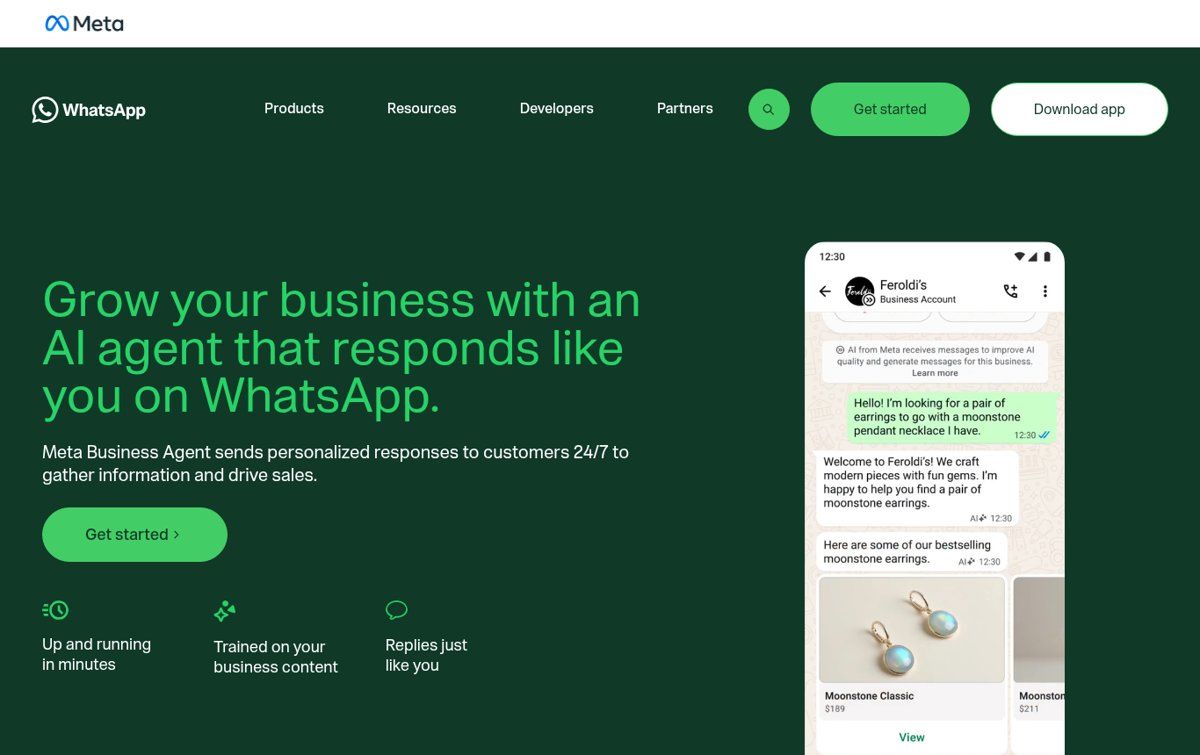
Source: WhatsApp for Business, “Meta Business Agent on WhatsApp” page, screenshot taken 15/11/2026.
What the official Help Center says, and what you need to know before tapping “Turn on”:
- the feature is only available in some countries and to some businesses, and not all languages are supported (the language depends on the business’s phone number). If the option does not appear in Tools, it is not open to you yet;
- turning it on may disable greeting and away messages, broadcast lists and disappearing messages, and logs out existing linked devices (you then have to reconnect them);
- messages in chats where the agent is active are used by Meta to improve its AI, even while the agent is paused; only deleting the agent stops this sharing;
- customers are told they are interacting with Meta’s AI, and Meta acknowledges that generated replies may be inaccurate;
- use is free up to a certain volume; beyond that, Meta points to paid subscriptions (Meta One plans).
Our position is nuanced. For a shop with an up-to-date catalogue and simple questions (price, stock, delivery), a trial can be worth it, provided you review the first conversations. For an NGO, an institution or any organisation that handles personal or sensitive data, we recommend sticking with greeting and away messages, plus well-written quick replies, until you have set rules for AI use. Our guide to AI in business and usage policies helps you set those rules.
From automatic message to real request tracking
An automatic message replies fast. It does not guarantee the request gets handled. For that, the app offers a second, equally free level: labels (being replaced by “lists”), up to 20, to sort chats: “New”, “Quote sent”, “Paid”, “To deliver”, “Follow up”. Five labels used well beat twenty.
Next, every useful new contact deserves a row in a file: name, number, need, source, next action. Our method is detailed in customer database in Excel. When that file gets heavy, several people work on it or follow-ups get lost, it is time to look at a CRM.
And when should you move to a real WhatsApp chatbot? The signals we see:
- you receive dozens of identical requests every day that a fixed text cannot handle (order tracking, availability, bookings);
- you want to send reminders, confirmations or receipts automatically, at the right time;
- several people reply and you need to know who handles what;
- you want to connect WhatsApp to your website, customer file or invoicing tool.
In those cases, you go through the WhatsApp Business API (with its rules: 24-hour window, approved message templates, Meta fees) and a tool such as n8n. Read first what a WhatsApp chatbot actually does: it does not replace a team, it removes the repetitive work. Our WhatsApp chatbot with n8n service always starts from a diagnosis of the messages you actually receive.
The 7 mistakes we see most often
- Keeping the default text. “Thank you for contacting us. How can we help you?” adds nothing: the customer contacted you precisely so you would help.
- An away message with no return time. “We will get back to you” without saying when guarantees the customer also writes to your competitor.
- Wrong hours in the profile. The away message follows them: if they are wrong, everything is wrong.
- A ten-line message. On a phone, beyond four or five lines, people stop reading. The catalogue, terms and prices go into links or quick replies.
- Testing from a number already in a chat. Because of the 14-day rule, the greeting will not go out, and people wrongly conclude the feature is broken.
- Promising an impossible response time. “Reply within 5 minutes” shown in the evening, then a reply the next day at noon: you created the disappointment yourself.
- Leaving the Mobile Money number without a name or warning. It is an open door to fake numbers.
Checklist: your setup in 15 minutes
- Complete business profile: description, address, realistic hours, email, website.
- Greeting message on: who you are, response time, information to send right away, one useful link.
- Away message on “outside of business hours”, with a precise return time.
- A “custom schedule” message prepared for exceptional closures (to paste in when needed).
- At least ten quick replies: /price, /momo, /delivery, /address, /quote, /booking, /paid, /tracking, /docs, /thanks.
- Security sentence in /momo and the exact account holder name.
- Five labels to track requests.
- Test from a number that is not in your contacts and has not written to you for 14 days.
- Dedicated, powered and connected phone; linked devices checked.
- A copy of your texts outside WhatsApp.
Frequently asked questions
Can you set an automatic message on regular (personal) WhatsApp?
No. Greeting messages, away messages and quick replies are only available in the free WhatsApp Business app. You can move your business number from WhatsApp to WhatsApp Business; back up your chats first.
Why is my WhatsApp Business greeting message not sending?
In order: the person wrote to you less than 14 days ago; they are excluded by your recipient settings; your phone was not connected; Meta Business Agent is on (it disables the greeting). The Help Center also suggests switching the option off and on, updating the app and restarting the phone.
How do I turn off or edit an automatic message?
Go back to Tools, open Greeting message or Away message, edit the text or switch off “Send…”. For a quick reply: long-press it in the list, then Delete (it cannot be recovered).
Can I schedule a WhatsApp Business message for a specific time?
You can schedule the away message (custom period or outside business hours). However, we did not find any Help Center feature for scheduling a message to a specific customer at a given time. For automatic reminders or confirmations, you need the WhatsApp API and an automation tool.
Do automatic messages cost money?
No: in the WhatsApp Business app, greeting, away messages, quick replies and labels are free. Costs appear with the API (Meta fees on some messages, plus the tool you use) or beyond Meta Business Agent’s free volume.
How long should a greeting message be?
Three to five lines on a phone screen. Anything that does not fit goes into a link (catalogue, website, booking page) or a quick reply.
Is an automatic message enough for an NGO or an institution?
To welcome and direct people, often yes. To track files, answer hundreds of beneficiaries or send information on fixed dates, you need organisation (labels, a file, a named person in charge) and, above a certain volume, a tool connected to the API.
Need help going further?
Set up properly, these three free automations are enough for many small organisations. The day they are no longer enough is not the time to pile up apps, but to look at how requests come in, who handles them and where they get lost. That is what we do in a diagnosis: we start from your real messages, then propose the simplest solution that holds up, whether that is a few settings, a website connected to WhatsApp and a CRM or a chatbot. The cost depends on the scope: it is set out in a quote after that diagnosis (see our offers). To talk about it, write to us via our contact page.
Sources: WhatsApp Help, greeting messages; WhatsApp Help, away messages; WhatsApp Help, quick replies; WhatsApp Help, labels; WhatsApp Help, linked devices on WhatsApp Business; WhatsApp Help, Meta Business Agent; WhatsApp for Business, Meta Business Agent; WhatsApp Help, click to chat. Information checked on 15/11/2026; WhatsApp and Meta may change their features.