What is Google Docs? The 2026 guide for SMEs and NGOs: free, offline, table of contents, sharing and automatic documents
G. CHRIST
Published on November 17, 2026
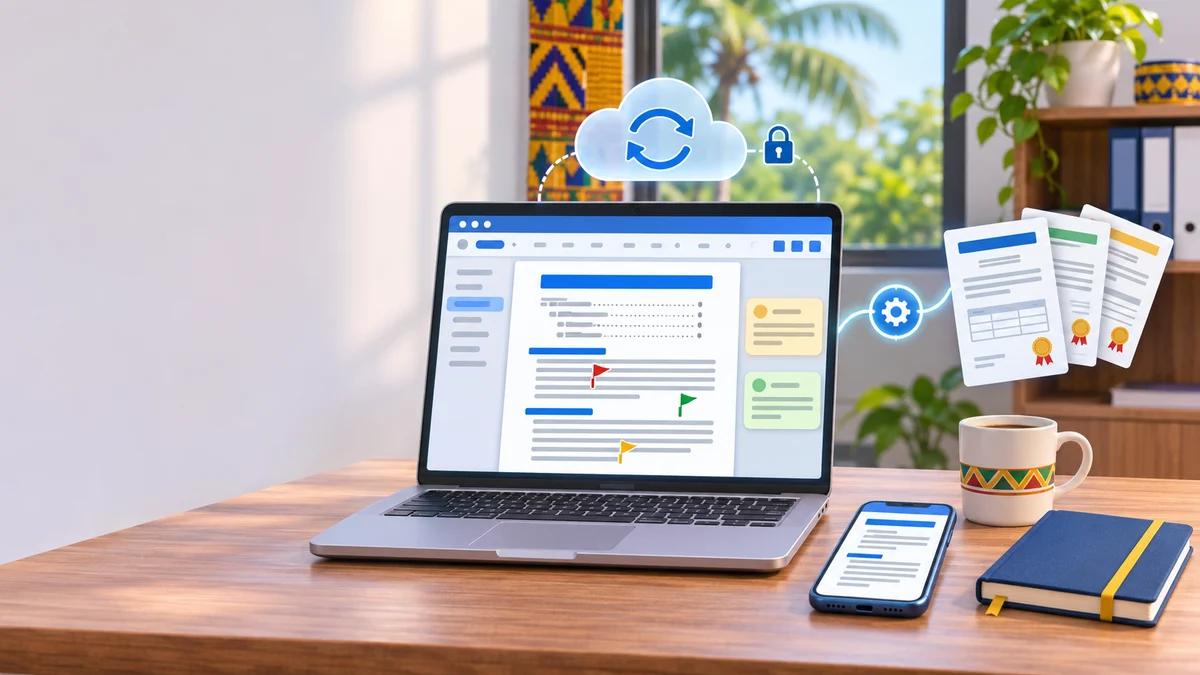
In many of the organisations we work with in Benin, the same story keeps coming back: a report goes around by email in five versions ("report_final", "report_final_v2", "report_final_OK_Paul"…), everyone edits their own copy, and the night before it is due to the donor, nobody knows which one is right. It is not a skills problem. It is a tool and method problem.
Google Docs fixes a good part of that mess, as long as you know what it does well, what it does badly and how to organise it inside a team. This guide answers "what is Google Docs?" and then goes further than the usual tutorials: working offline (essential when the connection drops), automatic table of contents, sharing without leaks, templates, Gemini, and above all automatic document generation (certificates, quotes, contracts), which we set up for SMEs and NGOs.
Everything below was checked on 17 November 2026 against Google's official help pages. Menu names change regularly: if a label looks different on your screen, look for the equivalent in the same menu.
In short
- Google Docs is Google's online word processor: you write in your browser or the mobile app, everything saves automatically, and several people can work on the same document at the same time.
- It is free with an ordinary Google account. The free storage (15 GB) is shared with Gmail and Google Drive.
- It works offline, but only if you turned that on beforehand, in Chrome or Edge.
- The automatic table of contents depends on one thing: using the "Heading 1" and "Heading 2" styles, not bold text.
- Advanced features (Gemini in Docs, built-in eSignature) require a paid subscription.
- For a business, its real strength is not writing: it is collaboration and the ability to generate documents automatically from a template.
Official Google Docs logo (source: Wikimedia Commons, file Google Docs 2020 Logo, trademark of Google LLC)
What exactly is Google Docs?
Google Docs is a word processor that runs in your browser at docs.google.com and in the Android and iPhone apps. It belongs to Google's free suite alongside Google Sheets (spreadsheets), Google Slides (presentations) and Google Forms (forms). Files are stored in Google Drive, your account's online space.
In practice you use it for what you would do in Word: letters, reports, minutes, service proposals, internal notes, CVs. The difference comes down to three things:
- Nothing to install: a browser is enough, on any computer, even one in a cybercafé or at a partner's office.
- Automatic saving: every keystroke is saved. A power cut halfway through a report no longer costs you the afternoon.
- One file for everyone: instead of sending copies, you share a link. Everyone writes, comments or reads in the same document, and the history keeps track of who did what.
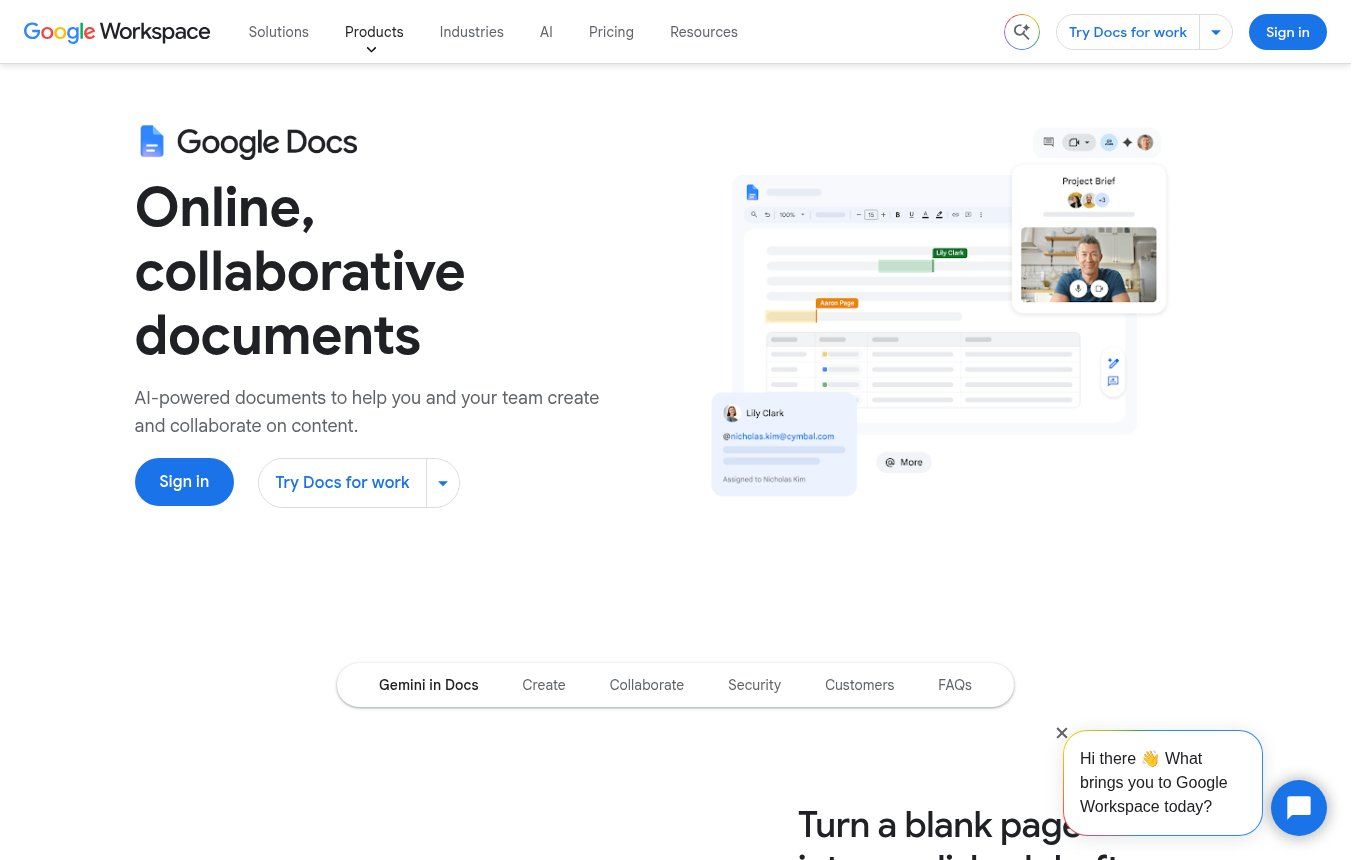
Source: workspace.google.com/intl/en/products/docs, screenshot taken 17/11/2026
Our honest view: for a team writing together, Google Docs is now more effective than swapping Word files by email or WhatsApp. For a heavily designed document (a printed annual report, a brochure layout), it is the wrong tool. Both statements are true at once, and the rest of this article helps you sort out which applies to you.
Is Google Docs free?
Yes. With a free Google account (a Gmail address, for example) you can create, edit and share as many documents as you like. The only real practical limit is storage: 15 GB shared between Gmail, Google Drive and Google Photos. Google Docs files themselves weigh very little; attachments, videos and photos are what fill the space.
There are also technical limits you will rarely reach: a document can hold up to 1.02 million characters, and a text file you convert to Google Docs format must not exceed 50 MB (Google source). If you are writing a document that big, splitting it will make it easier to read anyway.
What you pay for is the business environment around Docs: Google Workspace gives you email addresses on your own domain, more storage, an admin console and, depending on the plan, Gemini and eSignature. We covered the plans and their traps in our guide Google Workspace: what it is, pricing and which plan for an SME.
One point people often underestimate: with personal Gmail accounts, documents belong to the person, not the organisation. The day a project officer leaves the NGO with her Gmail account, she leaves owning the files she created. In our view, that is the best reason to move to business accounts as soon as the team grows beyond three or four people.
Create your first document in 5 minutes
- Sign in to your Google account, then open docs.google.com (or Google Drive, New > Google Docs).
- Choose Blank document or a template from the gallery (letter, CV, meeting notes, proposal).
- Give it a clear name at the top left, for example "2026-11 Quarterly report NGO X". A dated name is much easier to find six months later.
- Write. Use the styles menu ("Normal text", "Heading 1", "Heading 2") to structure your sections: that is what makes the automatic table of contents possible.
- Put the document in the right Drive folder (folder icon next to the title). A document left at the root of "My Drive" is a document someone will lose.
On a phone, the Google Docs app (Android or iPhone) lets you read, comment and correct. For writing a long report, a computer is still far more comfortable. To dictate instead of typing, Tools > Voice typing works in Chrome; and if you are starting from an audio recording, our guide to audio to text transcription covers the free options.
Using Google Docs offline (the setting to change today)
This is the question we get most often, and for good reason: when the connection drops in Cotonou or Parakou, an "online" tool feels risky. The good news is that Google Docs works offline. The bad news is that you must have turned it on beforehand, while you were still connected.
The requirements, according to Google's official help:
- be connected to the Internet when you turn it on;
- use Google Chrome or Microsoft Edge (not Firefox, not Safari);
- do not use private browsing;
- install and turn on the Google Docs Offline extension;
- have enough free space on the computer.
Then open Google Drive, click Settings (gear icon at the top right) and turn on Offline. For a specific document, open it and choose File > Make available offline. A tick appears on files that are available. Your changes sync as soon as the connection comes back.
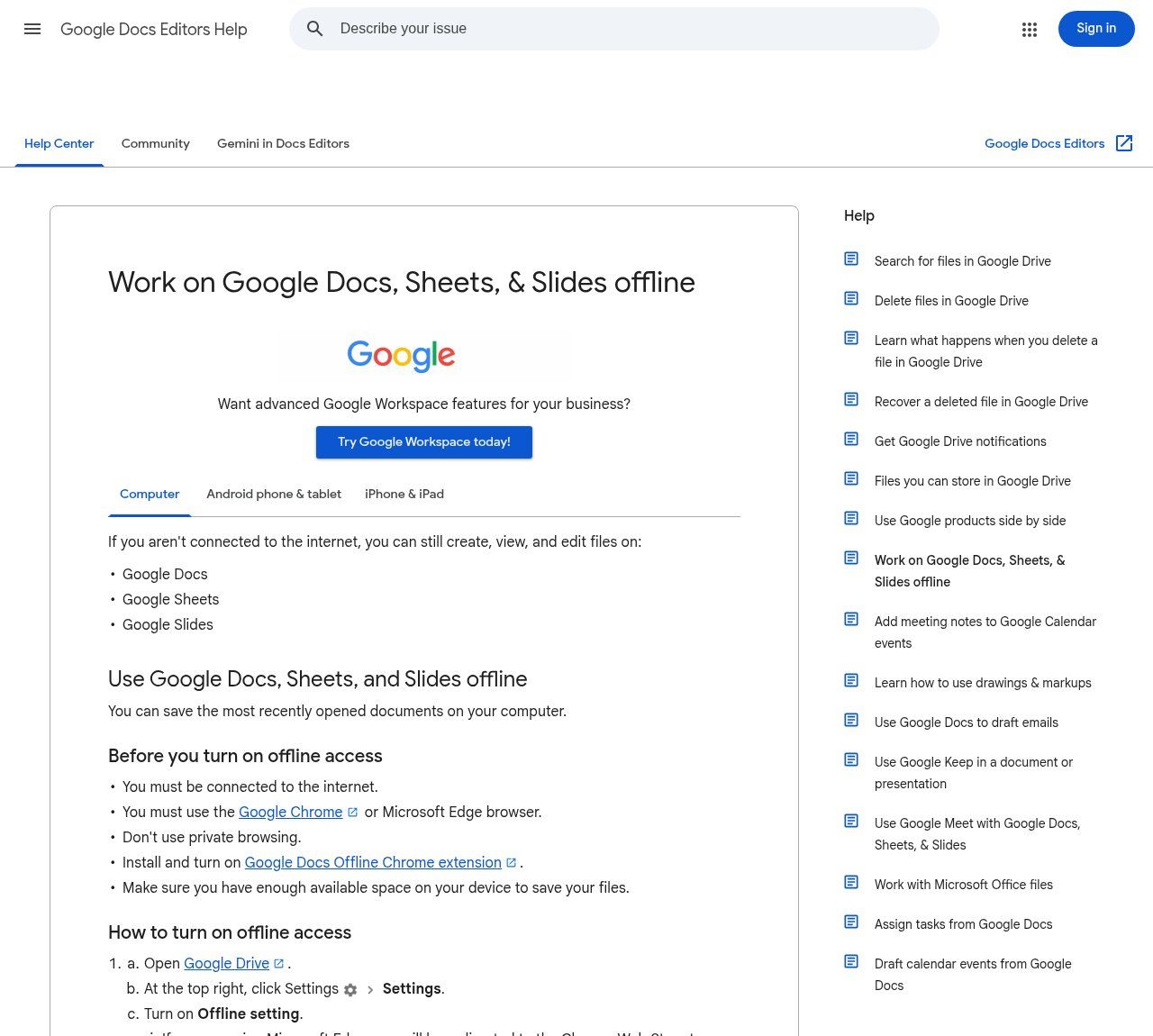
Source: support.google.com, Work on Google Docs, Sheets, & Slides offline, screenshot taken 17/11/2026
Two traps to know about. First, offline mode can only be turned on for one account per browser profile: if two people share a computer, create one Chrome profile each. Second, Google only saves your recent files offline automatically: for the report you plan to finish while travelling, make it available offline manually and check the tick before you leave.
If your teams often work far from any connection for several days (field missions, rural areas), do not rely on this mode alone: an installed word processor (LibreOffice, Word) is safer, and Docs is then used for group work once you are back.
Making a table of contents in Google Docs (and why it sometimes fails)
This is the second big question from users, and the answer is one rule: an automatic table of contents only sees styled headings. Making a line bold and size 16 is not enough; Docs does not recognise it as a heading.
- Select each section title and apply Heading 1 (styles menu in the toolbar, or Format > Paragraph styles). Sub-sections get Heading 2, then Heading 3.
- Place the cursor where the table of contents should go, usually after the cover page.
- Click Insert > Page elements > Table of contents and choose the layout (with page numbers or with blue links).
- After every change to the headings, click the Update icon to the left of the table. Docs does not refresh it on its own.
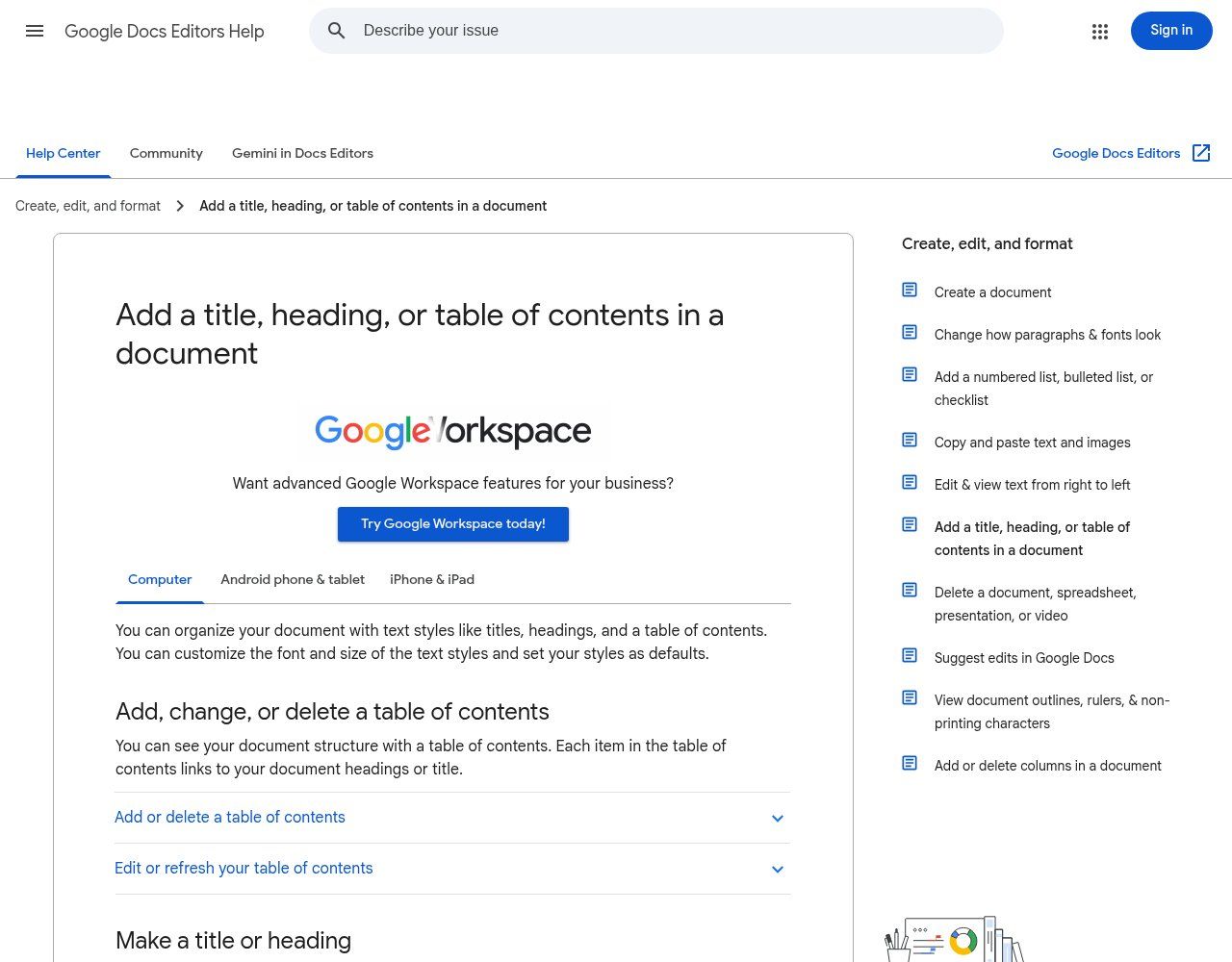
Source: support.google.com, Add a title, heading, or table of contents in a document, screenshot taken 17/11/2026
Table of contents entries are clickable: in a 40-page report, that is a real comfort for the reader. Be careful: if your document uses the Pageless format (continuous, with no page breaks), you cannot change the table of contents formatting (source). For a document that will be printed or sent as a PDF, keep the paged format: File > Page setup.
For very long documents (procedures manual, requirements document, internal guide), also look at tabs: Docs lets you split a document into tabs and sub-tabs, up to three levels, shown in the left panel (Google help). When downloading or printing, Docs asks whether you want the current tab or all tabs: remember to choose "All tabs" before sending the PDF to a partner.
Sharing a document without losing control
The Share button at the top right is both Google Docs' strength and its main source of leaks. There are three roles:
- Viewer: can read but not edit. For circulating a memo or a procedure.
- Commenter: can read and add comments or suggestions. Ideal for a partner or a manager to review without the risk of them rewriting everything.
- Editor: can change everything and, by default, reshare. Keep it for the people who actually write.
Then comes General access: "Restricted" (only people you added) or "Anyone with the link". The second setting is convenient, but a link forwarded to a WhatsApp group effectively becomes public. For a budget, a list of beneficiaries or a contract, keep it "Restricted" and add addresses one by one. It is a rule we recommend writing down in the organisation's policy for digital and AI tools.
Three features really change team reviews:
- Suggesting mode (pencil icon at the top right > Suggesting): each change appears in colour and the author accepts or rejects it. It is the equivalent of Word's track changes.
- Comments with mentions: type @ followed by an address in a comment to assign an action to someone, who receives an email.
- Version history (File > Version history): it lets you go back to any version and name important milestones ("Version sent to the donor on 12/11").
One last security tip: a fake "X shared a document with you" email is a phishing classic. Before typing your password on a page that looks like Google Docs, check the address in the browser bar. Our article on phishing at work gives the reflexes to pass on to your team.
Google Docs and Word: do you have to choose?
Not necessarily. Google Docs opens and edits .docx files stored in Drive directly, and changes are saved in the original Word file (Google help). You can also convert a Word file to Google Docs to get every feature (add-ons, Apps Script), and download a Google Doc as .docx or PDF via File > Download.
In practice, conversion works well for text, headings, simple tables and images. It degrades on complex layouts: floating text boxes, multiple columns, elaborate headers, Word mail merge. If a partner insists on a heavily formatted Word template, work on the content together in Docs, then do the final formatting in Word. That is what most effective teams we know do.
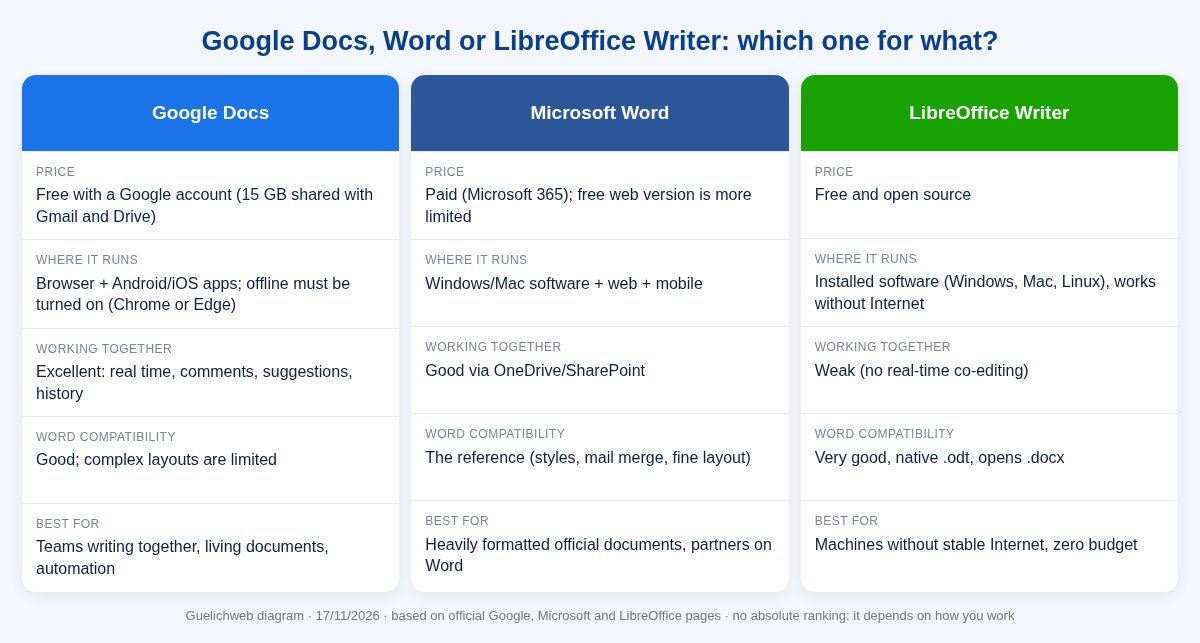
Guelichweb diagram, based on official Google, Microsoft and LibreOffice pages checked on 17/11/2026
What about LibreOffice? It is an excellent free option for machines without a stable connection. But it does not allow real-time co-editing. For a team spread between Cotonou, Porto-Novo and the field, that is often what tips the balance towards Docs.
Templates, smart chips and small time savers
The template gallery (from the Docs home screen) offers letters, CVs, meeting notes and proposals. They are fine to start with, but a template in your own colours saves far more time. Create your letterhead (logo, contact details, footer), your meeting-notes template and your proposal template once, keep them in a view-only "Templates" folder, and ask the team to use File > Make a copy every time.
A few lesser-known features are worth showing your team:
- The @ menu: typing @ in the text inserts a person, a date, another Drive file or ready-made building blocks (task list, meeting notes). For meetings, our method for AI meeting minutes relies on this kind of template.
- Checklists: handy for tracking actions directly in a shared document.
- Pageless format: perfect for a document read on screen (internal procedure, knowledge base), best avoided for anything that gets printed.
- Suggesting mode by default for outside reviewers, combined with the Commenter role.
A good Google Docs template is also the basis of a good website requirements document or procedure: the structure is set once, and nobody reinvents it for every project.
Gemini in Google Docs: what is free and what is not
Google greatly expanded Gemini in Docs in 2026: drafting from your files, rewriting a selected passage, summarising, matching the writing style when several people write (Google announcement, 22 April 2026). It is useful, but you need to be clear about access:
- Free Google account: no built-in Gemini in Docs. You can still use the separate Gemini app and paste text into it, which raises confidentiality questions.
- Paid personal account: the Google AI Pro and Ultra plans include Gemini in Docs.
- Google Workspace: included in Business Standard and Business Plus (and Enterprise Standard and Plus), not in Business Starter. The administrator can turn it on or off.
Our position: Gemini in Docs saves time on rewording and summarising, much less on substance. It knows neither your real figures nor your commitments to a donor. Check every name, date and amount. And decide internally which data may go through an AI tool, as we explain in our article on AI in business.
Signing a Google Docs document
Google Docs has a built-in electronic signature (Tools > eSignature), but it is limited to certain subscriptions: Workspace Individual and, if the administrator enables it, Business Standard, Business Plus and several Enterprise and Education plans (Google help). A free Gmail account and the Business Starter plan cannot send signature requests.
With a free account, the usual method is still to export to PDF and then use a signing tool. Before you start, read our article on electronic signatures and their legal value: a signature drawn into a document does not carry the same weight as an electronic signature with an audit trail.
The real gain: generating your documents automatically
This is the part few guides cover, yet it is where we see the biggest gains for SMEs, NGOs and public bodies. How much time does your team spend copying a name, a date and an amount into a Word template to produce a training certificate, a membership receipt, a service contract or a sales proposal? Multiply by the number of documents per month. It often adds up to several days of repetitive work, with typos thrown in.
The principle of automation is simple:
- You create a Google Docs template with tags in place of the variable data: {{name}}, {{training_date}}, {{amount}}.
- Data comes from a structured source: a Google Form, a row in Google Sheets, your website form or your CRM.
- An automation tool copies the template, replaces the tags, saves the result as a PDF in the right Drive folder, then emails it or prepares a sharing link.
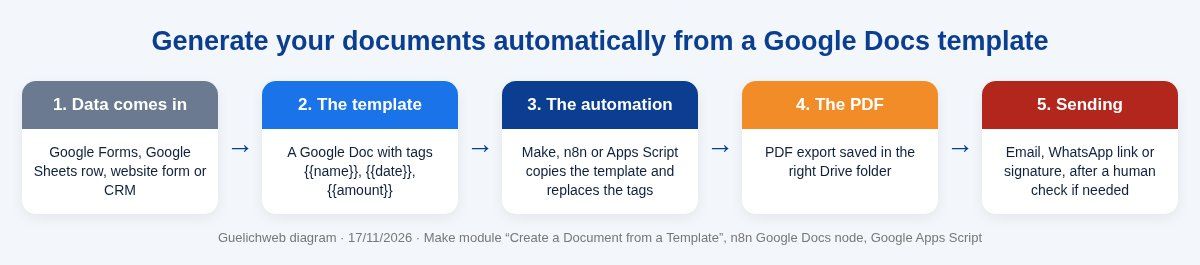
Guelichweb diagram · how document generation from a Google Docs template works
Three ways to do it, from simplest to most flexible:
- Make: the Google Docs module Create a Document from a Template copies a template and automatically replaces tags such as {{name}} or {{email}}, including images (Make integration page). It is the most accessible entry point for a small team.
- n8n: the Google Docs node can create, get and update documents (n8n documentation), and you combine it with Google Drive to copy the template and export the PDF. Worth it if you already host n8n or want to keep control of your data. Our comparison n8n or Make helps you choose.
- Google Apps Script: Google's built-in scripting language does the same without a third-party tool, straight from a Sheets file. Free, but you need someone to write and maintain it.
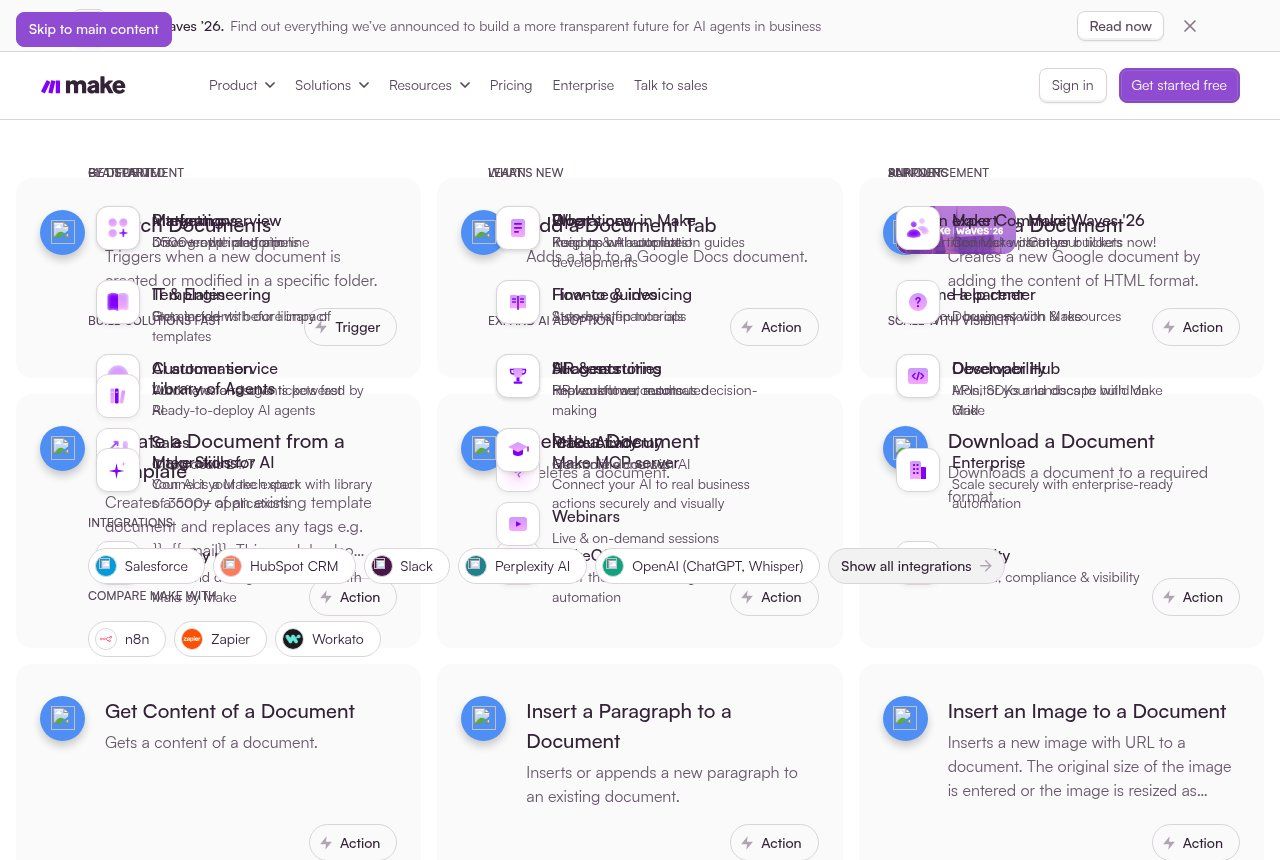
Source: make.com/en/integrations/google-docs, screenshot taken 17/11/2026
A few concrete examples of what you can automate this way:
- Training centre: every participant marked as complete on the attendance sheet receives a personalised PDF certificate.
- NGO: beneficiary registration forms produce a standardised summary sheet for the report.
- Consultancy or service SME: a quote request from the website generates a draft proposal that the salesperson only has to review.
- Association: membership receipts go out automatically after each recorded payment.
- Invoicing: reminders for unpaid invoices, with a letter template matched to how late the payment is (see our article on unpaid invoice reminders).
Two safeguards we always apply. One, a human check for any document that commits the organisation (contract, proposal, official letter): automation prepares, a person approves. Two, clean data at the source: if the Sheets file contains misspelled names, the automation will produce a hundred misspelled certificates in a minute. To go further on the logic, read our article on task automation.
Google Docs for an SME, an NGO or a public body: our standard setup
A tool fixes nothing without usage rules. Here is the setup we recommend, to adapt to your size:
- Accounts in the organisation's name, not personal Gmail accounts, as soon as possible. Documents stay with the organisation when people leave.
- A simple folder structure, agreed together: by year, then by project or department. No more than three levels.
- A naming convention: date as YYYY-MM, subject, version only when needed (version history does the rest).
- A "Templates" folder, view-only for the team, managed by one person.
- "Restricted" sharing by default for sensitive documents, Commenter role for outside reviewers.
- A quarterly access review of important folders: who still has access to the "Budget 2026" folder?
- Offline mode turned on on the team's laptops, tested before every trip.
For organisations handling personal data (beneficiaries, patients, pupils, customers), one more precaution: in Benin, this processing falls under the Digital Code and the data protection authority, the APDP. Keep personal data in shared documents to a minimum, never store passwords in a Google Doc, and keep a list of who has access to sensitive folders.
The 7 mistakes we see most often
- Making headings bold instead of using styles, then wondering why the table of contents stays empty.
- Sharing a sensitive document as "Anyone with the link", then forwarding the link to a WhatsApp group.
- Giving the Editor role to a partner who was only supposed to review.
- Discovering that offline mode was not turned on at the very moment the connection drops.
- Leaving all the NGO's documents on a former employee's personal Gmail.
- Converting a heavily formatted Word document and sending it without checking the PDF output.
- Pasting confidential data into a consumer AI tool with no internal rule.
What it costs
Google Docs itself is free. Possible costs come from a Google Workspace subscription (business addresses, storage, administration and, depending on the plan, Gemini and eSignature), whose prices vary by country, plan and commitment period: check them on Google's official page when you subscribe.
For setting it up in your organisation (moving documents, organising folders and permissions, branded templates, automatic generation of certificates, quotes or contracts, team training), we do not publish random prices: everything depends on your document volume and the tools already in place. As explained on our offers page, we start with a diagnosis, then send a clear quote.
Frequently asked questions
What is Google Docs in one sentence?
It is Google's free word processor, used in a browser or on mobile, which saves everything automatically and lets several people work on the same document at the same time.
Do I need a Gmail account to use Google Docs?
You need a Google account. It can be a Gmail address, a Google Workspace business account, or a Google account created with an existing email address. To simply read a document shared publicly, no account is needed.
Can I use Google Docs without the Internet?
Yes, if offline mode was turned on beforehand in Chrome or Edge, with the Google Docs Offline extension. Changes sync when the connection returns. On mobile, make important files available offline from the app.
How do I make an automatic table of contents in Google Docs?
Apply the Heading 1, Heading 2 and Heading 3 styles to your headings, then Insert > Page elements > Table of contents. Click Update after every change to a heading.
Does Google Docs replace Word?
For writing together and everyday documents, yes in most cases. For complex layouts or partners who require heavily formatted Word templates, Word is still better suited. The two live together very well, since Docs opens and saves .docx files.
Are my Google Docs documents confidential?
They are only visible to the people you share them with, according to the role and general access you choose. The risk comes mainly from links shared too widely, poorly protected accounts and phishing. Turn on 2-Step Verification for the team's accounts.
Can documents be created automatically from Google Docs?
Yes. With a template containing tags, Make (Create a Document from a Template module), n8n or Google Apps Script can produce certificates, quotes or contracts from a form or a Google Sheets file, then export them as PDF.
To wrap up
Google Docs is not just "Word online". Used well, it ends the problem of competing versions, protects your documents from power cuts and staff departures, and can produce repetitive documents for you. Badly organised, it is just a new mess, this time in the cloud.
Would you like us to look at how your documents circulate today and what could be organised or automated (templates, access rights, generating certificates or quotes)? Contact Guelichweb: we start with a diagnosis and tell you frankly what is worth doing.