How to make a Google Form: the 2026 guide to registration forms, surveys and quizzes (and sharing them on WhatsApp)
G. CHRIST
Published on November 16, 2026

An NGO in Cotonou announces a free workshop on WhatsApp. Within two days it gets four hundred messages: “Count me in”, “Me too”, a name with no number, a number with no name, voice notes. Someone spends the evening copying it all into a notebook, then into Excel. Half the details are missing, and nobody knows how many seats are left.
A Google Form fixes this in ten minutes. One link, five questions, and every registration lands neatly in a table. It is free and works on any phone. But the tool has changed: since 2025, a new form has to be “published” before it can collect responses, and since January 2026 it can close by itself on a date or once a number of seats is filled. Most tutorials online still show the old “Send” button.
This guide explains how to make a Google Form from start to finish: building it on a computer or a phone, choosing the right question types, sharing it on WhatsApp or with a QR code, getting responses in Google Sheets, and avoiding the settings that lock out people without a Gmail account. We also cover what you rarely find elsewhere: templates for a small business, an NGO or a public institution, the tool’s limits, and the point where you should move to something else.
In short
- Google Forms is free with a Google account. Respondents do not need an account, unless you switch on certain settings.
- You build a form on forms.google.com, then click Publish: until it is published, the link does not work.
- Responses appear in the Responses tab and can be saved automatically to a Google Sheets spreadsheet.
- A form can close by itself on a set date or after a number of responses (new since January 2026).
- Google Forms does not handle payments, offline collection or automatic WhatsApp messages. You need other tools for those.
What exactly is Google Forms?

Official Google Forms logo (Google). Source: workspace.google.com.
Google Forms is Google’s online form tool. You use it to create questionnaires, surveys, registration forms and quizzes, send them out, then analyse responses in real time, as the official help puts it. Each form is a file stored in your Google Drive, just like a document or a spreadsheet.
With a personal Google account there is no paid version of Forms to buy: it is included. Organisations on Google Workspace mainly get advanced sharing controls and, depending on the plan, AI features. We compare the plans in our article on Google Workspace.
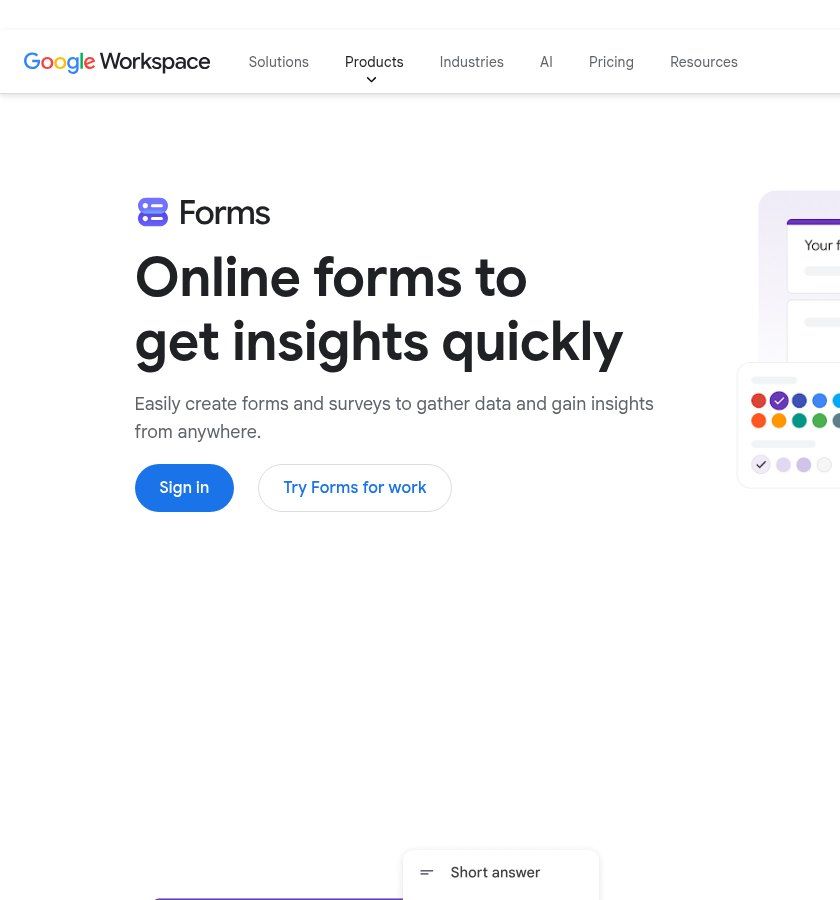
Source: screenshot of the Google Forms product page, workspace.google.com, viewed on 16/11/2026.
Our view, to be clear from the start: Google Forms is one of the best free tools around for collecting information from people who are online. It is not a management tool. It gathers, it does not process. Everything that happens after a response (confirming, following up, invoicing, filing) depends on you or on an automation.
Before you build: three questions that save you a rewrite
We often see forms rebuilt three times because their owners started with the questions. Start with these instead:
- Who will answer, and on what device? In Benin and most of French-speaking Africa, the answer is almost always “on a phone, with limited mobile data”. Aim for a short form, with no video, no heavy images, and multiple-choice questions rather than long text boxes.
- What will you do with each response? If you need to call the person back, you need their number in the right format. If you need to send a certificate, you need a reliable email address. If you cannot say what a question is for, delete it.
- How long will the form stay open? Registration for a 30-seat workshop is not handled like a permanent satisfaction survey. The answer decides the closing settings we cover below.
How to make a Google Form: step by step
Here is the method on a computer, the most comfortable option. It follows the current steps in the Google Forms help.
- Go to forms.google.com and sign in with your organisation’s Google account (not an intern’s, more on that below).
- Click Blank form, or pick a template from the gallery (event registration, contact information, customer feedback and so on).
- Replace “Untitled form” with a clear title, then add a description: what the form is for, how long it takes, and what you will do with the data.
- Add questions with the + button. To the right of each question title, pick the type (short answer, multiple choice, dropdown, date and so on).
- Turn on Required for the questions you truly need, and only those.
- For a long form, add sections: each section starts on a new page, which feels lighter on a phone.
- Open the Settings tab to set email collection, the number of responses per person and the confirmation message.
- Click Preview (the eye icon) and fill in your own form, ideally on a phone.
- Click Publish, check who can respond, then copy the responder link.
A lesser-known trick: you can also create a form from Google Sheets (Tools menu, then Create a form). Responses then go straight into a new sheet in the same file. Handy when the table already exists, such as a customer list.
Question types worth knowing
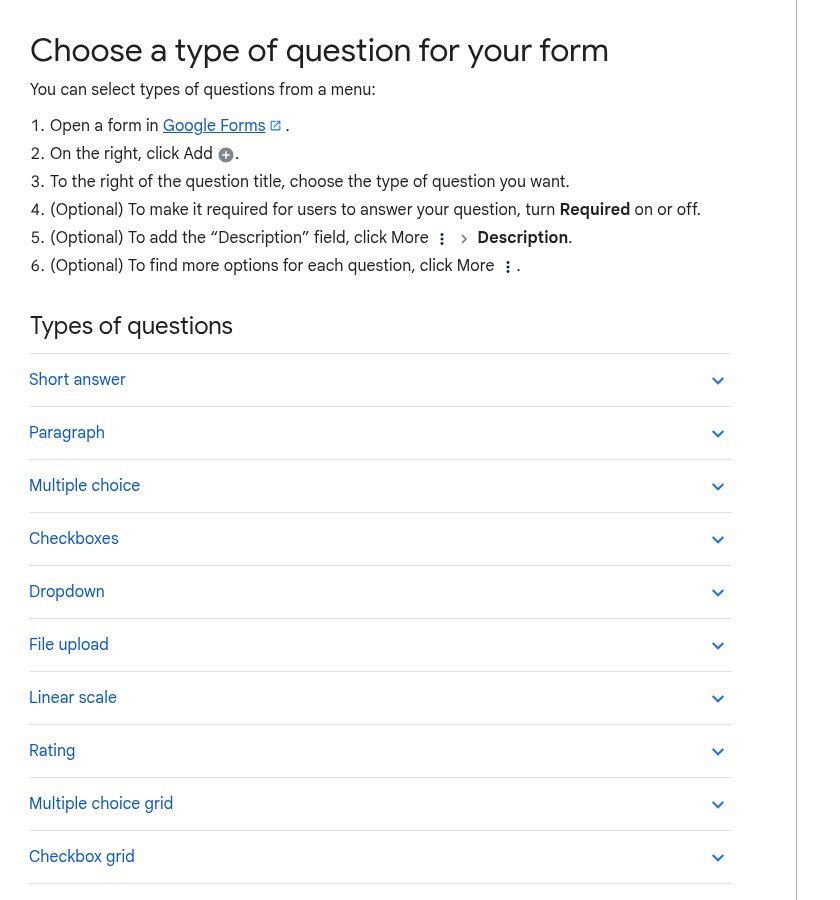
Source: screenshot of the Google help page “Choose a type of question for your form”, support.google.com, viewed on 16/11/2026.
- Short answer: name, town, phone number. Add validation (three-dot menu, then Response validation) to require a number or a minimum length.
- Paragraph: free comments. Keep these rare on phones; nobody enjoys typing long text with a thumb.
- Multiple choice: one answer only (“Which session?”). The fastest type to fill in.
- Checkboxes: several answers allowed (“Which services interest you?”).
- Dropdown: useful for long lists, such as Benin’s 12 departments or a list of countries.
- Linear scale and rating: satisfaction from 1 to 5, ideal for a feedback survey.
- Date and time: for an appointment or a date of birth.
- File upload: CV, ID document, proof. Careful: this type forces respondents to sign in to a Google account; more on that below.
To show different questions depending on an answer (for example “Are you already a customer? Yes / No”), create sections, then on a multiple-choice question choose Go to section based on answer. That is Google Forms’ “conditional logic”. It is basic, but enough for most registration forms.
The change older tutorials miss: the “Publish” button
If you learned Google Forms before 2025, you clicked “Send”. Forms created since then have a Publish button instead. Google is explicit: if the form is not published, people with the link cannot access it (Google help: publish and share). It is the number one cause of the “your link doesn’t work” messages we receive.
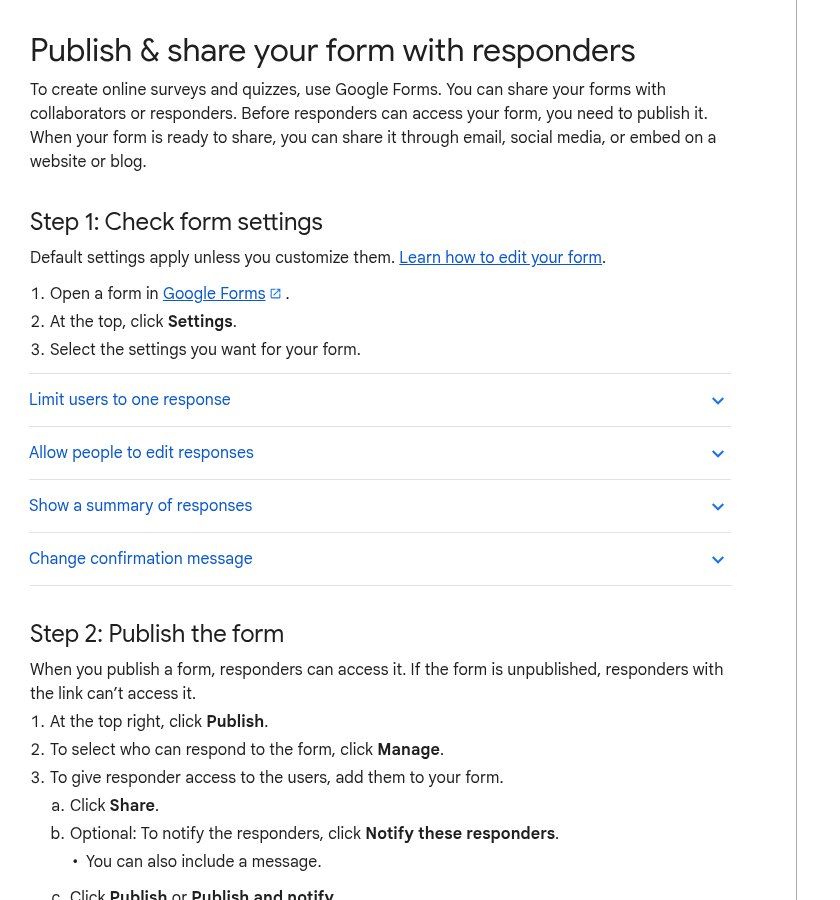
Source: screenshot of the Google help page “Publish and share your form with responders”, support.google.com, viewed on 16/11/2026.
When you publish, click Manage to choose who can respond. For a public form, general access should be set to anyone with the link. With a Google Workspace account, access may be restricted to your organisation by default, so an outside partner or customer will hit a sign-in screen. Always test your link in a private browsing window, signed out.
Once published, the form shows “Published” at the top right. To get the link, click Copy responder link and tick Shorten URL to get a short forms.gle link, which reads far better in a WhatsApp message.
Making a Google Form on a phone: possible, but not ideal
We hear this question a lot, because many managers of small organisations work mainly on a smartphone. The honest answer: Google does not offer a dedicated app for creating forms. You open forms.google.com in Chrome or Safari, or use the + button in the Google Drive app, which opens the same editor.
That works for fixing a typo, closing a form or checking responses. To build a fifteen-question form with sections, use a computer, even a borrowed one, even for half an hour. You will save time and avoid conditional-logic mistakes that are hard to spot on a small screen.
Can Gemini build the form for you?
Partly. Google offers a Help me create a form feature in Forms: you describe what you want (“a registration form for a two-day training, with name, phone, organisation, chosen session and special needs”) and Gemini generates a draft. The Google help lists three limits: you need an eligible Google Workspace or Google AI plan, the feature works on computers, and it cannot yet create forms with multiple sections.
Our view: useful to avoid a blank page, not to make decisions for you. AI tends to add questions “just in case”. Check each question against the rule above: if you cannot say what it is for, it goes. And never paste your beneficiaries’ or customers’ personal data into a prompt.
Settings that force respondents to sign in to Google
This is the most expensive trap, and you cannot see it unless you test while signed out. By default, anyone can answer a Google Form without an account. But some settings require respondents to sign in to Google. The official help pages name at least three:
- File upload: “respondents must sign in to a Google account” to answer this question (question types help).
- Limit to 1 response: useful against duplicates, but the help says users then have to sign in to their Google account (publish and share help).
- Collect verified email addresses: the person must agree to have their Google account address recorded. Choose “Responder input” instead if your audience may not have an account.
Why it matters here: many respondents to a community workshop, a local call for projects or a survey of traders have no Google account, or have forgotten their password. Every sign-in screen loses responses. Our rule: no file upload in a public form. Ask for supporting documents after shortlisting, by email or WhatsApp.
Sharing the form: WhatsApp, Facebook, website, poster
Once you have copied the short link, share it where your audience actually is. A few rules that change response rates:
- On WhatsApp, write a complete message, not a bare link: what the form is for, how long it takes, the deadline. Example: “Registration for the 28 November workshop (30 seats). 2 minutes: https://forms.gle/… Closes automatically when seats are gone.” A bare link looks like a scam.
- On a poster or flyer, add a QR code pointing to the form link, and print the short link in plain text underneath. All our printing rules (size, testing, static or dynamic QR) are in our guide to WhatsApp links and QR codes; they apply here too.
- On your website, Google provides an embed code (three-dot menu, then Embed HTML). For a company Contact page we prefer a proper contact form in the site’s own design; Forms remains perfect for a one-off registration page.
- By email, Google can embed the form in the message, unless it contains a file upload, a rating question, images or a locked quiz, according to the official help.
An underrated feature: the pre-filled form (three-dot menu, then Get pre-filled link). You fill in some fields, such as the session name or town, then get a special link. Handy for sending each group its own link and knowing where responses come from.
Closing the form automatically: deadline or number of seats
Until 2025 you had to remember to switch off “Accepting responses” yourself. Since January 2026, Google lets you close a form automatically at a set date and time, or after a set number of responses. The feature is available to everyone, including personal Google accounts (Google Workspace announcement).
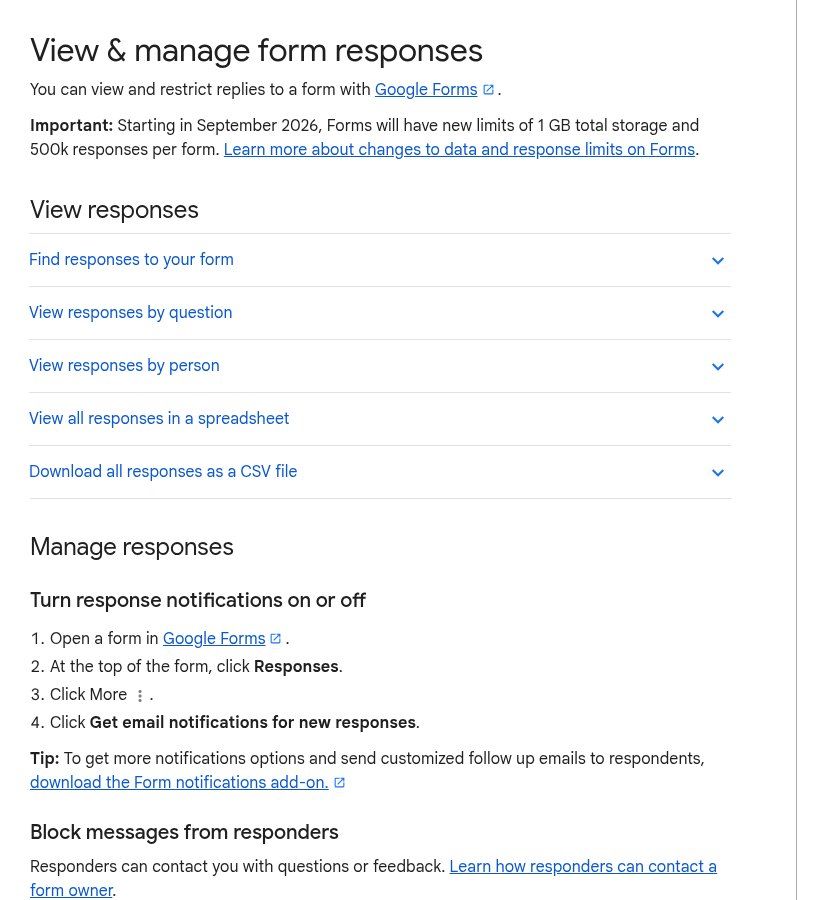
Source: screenshot of the Google help page “View & manage form responses”, support.google.com, viewed on 16/11/2026.
The setting lives in a published form: click Published, then under “Accepting responses” choose Set close date or response limit. You can also customise the message shown once the form is closed (“Registration is closed. Next session in January, follow our page”).
Two details from the Google help to know before promising “30 seats”: if several people submit at exactly the same moment, the form may accept a few responses beyond the limit. Leave a small margin, or say “while seats last”. And there is no automatic opening date: to open registration at 8 a.m. sharp, publish at 8 a.m.
Also worth knowing: since September 2026 each form is limited to 1 GB of data and 500,000 responses. No small business gets close with registrations, but a permanent form used for years by a large institution might.
Receiving and using responses
Responses appear in the Responses tab: a summary with charts, a per-question view and a per-person view. For serious use, link the form to Google Sheets straight away (Link to Sheets button). Each response becomes a timestamped row you can sort, filter and share. If spreadsheets are new to you, our article What is Google Sheets will save you time.
Three settings to switch on so you miss nothing:
- Email notification: Responses tab, three-dot menu, then the option to be notified of each new response. It is personal: every collaborator who wants alerts has to turn it on for themselves.
- Send respondents a copy: in Settings, under Responses, “Send responders a copy of their response”. This requires collecting their email address. It works as a simple acknowledgement of receipt.
- Confirmation message: in Settings, under Presentation. Do not keep the default “Your response has been recorded”. Say what happens next: “We will confirm your seat on WhatsApp before 25 November.”
Watch the sharing: Google’s help notes that a form’s collaborators may get access to the linked response spreadsheet, and that removing someone from the form does not automatically remove them from the sheet (Google help). When a volunteer or contractor leaves the project, remove their access to both files.
Practical Google Forms examples for a business, an NGO or an institution
Here are the forms we recommend most often, with the fields that are enough. Fewer questions, more responses: it is almost a law.
1. Workshop or training registration
First and last name, WhatsApp number (short answer with validation), organisation or activity, chosen session (multiple choice), special needs (accessibility, interpretation), consent to be contacted. Automatic close at the seat limit, and a confirmation message announcing the next step.
2. Customer satisfaction survey
Overall rating from 1 to 5, one “What did you like?” question, one “What should we improve?” question, and an optional field to leave contact details. No more. Send it right after the delivery or service, while the experience is fresh. The results feed nicely into a KPI dashboard.
3. Call for applications or projects
Use sections: applicant identity, project outline, estimated budget (a list of ranges rather than a free amount), then a declaration that the information is accurate. No file upload in the first round, so you do not exclude people without a Google account. Full files are requested from the shortlist.
4. Internal training quiz
In Settings, turn on Make this a quiz: you assign points to each question, a correct answer and feedback. Ideal for checking that a team has retained a training, for example on spotting phishing emails.
5. Simple order form
Product (checkboxes), quantity, delivery neighbourhood (dropdown), phone number, preferred payment method. The form does not take money: it collects clean orders that you then confirm. If orders become regular, that is the sign you need a real shop or a Mobile Money payment set-up.
Google Forms, a website form or KoboToolbox?
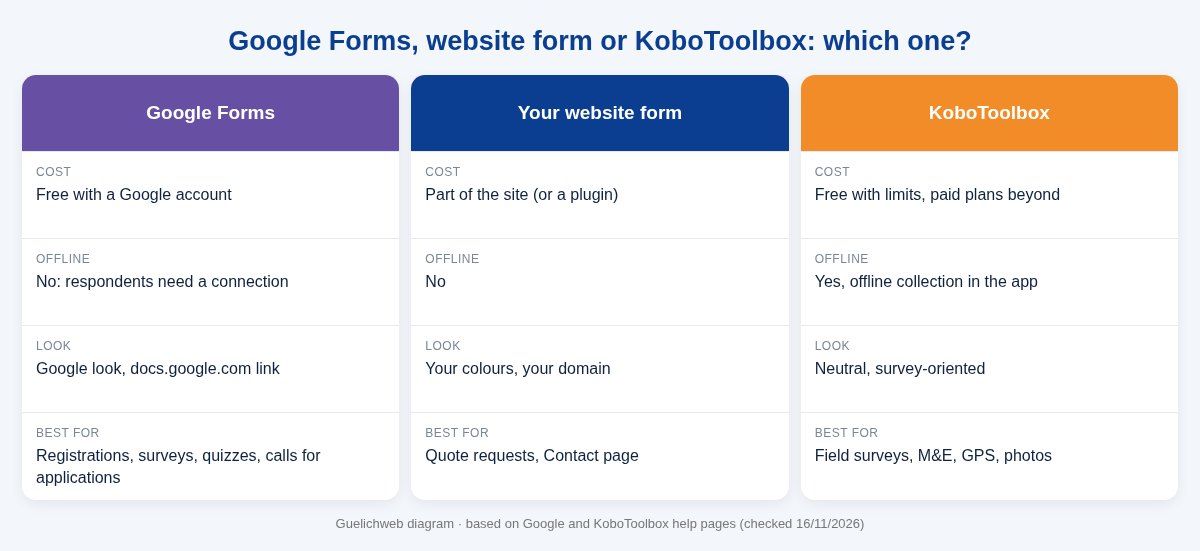
Guelichweb diagram, based on Google and KoboToolbox help pages (checked on 16/11/2026).
Google Forms has no real offline mode: people need a connection when they answer. For a village survey with enumerators, photos, GPS coordinates or quality checks, KoboToolbox is the right tool; we compare them in detail in our KoboToolbox guide. Conversely, for a quote request on your website, a built-in form in your own design inspires more trust than a Google page.
What Google Forms does not do (and what to use instead)
- Take payments: no built-in feature. You can show a payment link from a local gateway in the confirmation message, but matching responses and payments stays manual unless you automate it.
- Offline answers: no, see KoboToolbox.
- Send automatic WhatsApp messages: no. The built-in notification goes by email to the owner.
- Manage customer follow-up: a response sheet is not a CRM. Once you need to track follow-ups, statuses and history, you need a tool built for it.
- Book appointments without double bookings: a form does not block a time slot. Use a proper online booking tool.
Going further: from response to automatic action
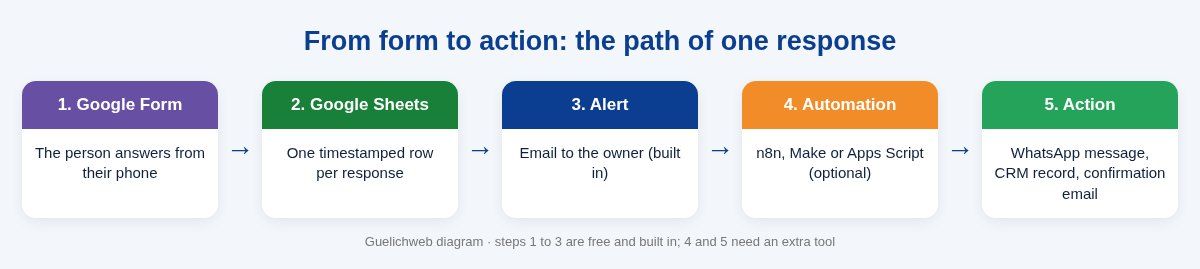
Guelichweb diagram: steps 1 to 3 are free and built in, steps 4 and 5 require an extra tool.
The real gain comes when a response triggers something without anyone lifting a finger. A few examples we set up:
- A new registration adds a row in Sheets; a tool such as n8n or Make picks up the row and sends a WhatsApp confirmation through the official API, with the date and venue.
- A quote request submitted through a form automatically creates a CRM record and alerts the right salesperson.
- A satisfaction score below 3 out of 5 sends an alert to the manager, so the customer is called back the same day.
- Registrants get an email reminder the day before the workshop, using an email marketing tool.
Our advice: do not start with automation. Run the form by hand for two or three weeks, note what you do with each response, then automate what repeats. That is exactly the method in our article on task automation. For the WhatsApp side, our WhatsApp chatbot and n8n offer shows what can be plugged in behind a form.
Personal data: what you owe respondents
A registration form collects names, numbers and sometimes sensitive information. In Benin, the Digital Code governs the collection and processing of personal data, under the supervision of the APDP. Similar rules exist in Senegal, Côte d’Ivoire and Cameroon and, in Europe, under the GDPR. Without turning legalistic, a few simple habits:
- State in the description who collects the data, why, and how long you keep it. Link to your privacy policy if you have one.
- Do not ask for what you do not need: religion, ethnicity, health status, ID number. A health NGO may have good reasons to; a marketing workshop registration does not.
- Create the form with a Google account owned by the organisation, not an employee’s or intern’s personal Gmail. When that person leaves, the responses must not leave with them.
- Delete responses once the operation is over and archived. Google’s help notes that deleting responses in Forms does not delete uploaded files, so check the Drive folder too.
- Never ask for a password or an SMS code in a form. Scammers use fake Google Forms for exactly that, and your respondents should know you will never do it.
7 common Google Forms mistakes
- Sharing the edit link (the one ending in /edit) instead of the responder link. At best the person sees an access-denied screen; at worst they can edit your form if you added them as a collaborator.
- Forgetting to click Publish, then wondering why nobody responds.
- Adding a file upload “just in case” and losing every respondent without a Google account.
- Asking for a phone number without saying which format. Give the expected example (with the +229 code and 10 digits for Benin) and add validation.
- Leaving a registration form open after the event: people keep signing up and expect an answer.
- Not linking Google Sheets from day one, then exporting CSV files by hand every day.
- Building the form on a personal account that disappears along with the person who created it.
Checklist before you publish your Google Form
- Clear title and a description with the purpose, the time needed and how data is used.
- Fewer than ten questions for a public form, with sections if longer.
- Required questions limited to the bare minimum.
- Validation on phone number and email.
- No setting that forces a Google sign-in, unless it is a deliberate choice.
- A confirmation message that explains what happens next.
- Close date or response limit set.
- Google Sheets linked and notifications on.
- Full test on a phone, in private browsing, signed out.
- Short link copied, WhatsApp message written, QR code tested if there is a poster.
When should you call an agency?
For a simple form you need nobody: this guide is enough. Get support when the form turns into a process: registrations that must be confirmed on WhatsApp, requests feeding a CRM, payments to reconcile, several teams handling responses, or a form built into a website. At Guelichweb we start with a review of your current workflow, then propose a tailored quote, as explained on our offers page. We do not give prices “blind”: a form wired to three tools is a different job from a form on its own.
Frequently asked questions
Is Google Forms really free?
Yes, with a personal Google account and no cap on the number of forms in normal use. AI features such as Help me create a form require an eligible Google Workspace or Google AI plan. Each form is now limited to 500,000 responses and 1 GB of data.
Can people answer a Google Form without a Gmail address?
Yes, as long as you do not turn on the settings that require sign-in: file upload, limit to one response, verified email addresses. To create a form, however, you need a Google account, which can be set up with an existing email address.
How do I make a Google Form on my phone?
Open forms.google.com in your phone’s browser, or use the + button in the Google Drive app. There is no dedicated app for creating forms. It is enough for a small form; for a long one, a computer is safer.
Is a Google Form anonymous?
It is if you do not collect email addresses and no setting requires sign-in. You then only see what people type. If you promise anonymity, do not ask questions that identify the person (name, number, a unique job title in a small team).
How do I limit the number of registrations?
In a published form, click Published, then Set close date or response limit, and choose After a certain number of responses. Keep a small margin: responses sent at exactly the same moment can exceed the limit.
Can I receive responses on WhatsApp?
Not natively: Google sends notifications by email. To get an alert or send a confirmation on WhatsApp, you need an automation (n8n, Make) and, for reliable automatic sending, the WhatsApp Business API.
Can I take payments with Google Forms?
No. You can show a payment link in the confirmation message, but Google Forms does not check that payment happened. For regular payments, use a shop or a Mobile Money gateway connected to your website.
How do I share a Google Form on WhatsApp?
Publish the form, copy the responder link with Shorten URL ticked, then paste it into a message that explains the purpose, the time needed and the deadline. Avoid a bare link, which looks like a scam.
Final word
Google Forms is a modest tool that does a great deal of good, as long as you treat it as a front door rather than a complete system. A short form, published, tested signed out, closed at the right time and linked to a spreadsheet: that already beats most of what we see circulating. The rest is what you do with the responses.
Want to turn your forms into a complete workflow, with WhatsApp confirmation, a CRM or a dashboard? Contact Guelichweb: we start with a review, then propose a quote.