How to migrate a WordPress site to a new host without downtime: method, free tools and checklist (email, DNS, Mobile Money)
G. CHRIST
Published on November 12, 2026

A WordPress site that needs to move to a new home is something we deal with all the time. The host raised its renewal price. The site has been slow for months. Support stopped answering. Or the organisation simply wants hosting it can pay for in CFA francs, with an invoice in its own name. And every time, the same fear comes up: "If we move, will the site go down? Will we lose our email? What about our Google rankings?"
The honest answer: you can migrate a WordPress site without downtime, as long as you follow a strict order. Most of the disasters we are called in to fix are not caused by the migration tool. They come from a missing login, a forgotten DNS record, or an old hosting plan cancelled too early.
The guides that rank first on Google are almost all written by European or American hosts, for sites in their own markets. They skip what actually derails a migration in West Africa: the site set up by a former freelancer who can no longer be reached, the 4 GB archive you have to upload over a mobile connection, the Mobile Money gateway that stops sending payment confirmations. This guide covers all of that, in the order we do it.
In short: migrating without downtime, in 6 ideas
- Never shut down the old hosting before the new one has been tested and everyone is using it.
- Collect every login (host, domain, WordPress, email) before you start.
- Record the full DNS zone, especially the MX records that keep email working.
- Pick a method that fits the size of the site: a plugin, a manual copy, or a migration done by the new host.
- Test the site on the new server before touching DNS, using your computer's hosts file.
- Change one thing at a time: the host first, the domain name or the design later.
What actually moves when you change hosts
A WordPress site is not a single file. To move it properly, you need to know which pieces it is made of, and which ones live somewhere else.
- Files: WordPress itself, the wp-content folder (themes, plugins, images, PDFs) and the wp-config.php file holding the database credentials.
- The database: pages, posts, settings, user accounts, and orders if it is a shop.
- Email, if it is hosted with the same provider as the site (contact@your-domain…).
- The domain's DNS zone: it tells the world where the site and the mailboxes are.
- The HTTPS certificate, which has to be issued again on the new host.
- The extras: scheduled tasks, subdomains, redirects, form emails, connections to other services.
The domain name does not necessarily move. It is a separate service, managed by a registrar. Changing hosts only means changing where it points. If you also want to transfer the domain, do it later, once the site is stable. For a .bj domain, the rules are in our guide to the .bj domain name.

Official logo: WordPress, downloaded from wordpress.org/about/logos. This guide is about self-hosted WordPress (WordPress.org). If you are still unsure about the platform, start with what WordPress is and when to choose it.
Step zero: get your logins back (this is where it is won or lost)
In our migration work, the first blocker is almost never technical. The site was set up four years ago by a freelancer who changed phone numbers. The hosting account is in the name of a former employee. The domain was bought with someone's personal card. Until those points are settled, do not start anything.
Here is what to gather before you begin:
- Access to the current host's client area (cPanel, Plesk or other), including the file manager and phpMyAdmin.
- A working WordPress administrator account.
- Access to the domain registrar account, or to the service that manages the DNS zone (sometimes Cloudflare, sometimes the host).
- The list of existing mailboxes and their passwords, or at least the ability to reset them.
- Logins for services connected to the site: payment gateway, email marketing tool, Google Search Console, Google Analytics.
If a former provider holds these logins, ask for them in writing, stating that the domain and the content belong to your organisation. Use the opportunity to put the domain in the organisation's name. There will not be a better moment.
Should you really migrate? Good and bad reasons
A migration always has a cost, even when it is free: time, risk and a monitoring period. Before moving, make sure the problem really is the host.
- Good reasons: a host that no longer answers, renewal prices that have become unreasonable, PHP stuck on an old version, no backups, no way to pay from your country, no invoice possible in the organisation's name.
- Reasons to check first: a slow site. A badly configured plugin or 5 MB images will slow a site down on any host. Measure first.
- Bad reason: running away from a hacked site. If you migrate an infected site, the malware moves with it. Clean it first, following our guide on what to do when your website is hacked, then migrate a clean copy.
Our position is clear: if you change host AND design at the same time, you will not know what broke what. For a redesign, we migrate the existing site first, check that everything works, and only then rebuild the design.
Choosing the new host without regrets
The headline price is not enough. WordPress currently recommends a server with PHP 8.3 or later, MariaDB 10.11 or later (or MySQL 8.0 or later) and HTTPS support (official WordPress requirements, checked on 12 November 2026). Add the questions that really matter for a migration:
- What is the maximum upload size? It determines whether migration plugins will work.
- Is there SSH access? It makes large transfers much easier.
- Are backups automatic, daily, and can you restore them yourself?
- Is email included, and with how much mailbox space?
- Is migration included? Several hosts in the region advertise it on their websites. Ask in writing what it covers: only the site, or the mailboxes too?
- Can you pay in CFA francs, by Mobile Money, with an invoice in the organisation's name?
For a mostly West African audience, a local host you can pay in CFA francs is often the simplest choice: clear invoicing, support in the same time zone, no international card needed. If you need an international host instead (card or Bitcoin payment, several hosting countries, VPS), Shinjiru, an offshore host since 2000, lists shared hosting from $3.95/month, a Strongbolt plan with DDoS protection and an automatic migration tool, and VPS plans from $11.90/month (prices checked on shinjiru.com on 12 November 2026). There is no Mobile Money or CFA payment, so compare over three years, renewals included. See Shinjiru plans (affiliate link: we may earn a commission if you sign up, at no extra cost to you).
To compare plans and pricing traps, our article on web hosting, free or paid, and where to host in West Africa will save you time.
The 3 ways to migrate a WordPress site
Method 1: a migration plugin (the most common)
A plugin packs the whole site, files and database, into an archive that you restore on the new host. This is the method we recommend for most business websites and reasonably sized NGO sites. Three plugins dominate, each with its limits, checked on their official pages on 12 November 2026:
- All-in-One WP Migration: the free version exports a site of any size, but importing goes through the file upload screen, and your host sets the maximum size allowed. For a large site you need the paid "Unlimited" extension or another method. More than 5 million active installations.
- Duplicator (free Lite version): creates an archive plus an installer, and can be installed on an empty hosting account with no WordPress in place. Handy when the new host offers nothing preinstalled.
- Migrate Guru: transfers server to server through its own servers, advertised up to 200 GB. Useful when your internet connection is the weak link, because the archive never goes through your computer.
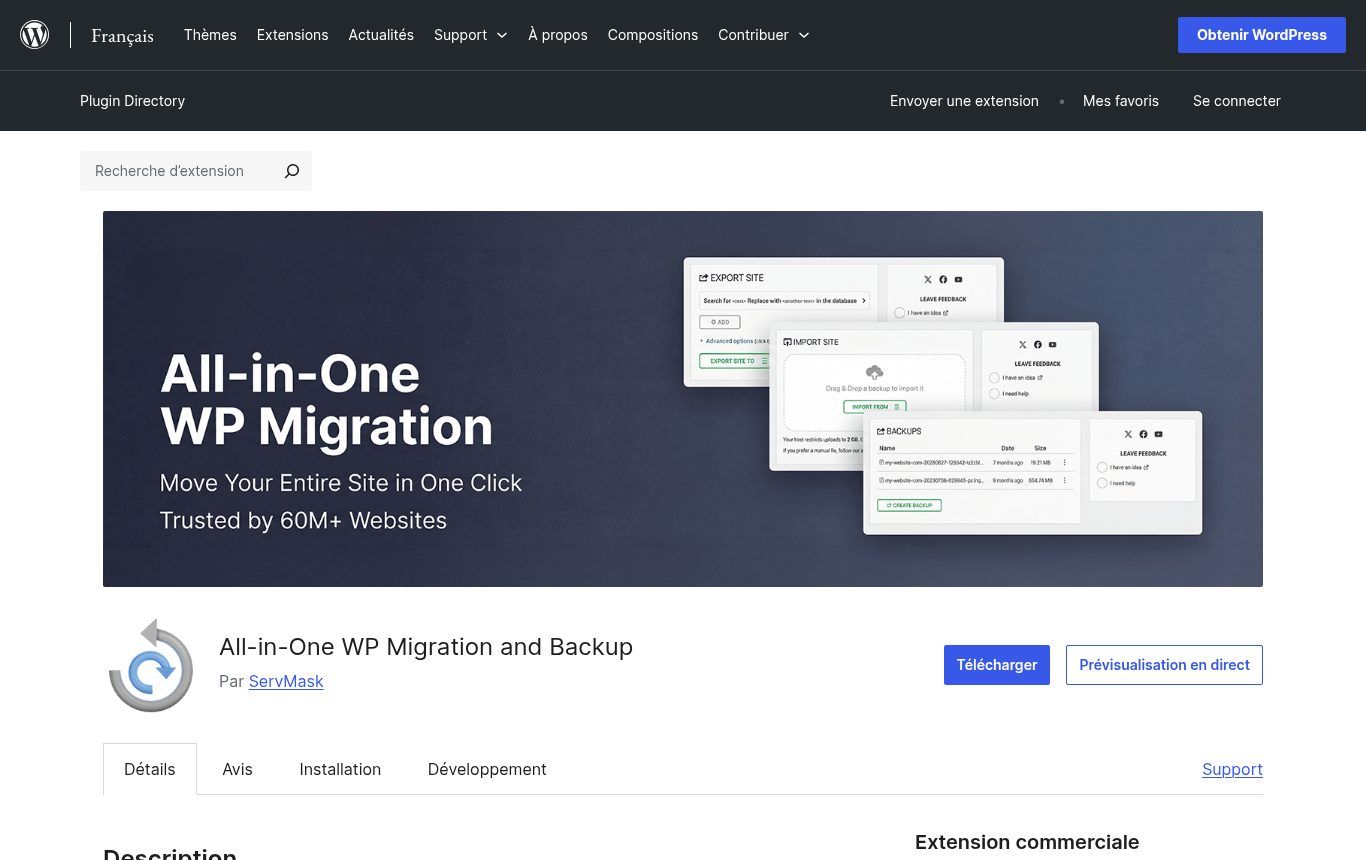
Source: fr.wordpress.org/plugins/all-in-one-wp-migration, screenshot taken on 12 November 2026. Plugin mentioned as an example, with no commercial relationship.
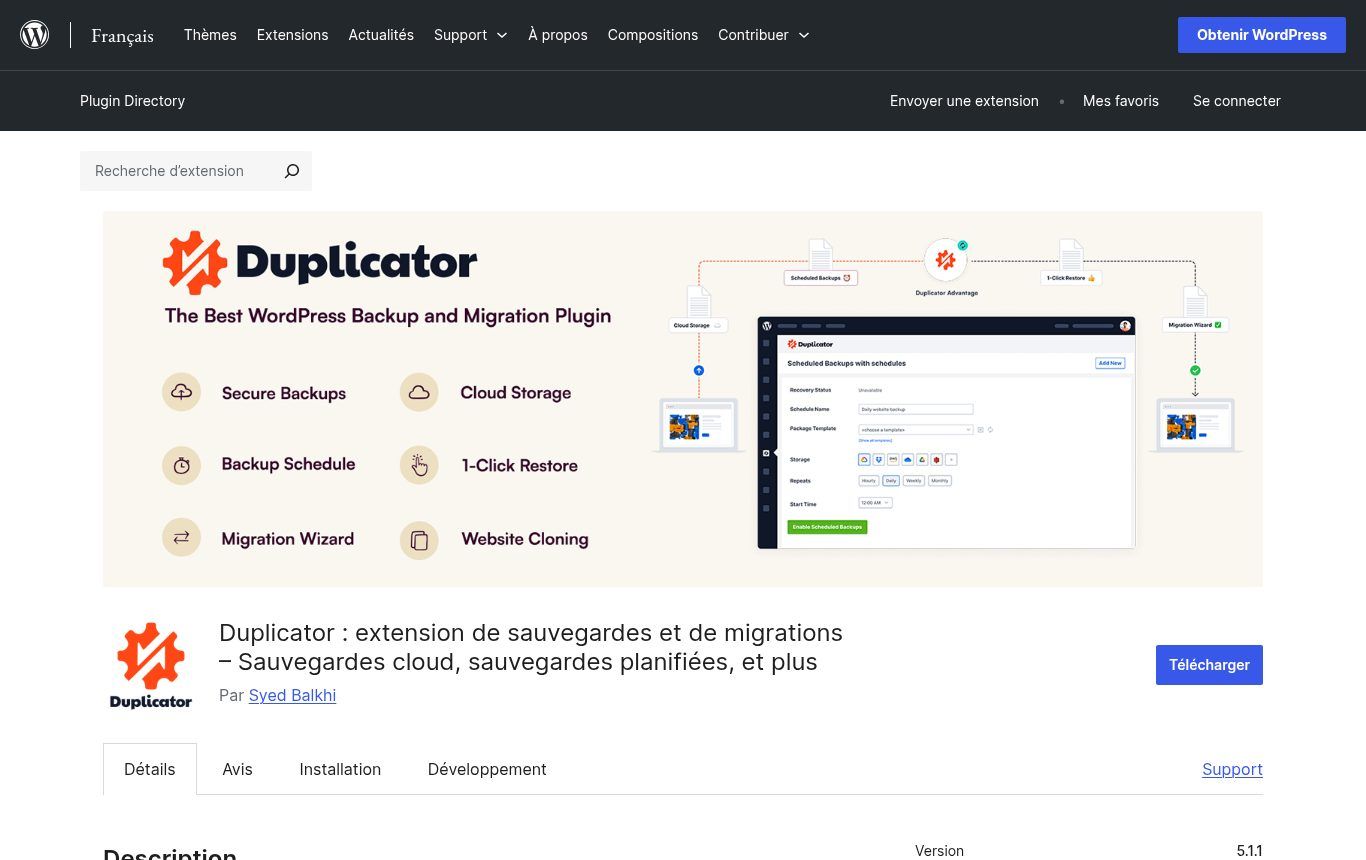
Source: fr.wordpress.org/plugins/duplicator, screenshot taken on 12 November 2026. Plugin mentioned as an example, with no commercial relationship.
A tip from the field: for an archive of several gigabytes, avoid downloading it to your computer and uploading it again over a mobile connection. One drop halfway through and you start over. Prefer a server-to-server transfer (Migrate Guru, SSH, or the host's own tool).
Method 2: the manual copy (reliable, but technical)
This is the method described in the official "Migrating WordPress" documentation. When the domain stays the same, it comes down to four steps:
- Export the database as an SQL file (phpMyAdmin or command line).
- Copy all of the site's files, including wp-content.
- Create an empty database on the new host and import the SQL file.
- Upload the files, then update the database name, user, password and host in wp-config.php.
It does not depend on any plugin and works whatever the size of the site. In return, you need to be comfortable with FTP, phpMyAdmin and configuration files. The documentation also notes that if the site uses custom permalinks, you should save them again once the site is live (Settings > Permalinks > Save).
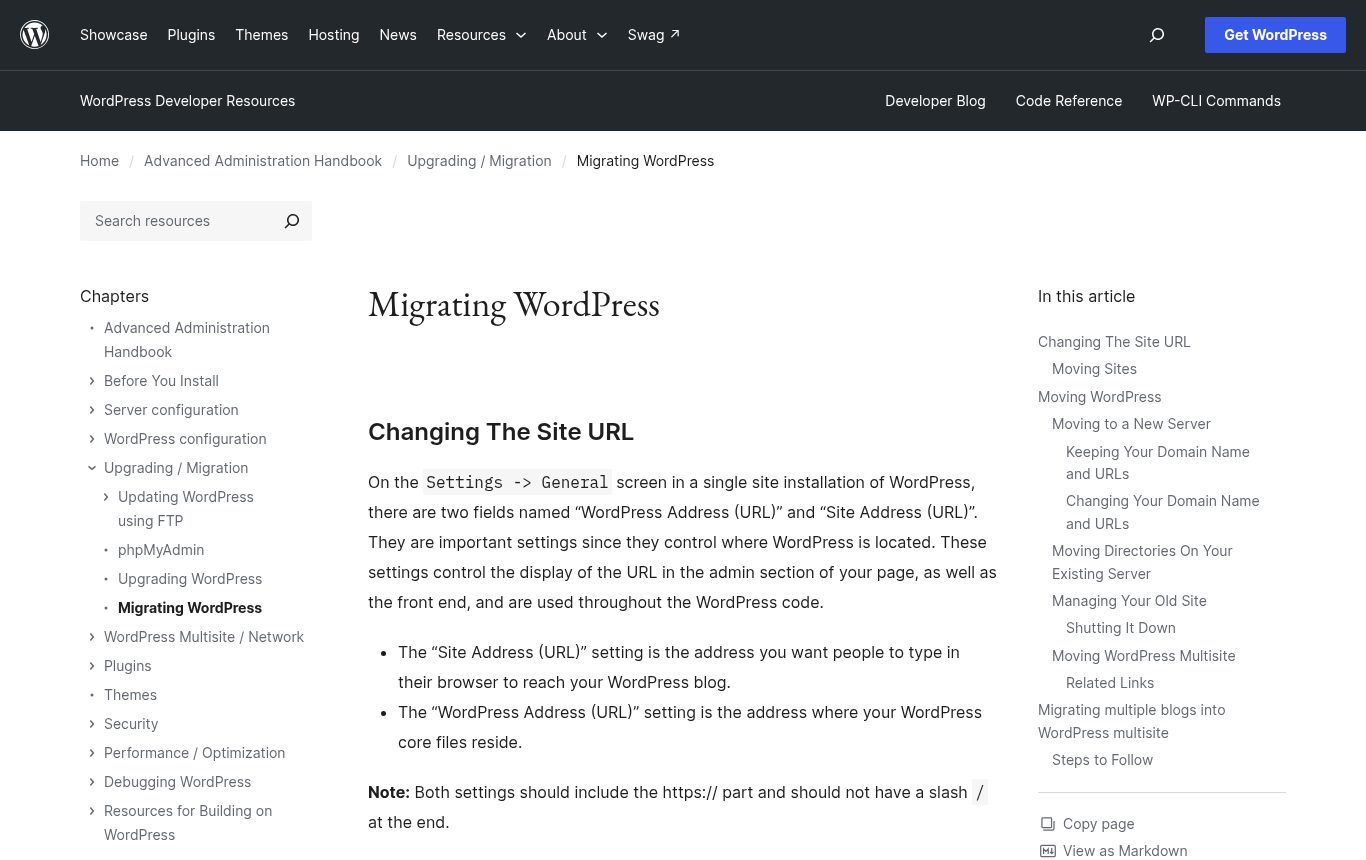
Source: developer.wordpress.org, "Migrating WordPress" page of the Advanced Administration Handbook, screenshot taken on 12 November 2026.
Method 3: let the new host do it
Many hosts offer a free migration, done either by their team or through a tool built into cPanel or Plesk. It is often the right choice for a small organisation without in-house technical staff. Two caveats: give temporary logins that you change afterwards, and do not let them cancel the old plan for you. You stay in control of the timing.
Which method for which site?
- Business website or blog under 500 MB: a plugin (All-in-One or Duplicator), or the host's free migration.
- Site of 1 to 10 GB with many PDFs and images: Duplicator, Migrate Guru, or a manual copy over SSH.
- WooCommerce shop with daily orders: full copy, then a final database sync right before the switch, at a quiet time.
- Multisite or heavily customised site: manual copy by someone who knows the site.
The step-by-step method, without downtime
This is the order we follow. It builds on Google's guidance for changing hosting without changing URLs and on the WordPress documentation.
- One week before: lower the TTL of the site's DNS records (A, AAAA if any, and www). Google suggests doing it at least a week ahead. DNS caches will then pick up the change faster.
- Back up the whole site, files and database, and keep the copy off the old server. Our WordPress backup guide explains how.
- Snapshot the DNS zone: screenshot or export every record (A, CNAME, MX, TXT for SPF, DKIM, Google verification…).
- Prepare the new hosting: domain added, same PHP version or a newer one compatible with your plugins, empty database.
- Copy the site with the method you chose.
- Test before switching using your computer's hosts file: map your domain to the new server's IP address. Only you see the new site, at its real address. Test key pages, forms, admin login, and the cart if there is one. Remove the line afterwards.
- Freeze changes on the old site: no new posts, no updates. For a shop, copy the database again just before the switch.
- Switch DNS: change the A records for the domain and www so they point to the new server.
- Enable HTTPS on the new host (refresher: what an SSL certificate does). A standard Let's Encrypt certificate is validated by checking a file on your domain (Let's Encrypt challenge types), so it is issued once the domain points to the new server. Start it right after the switch.
- Check from several devices and networks (Wi-Fi, mobile data from different carriers): site, forms, incoming email, HTTPS.
- Keep the old hosting for about a month, then take a final backup before cancelling.
One detail that saves a lot of stress: changing A records is not the same as changing nameservers (NS). If you change the NS, the entire DNS zone moves to the new provider. If it was not recreated identically beforehand, your email and domain verifications disappear at the same time.
Email: the number one trap
This is the mistake we fix most often. The site moves without a hitch, and three days later someone notices that nothing arrives at contact@ any more. Two cases:
- Your email is hosted elsewhere (Google Workspace, Microsoft 365, Zoho…): do not touch the MX and TXT records. Only change the site's records. If you change nameservers, copy those records into the new zone first.
- Your email is with the old host: create the same mailboxes on the new host, copy their content (over IMAP, or with the host's tool), change the MX, then copy again after propagation to pick up the last messages.
Use the migration to check that your professional email addresses have SPF and DKIM records: without them, your messages land in spam more easily.
If the site address changes too
Moving from old-name.com to new-name.bj, or from a subfolder to the root, adds a delicate step: replacing the old address in the database. The WordPress documentation warns that a raw search-and-replace breaks the "serialized" data some themes and widgets store. Use a tool that handles it, such as the WP-CLI search-replace command, always with a dry run first:
wp search-replace 'https://old-domain.com' 'https://new-domain.bj' --skip-columns=guid --dry-run
Remove --dry-run once you have checked the report. The guid column must never be changed: the official documentation is explicit. Then every old address must 301-redirect to the new one, and the move should be declared in Google Search Console, as described in Google's guide to site moves with URL changes. Our article on redesigning a site without losing SEO covers the redirect plan.
What the tutorials forget (and what breaks in West Africa)
Once the site loads, many people consider the job done. Yet several invisible functions depend on the old server:
- Mobile Money payments: if your shop uses a gateway such as FedaPay or KKiaPay, make a real test payment after the switch. If the site address changes, update the return and notification URLs (webhooks) in the gateway dashboard. Otherwise the customer pays, but the order stays "pending".
- Forms: some send messages through the server's mail function. On new hosting they may stop sending or end up in spam. Test every form, and set up authenticated sending (SMTP) if needed.
- Automations: an n8n or Make scenario that calls your site, or a webhook that lands on it, may target an IP address or subdomain that has changed. List these connections before migrating.
- Scheduled tasks: cron jobs created in the old cPanel (backups, reminders, syncs) are not copied by plugins. Recreate them.
- Switch window: pick a quiet hour for your visitors (often early morning, Cotonou time), avoid the end of the month when payments and registrations peak, and do not start a 3 GB restore from a laptop with a dead battery on a power-cut day.
After the migration: checks for the first 30 days
Google explains that after a hosting change, Googlebot's crawl rate may drop temporarily and then climb back over the following days. It is not a penalty. To keep an eye on things:
- Make sure your Google Search Console property is still verified (HTML file or meta tag present on the new site).
- Check that no indexing block was left on ("Discourage search engines from indexing this site", robots.txt, noindex).
- Compare speed before and after, on mobile.
- Set up automatic backups on the new host again and test a restore.
- Add the migration to your maintenance routine: updates, backups and monitoring restart on the new setup.
The 7 mistakes we see most often
- Cancelling the old hosting on the day of the switch.
- Starting without access to the domain.
- Changing nameservers without copying MX and TXT records.
- Migrating a hacked site without cleaning it.
- Running a raw search-and-replace on the database when the address changes.
- Forgetting to remove the indexing block set during testing.
- Changing host, domain name and design on the same weekend.
Do it yourself or get help?
For a small business website, with logins in hand and email hosted elsewhere, a methodical person can handle the migration with a free plugin by following this guide. The plugins mentioned all have free versions, and many hosts include migration at no charge.
Get help if the site takes payments, if email is with the old host, if nobody knows where the logins are, or if the site has been hacked. The cost of a mistake (lost orders, a week without email) quickly exceeds the cost of getting it done properly. At Guelichweb, we do not quote prices blindly: we start with a diagnosis (site size, email, DNS, connected services), then send a quote. Our packages are described on the offers page.
The checklist to keep at hand
- Logins for current host, WordPress, registrar, DNS and email collected.
- Domain registered in the organisation's name.
- Clean site (no ongoing hack).
- New host chosen: PHP 8.3+, backups, email, suitable payment options.
- TTL lowered one week before.
- Full backup stored off the server.
- DNS zone exported or screenshotted.
- Site copied and tested through the hosts file.
- Changes frozen, final sync done.
- A records updated, HTTPS enabled.
- Email, forms, payments, automations and cron jobs tested.
- Search Console checked, indexing block removed.
- Old hosting kept for a month, final backup saved.
Frequently asked questions
How long does a WordPress migration take?
The copy itself takes from a few minutes to a few hours, depending on site size and method. DNS propagation ranges from a few minutes to several hours depending on caches. Above all, plan time for preparation (logins, inventory) and checks: that is what prevents downtime.
Will I lose my search rankings?
If the site address does not change and the new server is reliable, changing hosts should not have a lasting impact: Google treats it as an infrastructure change. The risk appears when URLs change without redirects, or when an indexing block stays on.
Do I need to transfer my domain to the new host?
No. The domain can stay with its current registrar; only its destination changes. If you want everything in one place, transfer it after the migration, one step at a time.
Can I migrate a WordPress site for free?
Yes. The free versions of All-in-One WP Migration, Duplicator or Migrate Guru are enough for many sites, and many hosts include migration. The most common limit is the upload size your host allows for the import.
My former provider will not give me the logins. What can I do?
Ask in writing, stating who owns the domain and the content. If the domain is in your name, the registrar can help you regain control. Without server access, you can often rebuild the site from a WordPress administrator account, but it takes longer.
Can I keep my email addresses during the migration?
Yes, if you leave the MX records alone or copy the mailboxes before changing them. It is the first thing to check.
Our take
Migrating a WordPress site is not risky when you respect the order: logins, backup, DNS inventory, copy, test, switch, checks, and only at the very end, cancellation. Free plugins do the technical part very well. What makes the difference is the preparation and what you check afterwards: email, payments, forms, automations.
Want to change hosts but not sure what is connected to your site, or who holds the logins? We can take stock with you and tell you whether you can migrate on your own or would be better off with support. Contact Guelichweb to talk it through.