Google Search Console: what it is and how to actually use it (a guide for SMEs, NGOs and institutions)
G. CHRIST
Published on October 30, 2026

Plenty of business websites in Benin, Côte d'Ivoire or Senegal have been online for years without anyone knowing whether they actually show up on Google. The site was paid for, presented to the board, and then everyone moved on. When a customer finally says "I searched for you on Google and couldn't find you", the real question lands: does Google even know our site exists?
There is a free tool that answers exactly that question, and many others: Google Search Console. In our view, it is the first tool to open whenever you are responsible for a website's visibility. Before any paid SEO software, before any ad campaign, even before rewriting your pages.
At Guelichweb, it is one of the first tools we open when a website is entrusted to us. In this guide we explain what the tool is, how to set it up without using the wrong account, how to read its reports without jargon, and above all the 30-minute monthly routine that is enough for an SME, an NGO or a public institution to stay in control of how it appears on Google.
What is Google Search Console?
Official Google Search Console logo (file published by Google on gstatic.com).
Google Search Console is a free Google service that shows you how the search engine sees your website. Google describes it as a tool that "helps you monitor, maintain, and troubleshoot your site's presence in Google Search results" (official help). In practice, it tells you:
- whether Google finds and crawls your pages, and which ones it keeps in its index;
- which searches your site appears for, how often, at what average position, and how many people click;
- what is getting in the way: pages not found, server errors, pages excluded by mistake, security issues or a manual action;
- which sites link to yours, and which of your pages get the most internal links.
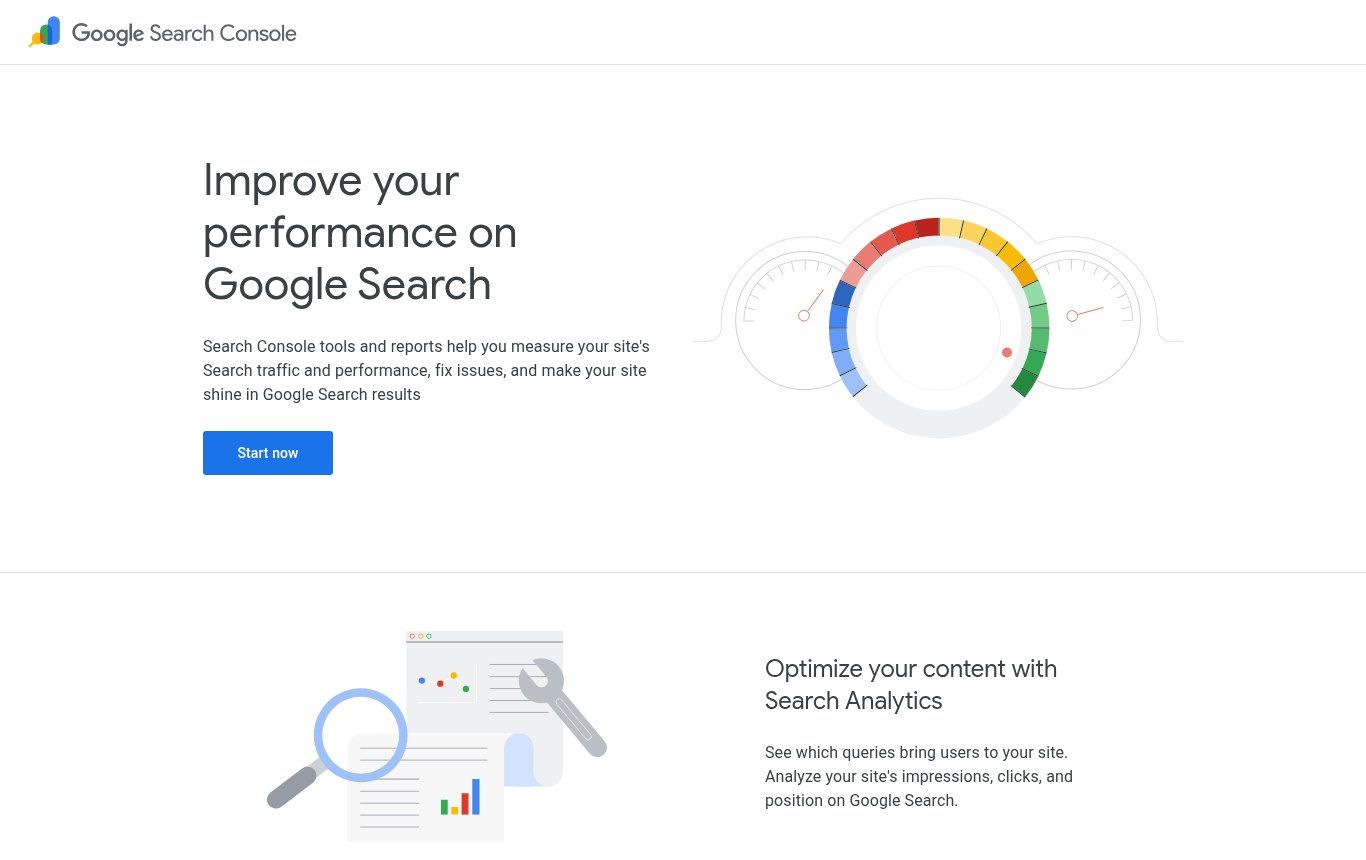
Source: search.google.com/search-console/about (public page, screenshot taken on 30/10/2026).
One important point: you do not need Search Console to appear on Google. Google can find your site without it. But without it, you know nothing about what is happening. It is a bit like running a shop without ever looking at who walks past the window.
If these ideas are new to you, our article what is SEO? covers the basics, and how to appear on Google explains the chain from crawling to indexing to ranking. Here we focus on the tool itself and how to use it week to week.
Search Console vs Google Analytics: stop mixing them up
This is the confusion we run into most often. Both tools are free, both come from Google, and many managers believe they have "installed Google" because one of them is in place. Yet they do not measure the same thing.
- Search Console measures what happens before the visit, in Google's results: the searches typed, impressions, clicks, and the technical health of your pages.
- Google Analytics measures what happens on your site: where visitors come from (Google, Facebook, WhatsApp, direct links), what they look at, and whether they fill in the contact form.
Google actually recommends using them together and publishes a dedicated guide (using Search Console and Google Analytics data for SEO). Our view is simple: if you can only set up one to begin with, pick Search Console. It tells you whether you exist on Google at all; Analytics only becomes useful once visitors arrive. For the second tool, follow our Google Analytics 4 guide.
Setting up Google Search Console without mistakes (the traps that cost you later)
Setup rarely takes more than fifteen minutes. What takes time are the early mistakes you only discover two years later. Here is the process, with the traps we see again and again.
1. Use the right Google account (trap number one)
Whoever verifies the site becomes an owner in Search Console. If the developer who built your site did it with their personal Gmail, they hold the access. The day you change providers, or an employee leaves with their address, you lose the history and have to start over.
Use a Google account that belongs to the organisation, ideally a professional email address on your own domain (for example web@your-organisation.bj) whose password stays with management. Your agency, including us, should be added as a user, not the other way round.
2. Choose the property type: Domain or URL prefix
Search Console offers two property types (verification help):
- Domain (e.g. your-organisation.bj): covers every version of the site, with or without www, over http or https, plus all subdomains. Verification is by DNS record only.
- URL prefix (e.g. https://www.your-organisation.bj/): only covers addresses that start exactly that way. Several verification methods: HTML file, meta tag, Google Analytics or Google Tag Manager.
We pick the Domain property whenever possible. It avoids data being split between the www and non-www versions of your site (if that distinction is fuzzy, read what does www mean?).
3. Verify ownership through DNS
Search Console gives you a line of text to add to your domain's DNS zone as a TXT record. You do this in the client area of your registrar or hosting provider. In French-speaking Africa the hard part is rarely technical: it is finding out who has access to that account. The .bj, .ci or .sn domain was sometimes bought by a former provider, in their own name. If that is your situation, fix it before anything else; our article on .bj domain names explains how to take back control.
DNS changes can take anywhere from a few minutes to more than a day to propagate. If verification fails, wait and try again. And never delete that record afterwards: Google checks it periodically, and verification is lost if it disappears.
4. Submit your sitemap
In the "Sitemaps" menu, enter the address of your sitemap, often https://your-site/sitemap.xml. It is not mandatory, but it helps Google discover your pages faster, especially on a new site with few inbound links. We cover what a sitemap does and does not do in how to appear on Google, so we will not repeat it here.
Then be patient. The first performance data usually shows up after a few days. Once in place, the performance report keeps up to 16 months of history: every month without Search Console is a month of data lost for good.
The 4 reports you need to know (and the ones you can ignore)
The interface contains about twenty reports. An SME or NGO only needs four of them day to day. The rest are useful for a developer, or when an alert comes in.
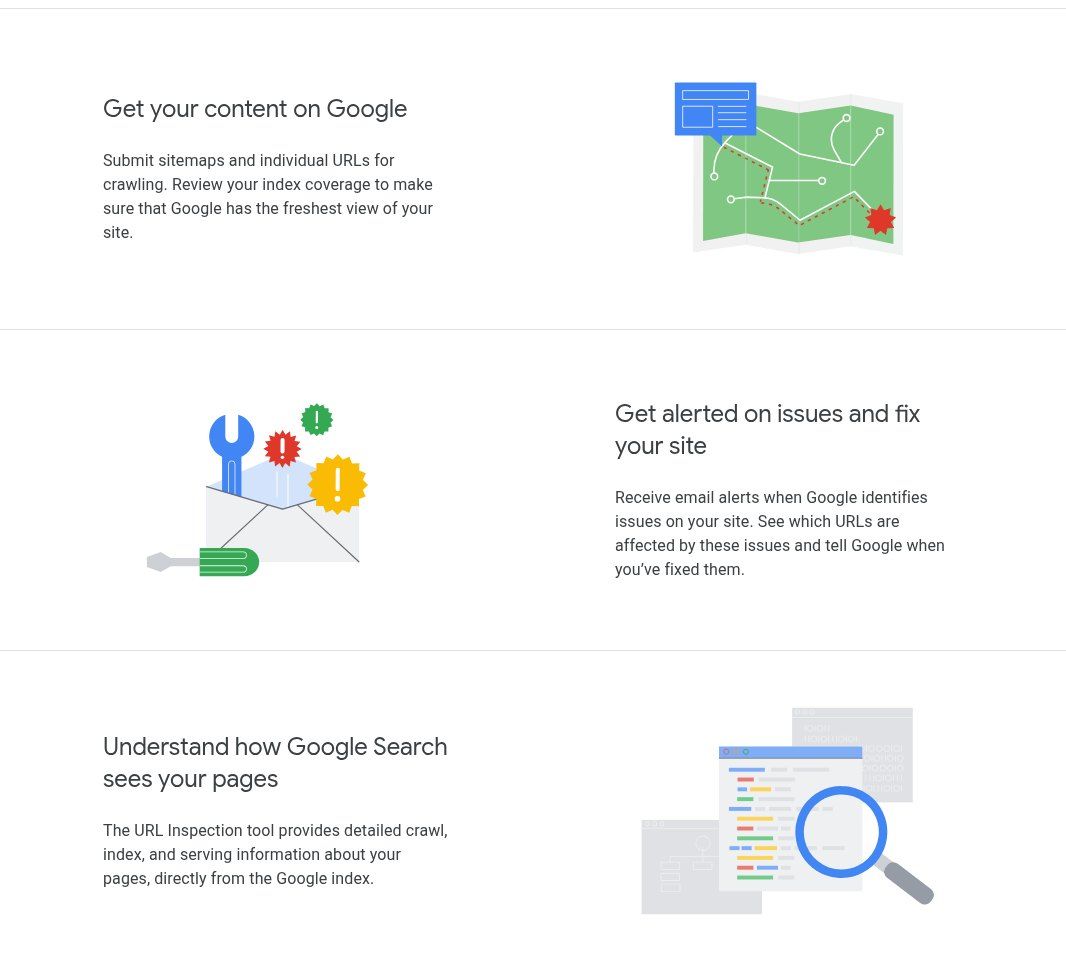
Source: search.google.com/search-console/about, features section (screenshot taken on 30/10/2026).
Performance: what people type to find you
This is the most valuable report (performance report help). It shows four numbers:
- Impressions: how many times a link to your site was shown in the results;
- Clicks: how many times someone clicked through to your site;
- CTR (click-through rate): clicks divided by impressions;
- Average position: the average rank of your best result for those searches.
Below the chart, the Queries, Pages, Countries and Devices tabs are a gold mine. The Queries tab shows you, word for word, what people typed before landing on your site. We regularly find surprises there: searches for services the organisation offers but never clearly mentions on its site, or neighbourhood and city names nobody thought to write down.
The Countries tab deserves special attention in West Africa. A Beninese website often gets a large share of its impressions from France, Canada or other diaspora countries. That is not necessarily bad, but if your customers are in Cotonou, Abidjan or Dakar, filter by your own country before drawing conclusions. A flattering global figure can hide almost zero local visibility.
The Devices tab confirms what we already know: in West Africa, most people go online from their phone. If your site looks fine on a computer but poor on a phone, most of your visitors are suffering; see our guide on responsive websites.
Page indexing: what Google kept (or didn't)
The "Pages" report, under Indexing, splits your addresses into two columns: indexed and not indexed, with a reason for each group (page indexing report help). This is the report that causes the most panic, usually for nothing. Seeing "not indexed" pages is normal on every website. The only question that matters: are any important pages in the wrong column? We decode the statuses further down.
URL Inspection: the diagnosis of a single page
Paste a page address into the search bar at the top of the tool. URL Inspection tells you whether the page is in the index, when Google last crawled it, whether it is blocked, and which version Google treats as the canonical page (URL Inspection help). "Test live URL" checks the current version, and "Request indexing" flags a new or updated page to Google.
Requesting indexing is not a magic button. One request is enough; repeating it every day changes nothing, and the number of requests is capped. If a page stays out of the index, it is almost always the page itself that needs improving.
Links: who is talking about you
The "Links" report lists external sites pointing to yours and your most internally linked pages. For an NGO, this is often where you discover that a donor's, a ministry's or a partner's website links to an old address that no longer exists. A well-placed redirect recovers that value.
Reports you can leave aside at first
Core Web Vitals, HTTPS, structured data, crawl stats, removals: useful, but not for a first look. Check them when an email alert arrives or during an audit. Two exceptions to keep an eye on, rarely but seriously: Manual actions and Security issues. If anything shows up there, it is urgent; a hacked site serving spam pages is more common than people think on unmaintained WordPress sites (see website maintenance).
"Not indexed" pages: the statuses decoded in plain language
Here are the statuses you will see most often in the indexing report, what they mean, and what we do about them. The diagram sums up the logic; the details follow.
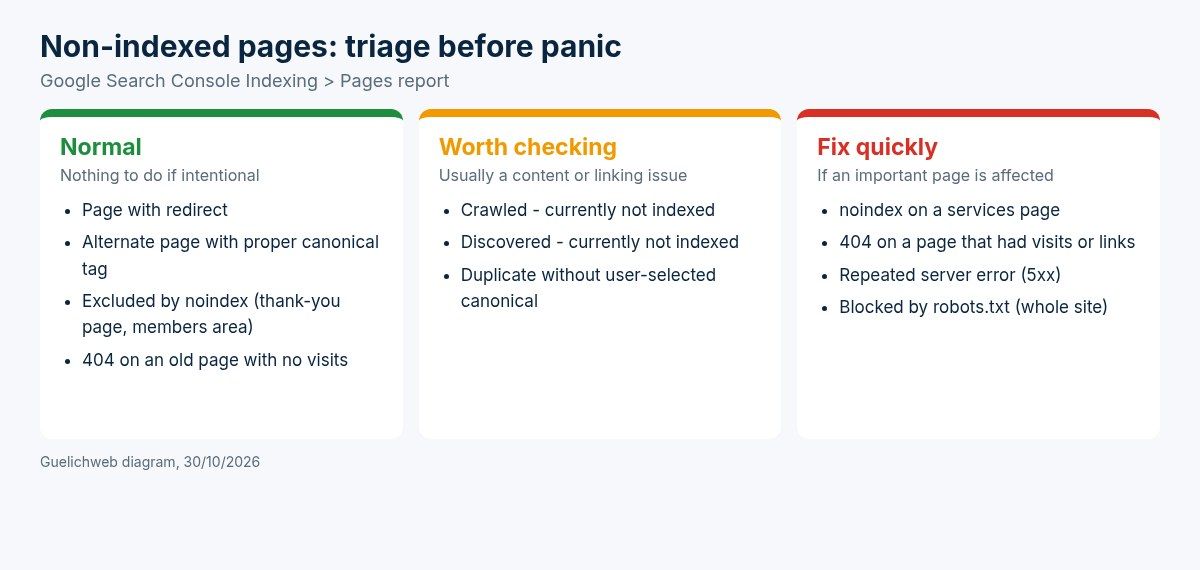
Guelichweb diagram: how to triage the statuses in the page indexing report.
- Page with redirect: the old address points to a new one. Normal, especially after a redesign. Nothing to do if the redirect lands in the right place.
- Alternate page with proper canonical tag: Google understood that this address is a variant of another page (for example with tracking parameters). Normal.
- Excluded by 'noindex' tag: the page itself asks not to be indexed. Normal for a thank-you page or a members' area; serious if it is your services page. We see this after launches where WordPress's "discourage search engines" option was left ticked.
- Not found (404): the page no longer exists. Harmless for an old page nobody visited; fix it with a redirect if the page used to get traffic or links.
- Crawled - currently not indexed: Google read the page and chose not to keep it, for now. Usually: content too thin, too close to another page, or an orphan page nothing links to. The answer is editorial: enrich, merge, add internal links.
- Discovered - currently not indexed: Google knows the address but has not visited it yet. Common on new or slow sites. Better speed and internal linking help; see website speed.
- Duplicate without user-selected canonical: several addresses show the same content and you have not said which one is the right one. A technical fix.
- Server error (5xx): your hosting did not respond when Google came by. If it keeps happening, it is a hosting problem, not an SEO problem (web hosting in West Africa).
- Blocked by robots.txt: you are telling Google not to read those pages. Intentional for an admin area, disastrous if it covers the whole site.
Once a page is fixed, the "Validate fix" button in the report asks Google to recheck the affected group. Allow several days, sometimes a few weeks.
Our 30-minute monthly routine
Google itself says you do not need to log in every day: once a month is enough for most sites, and serious problems are flagged by email (getting started with Search Console). That is our position too. Here is what we recommend the person in charge of the site does, once a month.
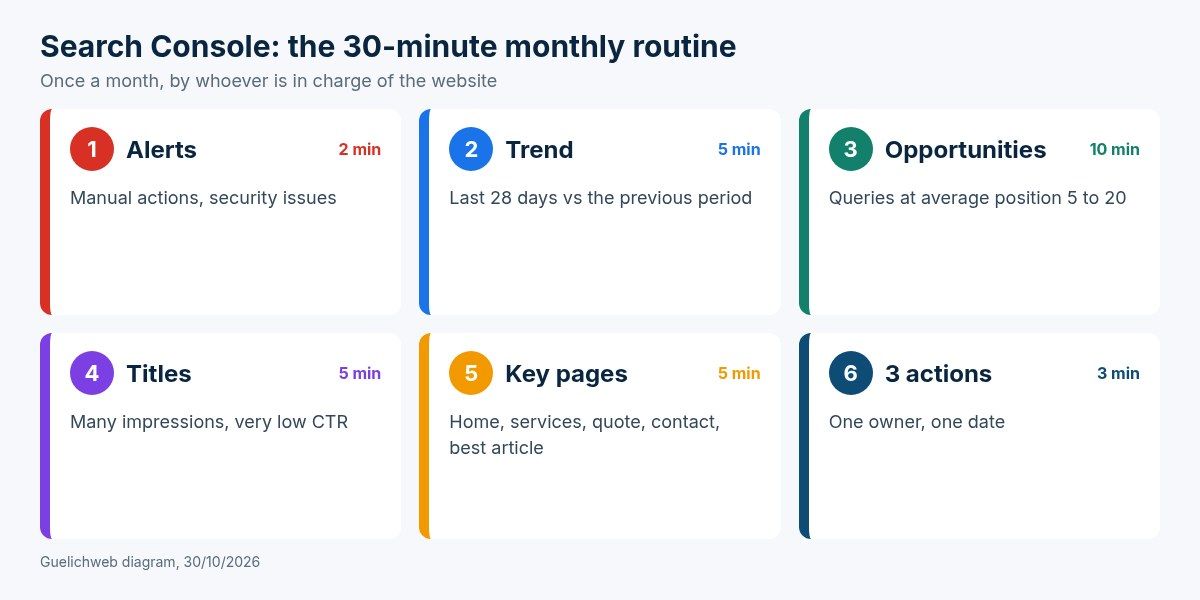
Guelichweb diagram: the monthly Search Console routine for an SME or NGO.
- Alerts (2 minutes). Open the Search Console overview, then Manual actions and Security issues. Nothing there? Move on.
- Trend (5 minutes). In Performance, compare the last 28 days with the previous period ("Date" button, "Compare" tab). A sudden drop in clicks deserves investigation; a 10% swing does not.
- Opportunities (10 minutes). In the Queries tab, sort by impressions and spot searches where your average position is between 5 and 20. These are your best targets: Google already finds you relevant, and you are not far from the top of page one. A dedicated page, a sharper title or an FAQ section is often enough. Our method for working with these terms is in SEO keywords.
- Titles nobody clicks (5 minutes). Still in Performance, look for pages with many impressions and a very low CTR. The title or description shown in Google does not make people want to click. Rewrite them to promise a concrete answer.
- Key page indexing (5 minutes). Inspect your 5 most important pages: home, services, pricing or quote request, contact, and your best article. All of them should be indexed.
- Three actions (3 minutes). Write three actions in a shared sheet, with an owner and a date. Not ten. Three that actually get done beat a twenty-page report nobody reads.
If nobody in-house can spare those 30 minutes, that is no reason to do nothing. The follow-up can be handed to a provider, as long as the organisation remains the owner of Search Console and receives the findings in writing.
Give your agency access without handing over the keys
Search Console has three levels (owners and users help):
- Owner: full control, including adding or removing other people. There are verified owners (who proved ownership, for example through DNS) and delegated owners (added by a verified owner).
- Full user: sees all data and can take most actions, but cannot manage access.
- Restricted user: view-only access to most data.
Our rule: the organisation keeps at least one verified owner on an account it controls. The provider gets full user access, or delegated owner status if the job really requires it. And when a contract ends, remove access that is no longer needed. Do that clean-up once a year, as you would for all your online accounts.
For an institution or a donor-funded NGO, this is also about accountability: website visibility figures sometimes end up in activity reports. It is better if they come from an account the organisation owns than from an export sent by a former consultant.
What Search Console will never do for you
Let's be clear, because the tool is sometimes oversold. Search Console is a dashboard, not an engine. It does not push your site up on its own. It does not write your service pages, make your site faster, earn you links, or replace a Google Business Profile for showing up on Google Maps.
Nor does it tell you everything. Performance data is rounded and filtered: some very rare queries are hidden to protect searchers' privacy. On a small site you will sometimes see few queries, or none at all. That is not a bug. It simply means the site still has little visibility, and that the work lies in content and local SEO.
Finally, Search Console only covers Google. Bing has its own tool, Bing Webmaster Tools (official overview), which can import sites already verified in Search Console. It is free, takes five minutes, and Bing also feeds some AI search assistants. We recommend adding it, but it is a bonus, not a priority.
The mistakes we see most often
- No Search Console at all. The most common case. The site exists, but nobody knows whether it is indexed.
- Search Console under the provider's name. The organisation has no access to its own data. See above.
- Only the www (or non-www) version is tracked. With a URL-prefix property, half of the data can be missing. A Domain property solves it.
- Panicking over non-indexed pages. Hundreds of non-indexed addresses on a WordPress site are often archive, tag or attachment pages nobody wants on Google anyway.
- Requesting indexing every day. It speeds up nothing. Improve the page, link to it from other pages, and let Google come back.
- Never opening the Queries tab. Yet it is the best source of content ideas you will ever have, and it is free.
- Forgetting Search Console after a redesign. A poorly prepared redesign makes clicks drop, and Search Console is the tool that shows it first. Our website redesign guide covers the redirects to plan.
Example: how to read a first month of data
Let's take a fictional case to illustrate the method: a small private school in Cotonou has connected its website to Search Console. After one month, the report shows a few hundred impressions and a handful of clicks.
The first reaction would be discouragement. The right reading is different. In the Queries tab, searches like "primary school enrolment Cotonou" and "school fees" appear with an average position around 15. The school has no page about enrolment or fees: Google only shows it because those words appear in passing in a news post. The Countries filter shows that part of the impressions comes from France, probably parents living abroad.
The month's three actions are obvious: create a clear "Enrolment" page with the steps and documents required, add a section on fees (or on how to request the fee schedule), and use URL Inspection to confirm the new page is indexed. Next month, check whether those queries have gained positions. That is what using Search Console means: not staring at charts, but turning what people search for into pages that answer them.
Going further
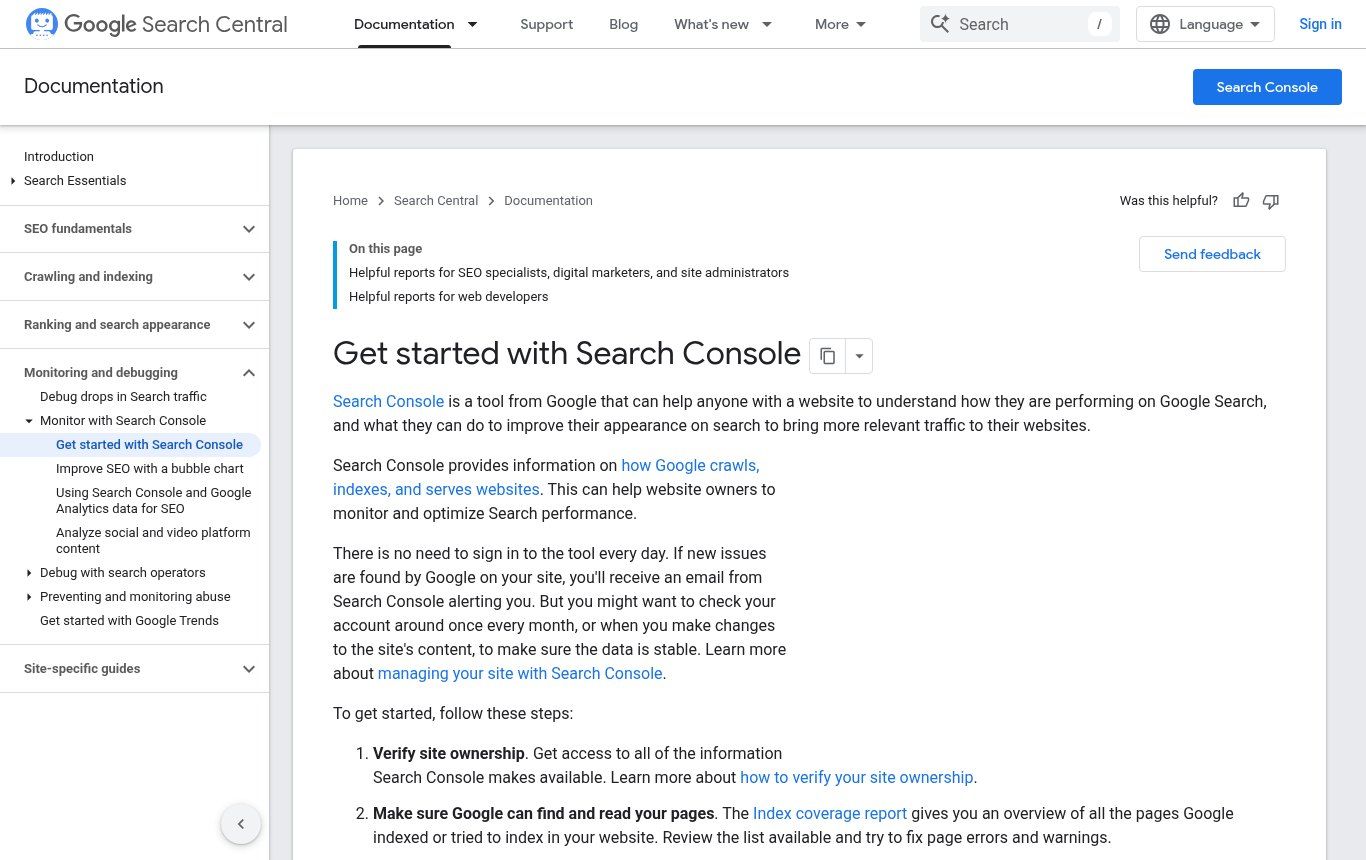
Source: developers.google.com/search/docs/monitor-debug/search-console-start (public documentation, screenshot taken on 30/10/2026).
Google's official documentation is good and regularly updated: start with how to use Search Console, then the page indexing report help. If you want a full check-up of your site, our free website audit checklist makes Search Console its first step.
Frequently asked questions about Google Search Console
Is Google Search Console free?
Yes, completely. All you need is a Google account and a way to prove the site is yours (DNS, file or tag). There is no paid version.
Do I need technical skills to use it?
Not to read the performance reports. For DNS verification and fixing some indexing errors, a little technical help is useful. Once set up, the monthly routine above is well within reach of a communications officer.
How long before I see data?
Usually a few days after verification. On a very new or barely visible site, numbers stay low for several weeks: that reflects your real visibility, not a problem with the tool.
Why doesn't my site show up in Search Console?
First check you are looking at the right property (Domain, or the right version of the address). Then run URL Inspection on your home page: it will tell you whether Google knows it, and if not, why.
Can Search Console improve my rankings?
Not directly. It shows you where to act. It is the improvements you make to the site (content, internal links, speed, technical fixes) that move rankings.
My site runs on Wix or WordPress: does it work?
Yes. Search Console works with any public website, whatever the technology. WordPress and Wix even offer simplified ways to handle verification and the sitemap.
Should I also install Google Analytics?
It is recommended, because the two tools complement each other: Search Console for what happens on Google, Analytics for what happens on your site. But start with Search Console if you have to choose.
Need help setting up or reading your Search Console?
If your site is not connected to Search Console yet, if you do not know who holds the access, or if you have data but no time to act on it, we can review it with you: domain ownership, a clean setup, a first reading of the reports and a list of priority actions.
Contact us: we reply within 24 business hours. As with our offers, the approach is the same: a diagnosis first, then a detailed quote, with no commitment.